
















If you run more than one website, you do not need a separate login for each of them. Add every site to the same GNRCounter account, switch between them with one click and see all of them side by side on the All my sites page. This guide covers three screens: the Sites page, the Add a new site form and the All my sites report.
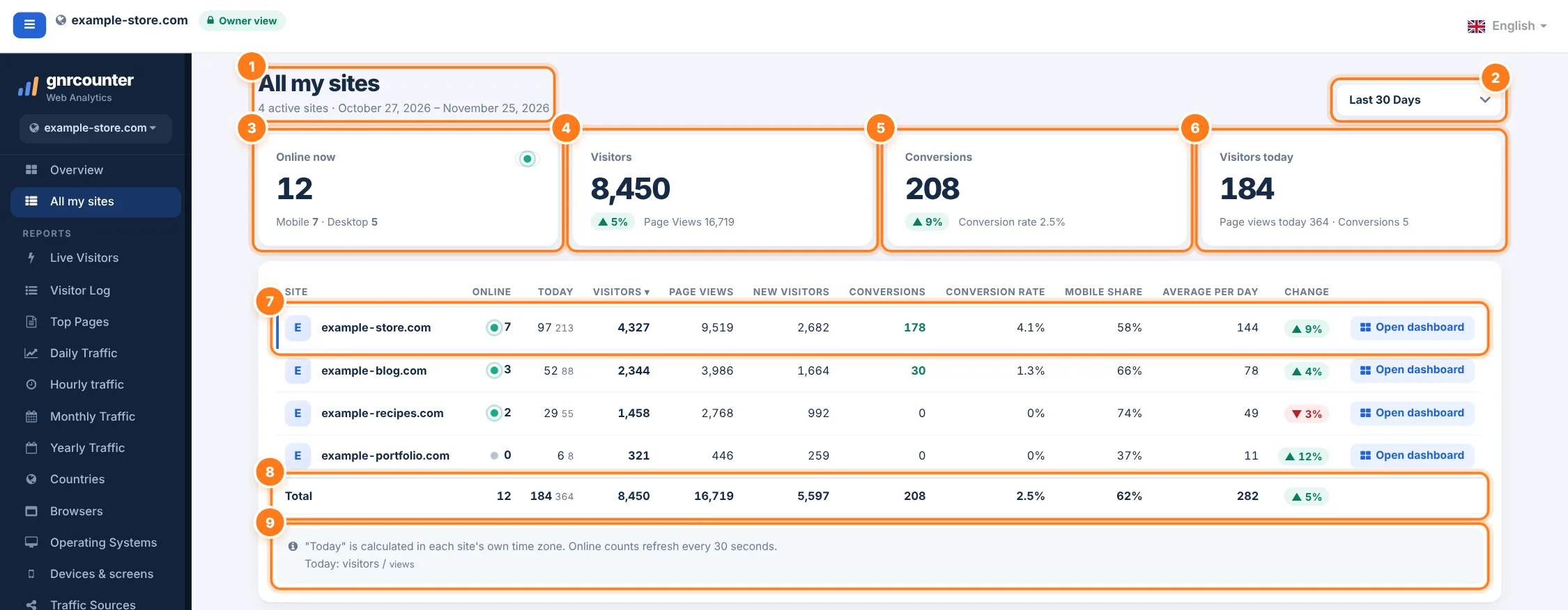
The All my sites report with its areas numbered. All figures in this guide are sample data from fictional websites.
One account, many websites
Everything below is available when you sign in with your e-mail address and password.
Add a new site
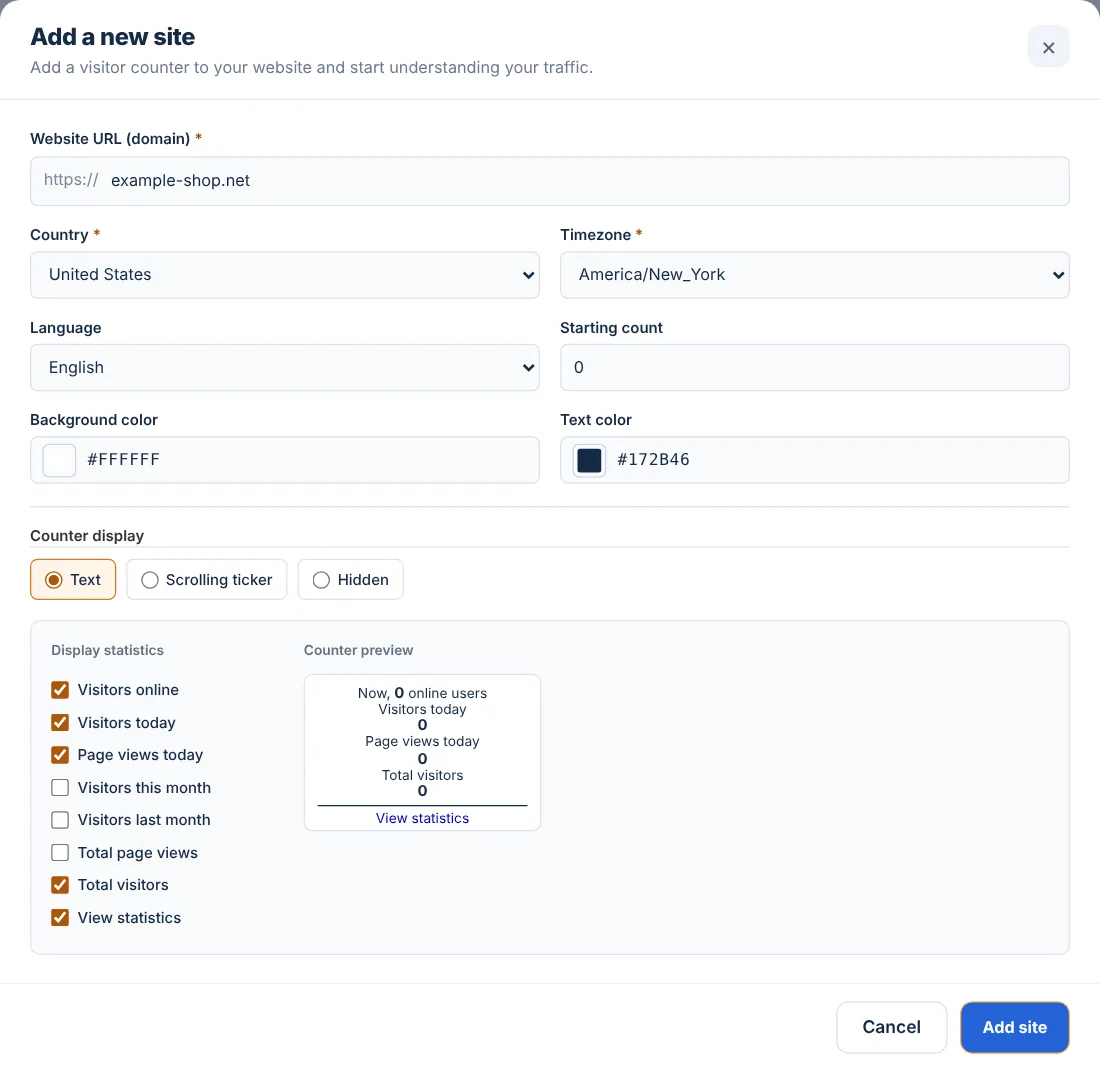
Go to Settings → Sites in the left menu and click Add a new site. You can also use Add a new site in the site list at the top of the menu. The same form opens in both cases.
- Website URL (domain)Type the address of the new website, for example example-shop.net. You do not need to type https://.
- Country and TimezoneChoose the country of the site. The time zone list then shows the zones of that country. Reports and the word "today" follow this time zone.
- Language and Starting countThe language of the visible counter. If you move from another counter, enter its total as the starting count; otherwise leave it at 0.
- Counter displayText or Scrolling ticker shows a counter on your pages with the colors and statistics you choose. Hidden counts visits without showing anything.
- Add siteClick the button. The new site appears in the list and its counter code opens right away. Copy it and paste it into the new website.
Switch between your sites
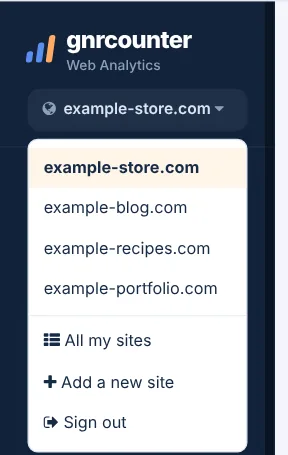
The name of the open site is shown at the top of the left menu. Click it to open the list of your sites.
Pick a site and its Overview opens. Every report you open after that shows this site, until you switch again.
At the bottom of the list you find All my sites, Add a new site and Sign out.
The Sites page
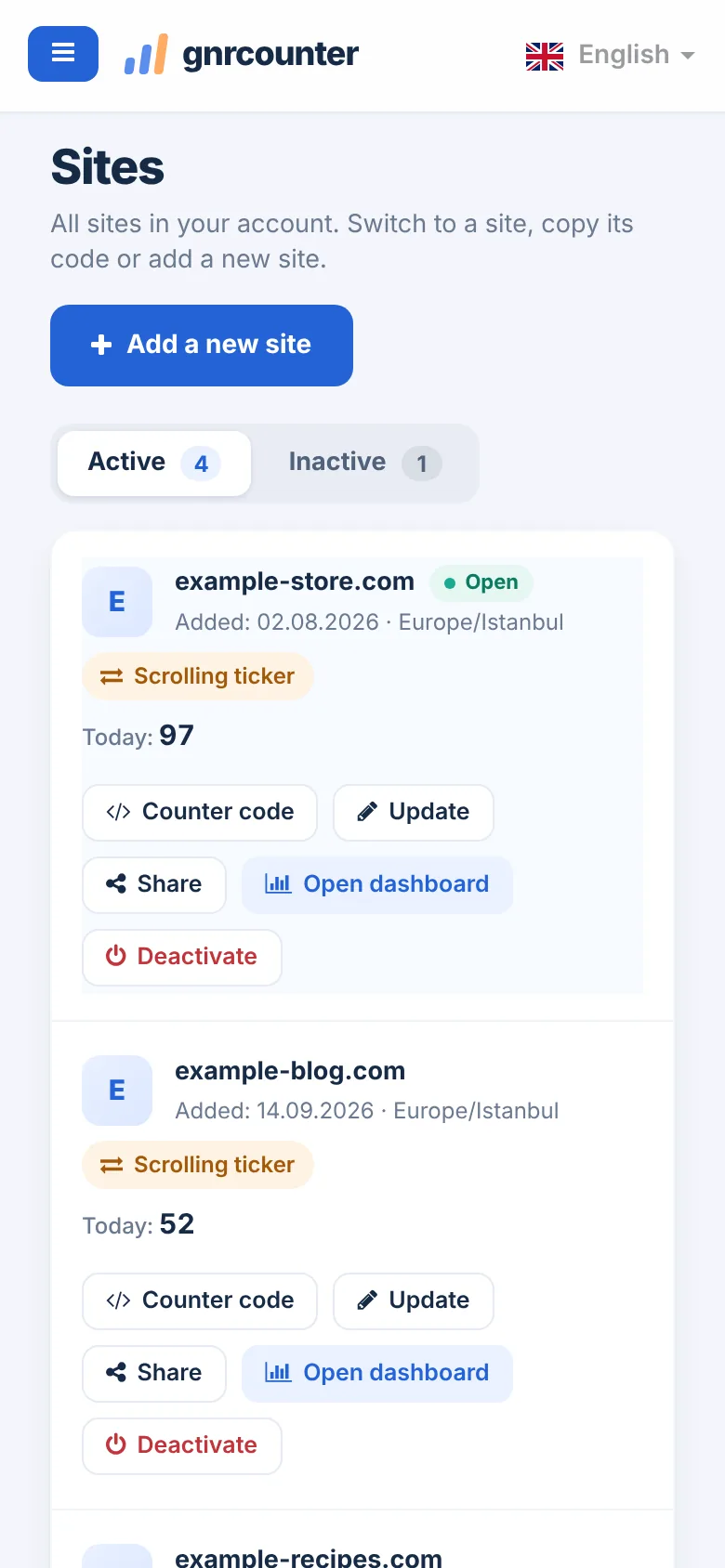
Open Settings → Sites. The numbers below match the markers in the picture.
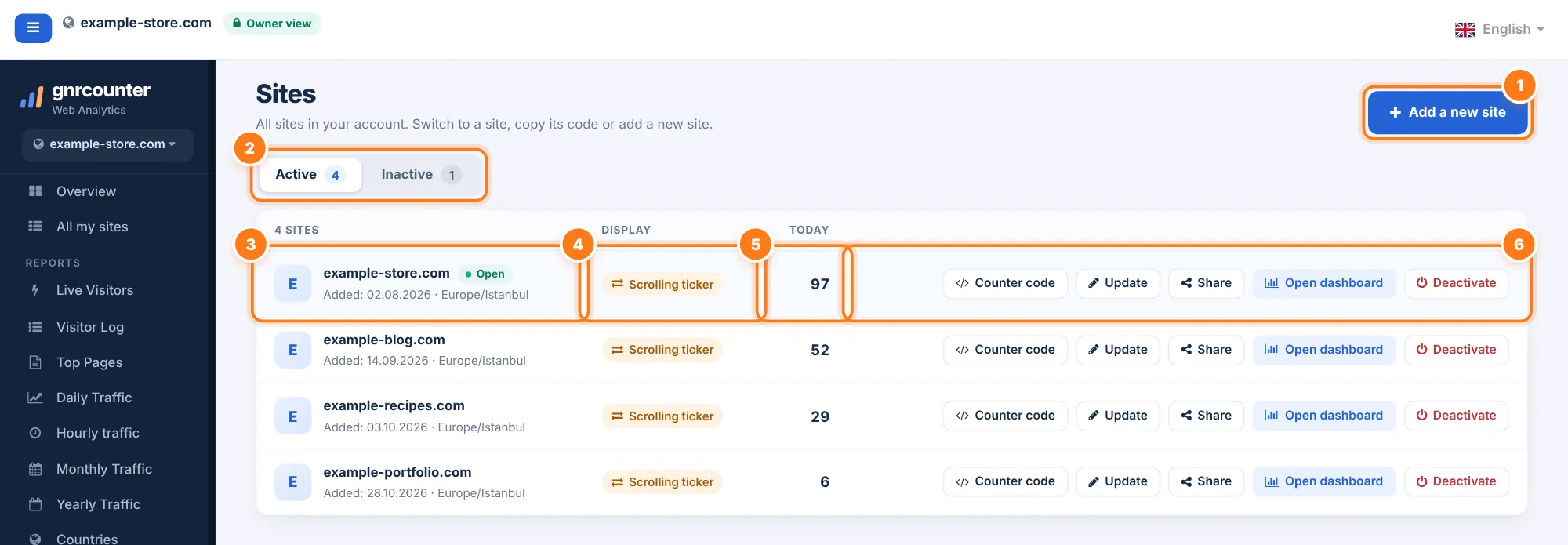
- Add a new siteOpens the form described above.
- Active / InactiveActive sites count visits. Sites you have deactivated wait in the Inactive tab with all their statistics.
- SiteThe address, the date you added it and its time zone. The site that is open in the dashboard is marked with a green label.
- DisplayHow the counter appears on the website: Text, Scrolling ticker or Hidden.
- TodayVisitors of the site today, in the site's own time zone.
- ActionsCounter code, Update, Share, Open dashboard and Deactivate. They are explained in the next section.
What each button does

The All my sites report
Open All my sites in the left menu, right under Overview, or from the site list at the top of the menu. The numbers match the markers in the first picture of this guide.
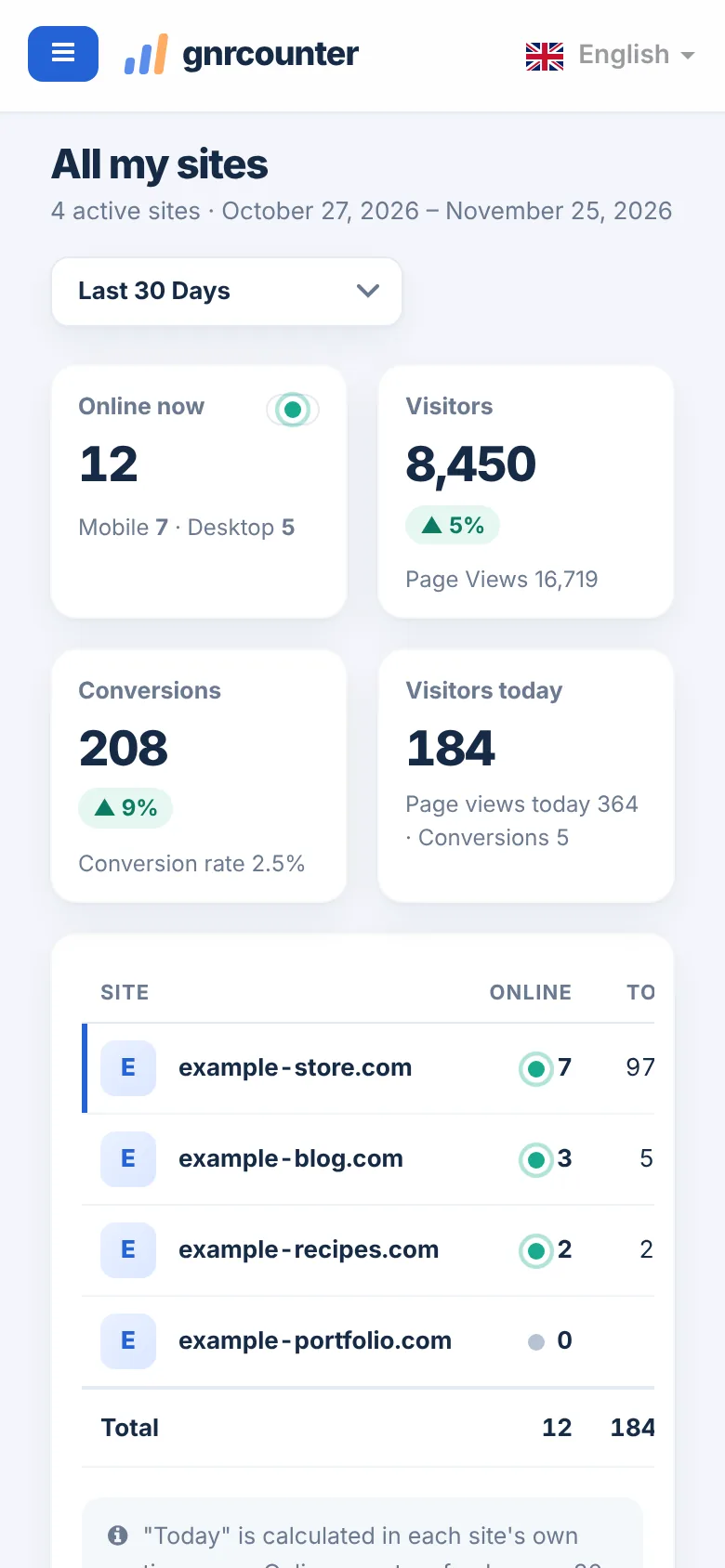
- HeaderThe number of active sites and the first and last day of the period.
- Date rangeFrom today up to the last 12 months, or your own start and end dates. The same range is used in your other reports.
- Online nowPeople on all your sites right now, split into mobile and desktop. It refreshes every 30 seconds without reloading the page.
- VisitorsVisitors of all sites in the period, the change against the previous period of the same length, and page views.
- ConversionsConversions of all sites and the overall conversion rate. Only sites with goals add conversions.
- Visitors todayToday's visitors, page views and conversions of all sites together.
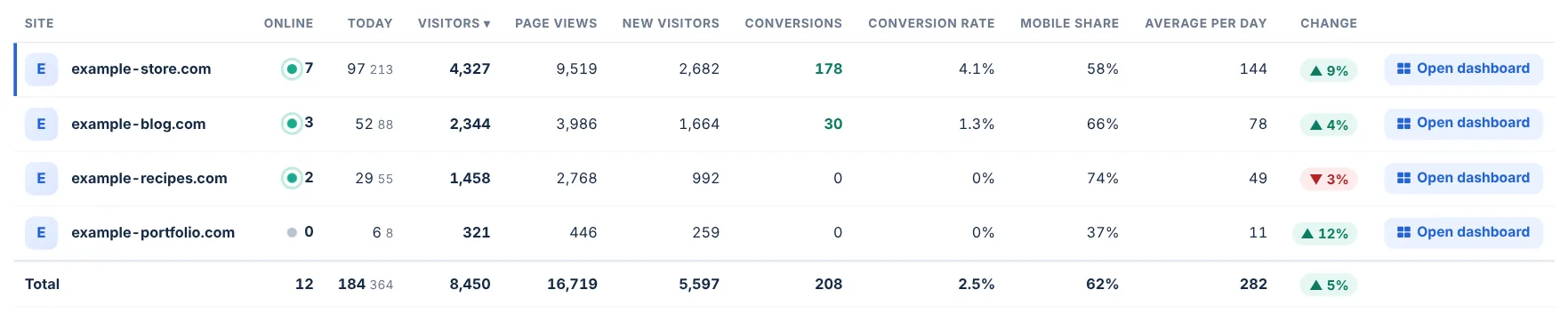
- Site rowsOne row per active site, sorted by visitors. Click a column title to sort by it, or click a site to open its dashboard.
- TotalThe sum of all sites. Percentages in this row are calculated from the totals.
- NoteA reminder that today is counted in each site's own time zone and that online numbers refresh on their own.
The columns of the table
Multiple sites at a glance
Zoom in on the details

Reading the numbers correctly
- Totals are sums. A person who visits two of your sites is counted once on each site, so the total of Visitors can be higher than the number of different people.
- "Today" depends on the time zone. If your sites use different time zones, their days start at different hours. A site in New York starts its day later than a site in Istanbul.
- Change compares the chosen period with the period of the same length right before it. Last 30 Days is compared with the 30 days before.
- Conversions appear for sites that have goals. New conversions can take up to about five minutes to show here.
On your phone
On a small screen the summary cards come first and the table follows. Swipe the table sideways to see every column.
On the Sites page each site becomes a card with its buttons below the name, so you can copy a code or switch sites with your thumb.
Frequently asked questions
Do I need a new account for each website?
No. Add all your websites to the same account with Add a new site. Each site gets its own counter code and its own reports.
Where do I find the code of a site again?
Go to Settings → Sites and click Counter code next to the site.
I changed the colors of my counter. Do I have to replace the code?
No. Changes you save with Update apply to the code that is already on your website.
Why is a site missing from All my sites?
Only active sites are listed. Check the Inactive tab on the Sites page.
What happens when I deactivate a site?
The counter stops counting and is no longer shown on that website. Past statistics are kept, and you can activate the site again at any time.
Can I show my statistics to someone without giving them my password?
Yes. Use Share and send the link. They can see the reports but cannot change anything, and IP addresses and referring addresses are hidden.
I have a counter from before accounts existed. Can I see it here?
That counter keeps working with its own link. It is not moved into your account automatically. To track the website in your account, add it with Add a new site and use the new code.
Why don't the totals match the number of people?
The table adds up the sites. Someone who visits two of your sites is counted on both.