















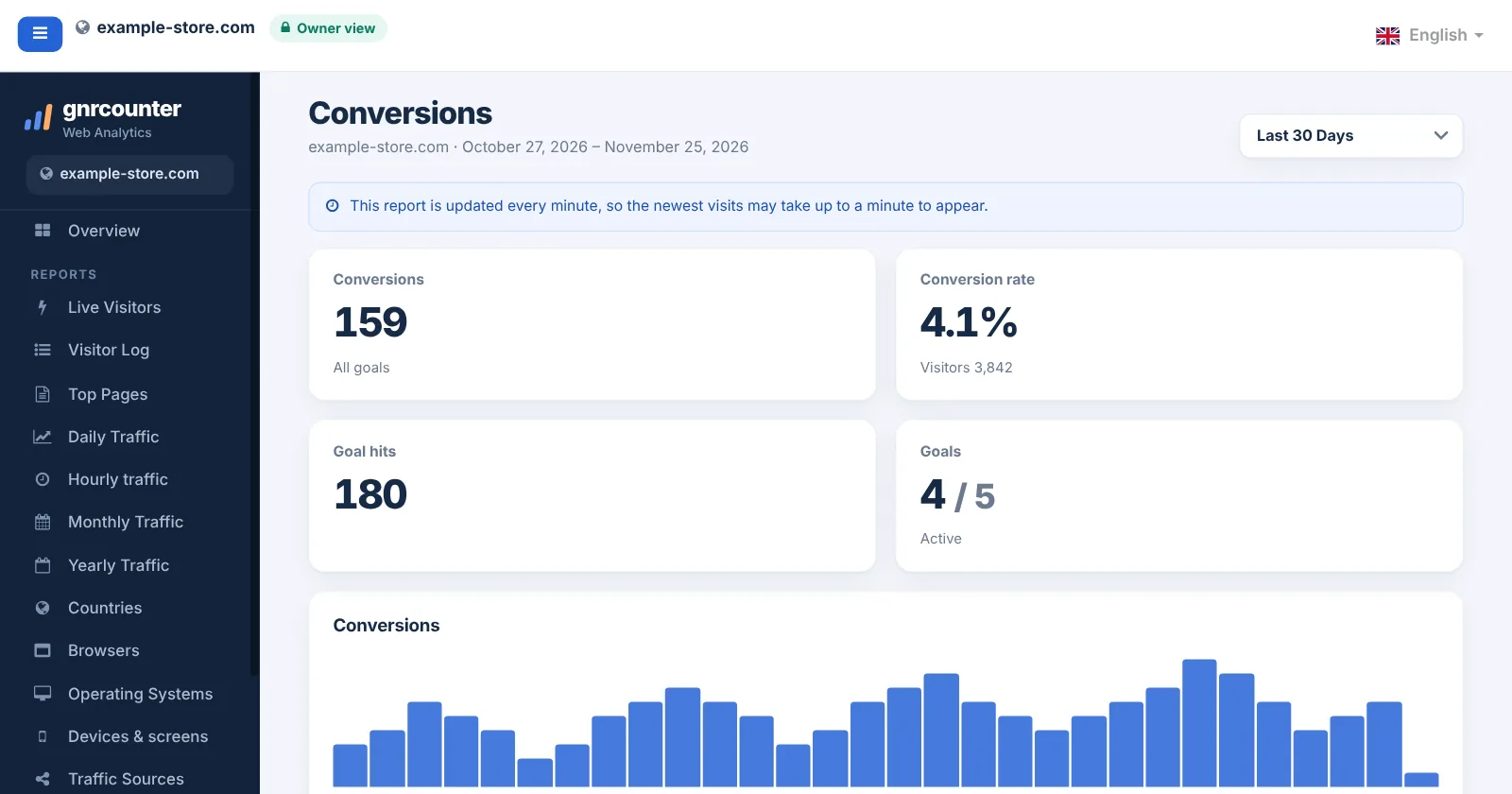
Visitors are only half the story. Conversion tracking shows how many of them did what you wanted: placed an order, filled in a form, called you or wrote on WhatsApp. You add a goal once, and GNRCounter counts it for you. No extra code is needed: the counter code already on your site is enough.
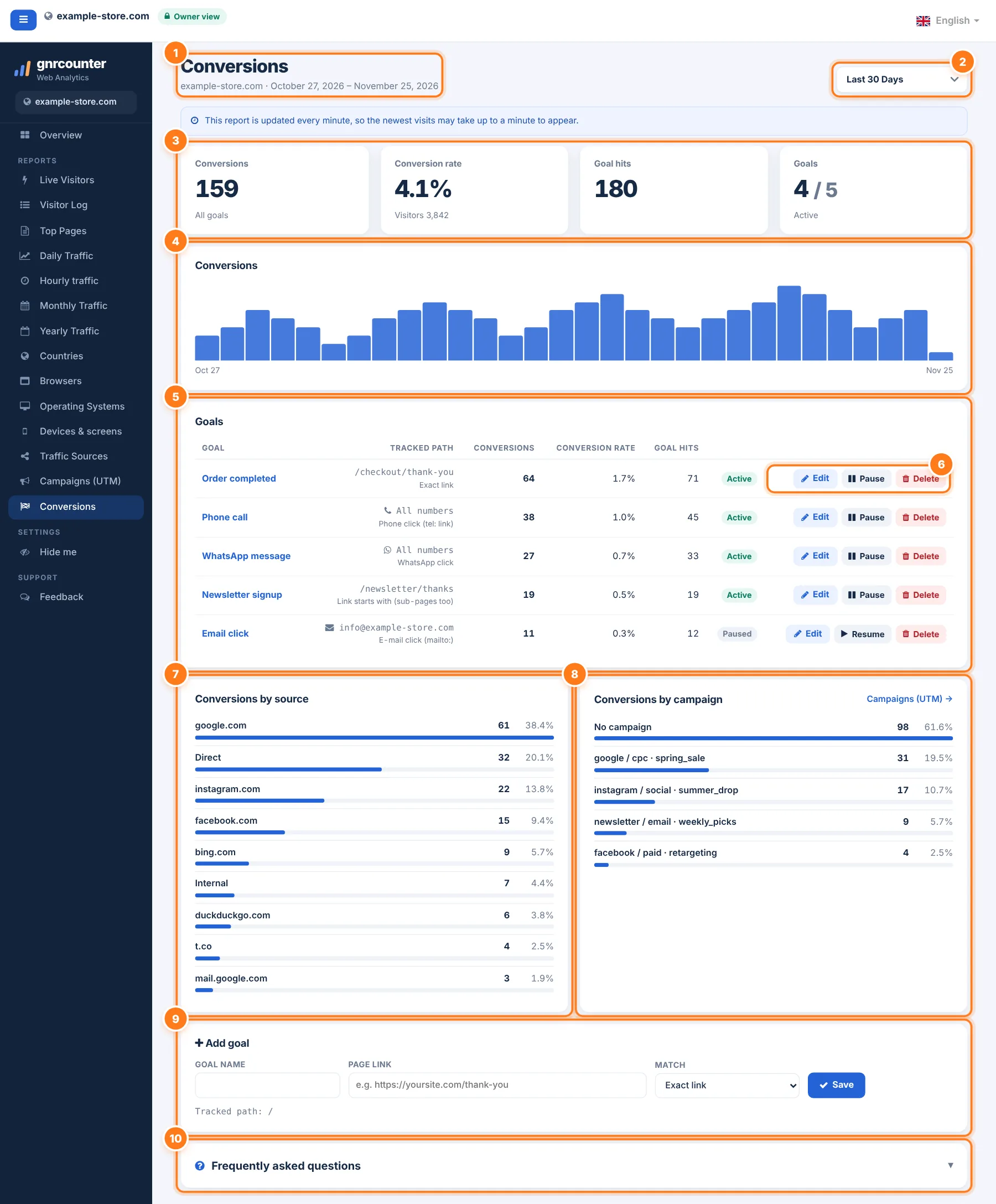
The Conversions report with its areas numbered. All figures in this guide are sample data from a fictional website.
A tour in ten steps
Open Conversions in the left menu. The numbers below match the markers in the picture.
- Header and periodThe report title, your site name and the first and last day of the range.
- Date rangeChoose a ready range, up to the last 12 months, or pick your own start and end dates.
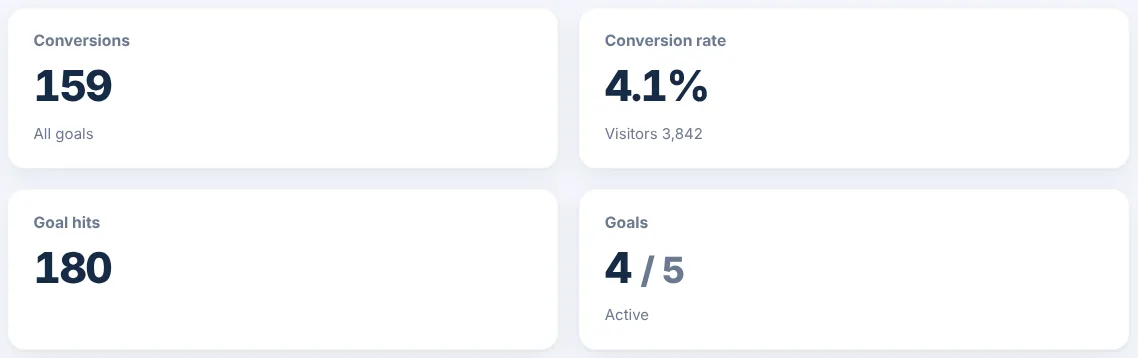
- Four summary cardsConversions, Conversion rate, Goal hits and the number of active goals.
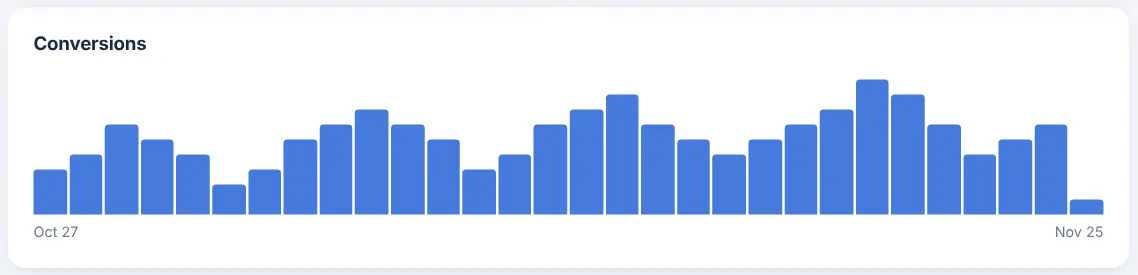
- Daily chartConversions per day. Choose a goal in the table to see only that goal.
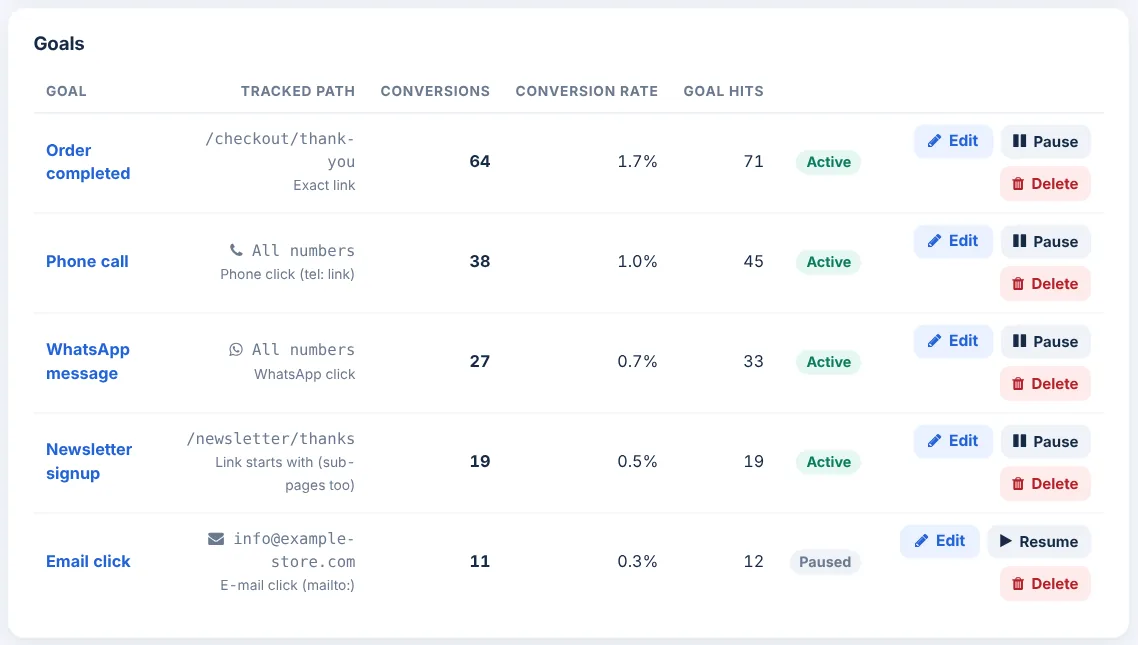
- Goals tableEvery goal with its tracked path or click type, conversions, conversion rate and hits. Click a goal name to filter the whole page.
- Goal buttonsEdit, Pause or Delete a goal. A paused goal stops counting.
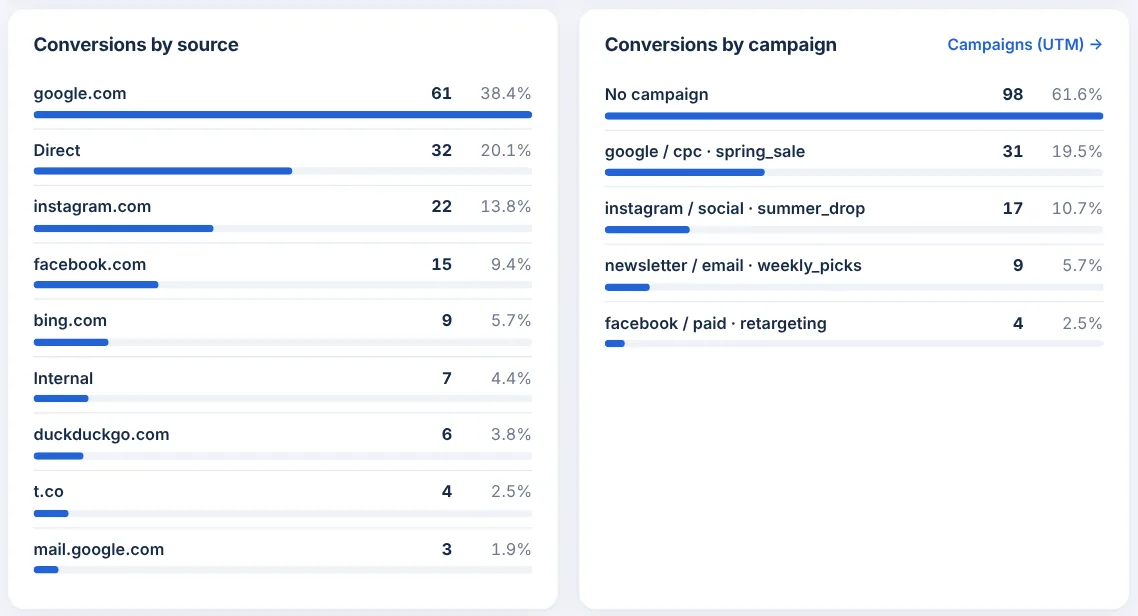
- Conversions by sourceWhere converting visitors came from: a search engine, a social network, another site, Direct or Internal.
- Conversions by campaignConversions of visits that arrived with UTM tags. Visits without tags are shown as No campaign.
- Add goalName the goal, enter the page link or choose a click type, and press Save.
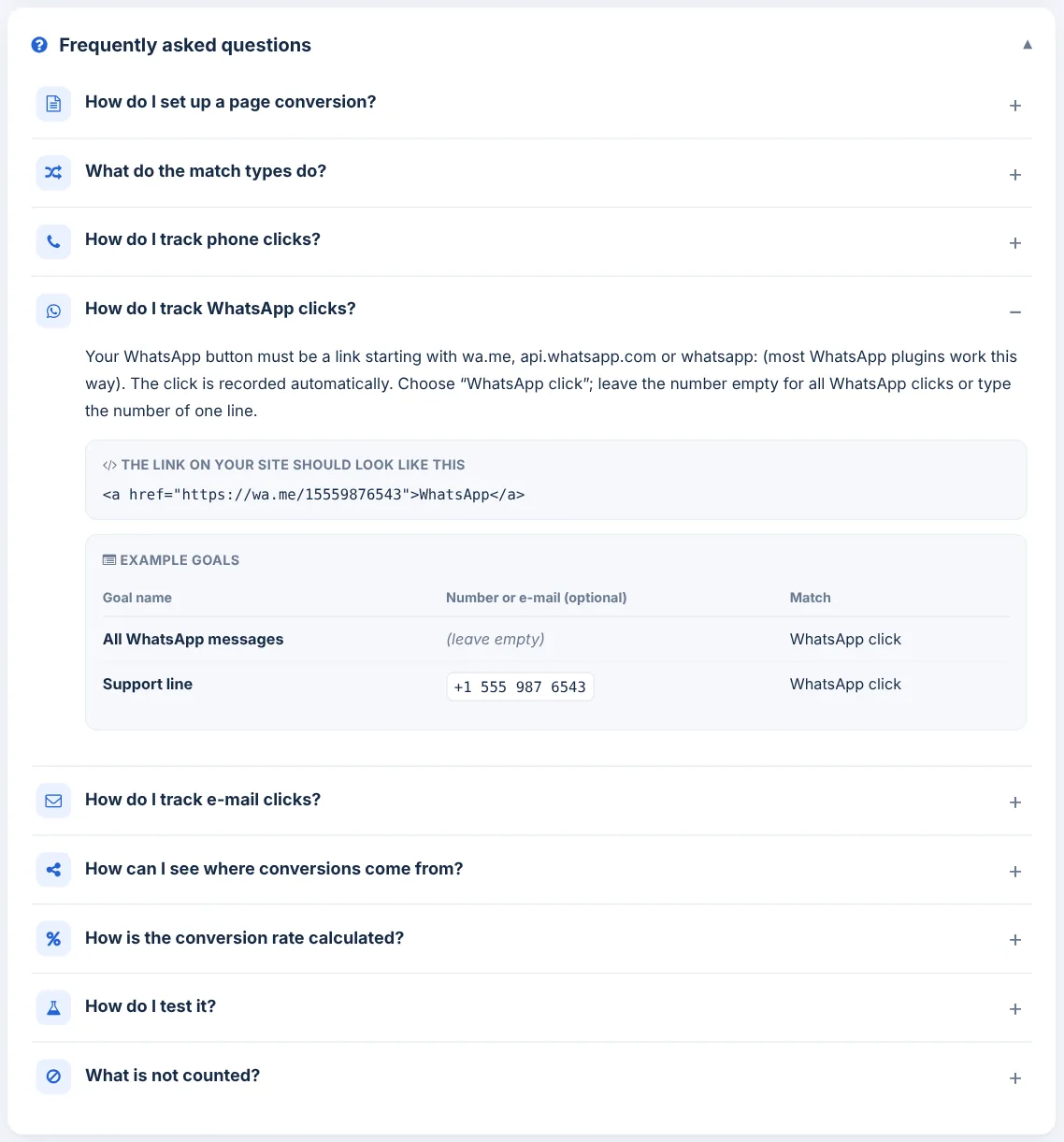
- Frequently asked questionsShort answers with example goals, right inside the report. Click to open.
Two kinds of goals
A goal is something a visitor does that matters to you. GNRCounter can count two kinds.
Set up a page goal
Most shops and forms send visitors to a confirmation page when they finish. That page is your goal.
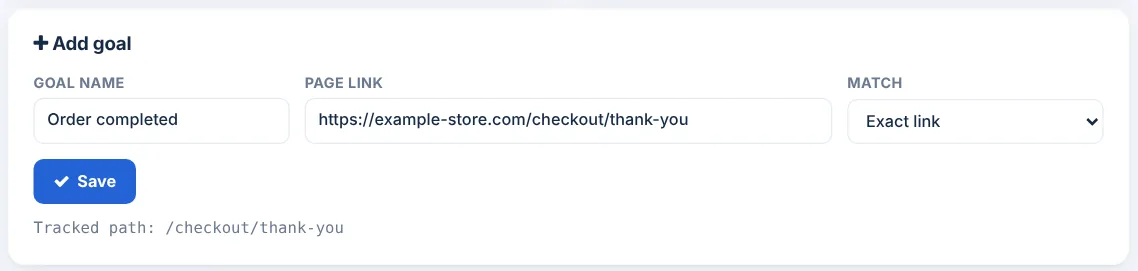
- Find the confirmation pageComplete an order or a form once yourself and copy the address of the page you land on, for example https://example-store.com/checkout/thank-you.
- Name the goalIn Add goal, type a name you will recognise, such as Order completed.
- Paste the link and choose a matchPaste the address into Page link and keep Exact link. Below the form, Tracked path shows exactly what will be counted.
- SavePress Save. Visits to that page are counted from now on, and visits from yesterday are included too.
These addresses are all counted as the same tracked path
https://example-store.com/checkout/thank-you        →  /checkout/thank-you
https://www.example-store.com/Checkout/Thank-You/   →  /checkout/thank-you
https://example-store.com/checkout/thank-you?id=42  →  /checkout/thank-you
Phone, WhatsApp and e-mail clicks
Not every customer fills in a form. Many call or send a message. GNRCounter notices clicks on phone, WhatsApp and e-mail links on any page that carries your counter code.
- Check your linksThe button or text must be a real link: tel: for phones, wa.me, api.whatsapp.com or whatsapp: for WhatsApp, and mailto: for e-mail. Most themes and WhatsApp plugins already work this way.
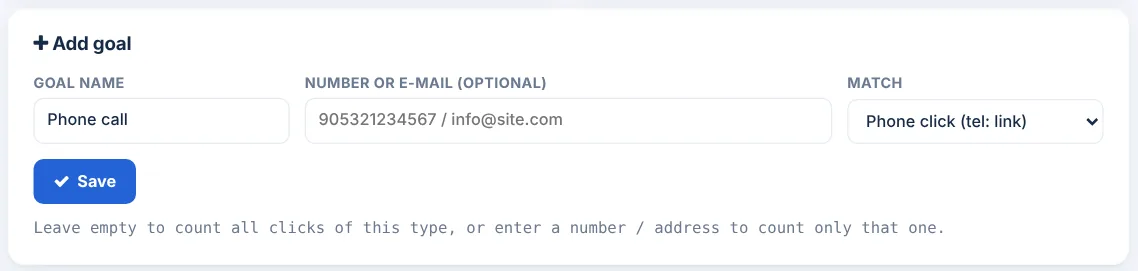
- Add a goalName it, for example Phone call, and choose Phone click (tel: link), WhatsApp click or E-mail click (mailto:) in Match.
- All numbers or oneLeave Number or e-mail (optional) empty to count every click of that type, or enter one number or address to count only that one.
- Save and testPress Save, open your site in a private window and click the link. The conversion appears within about a minute.
Links that are counted look like this
<a href="tel:+15550102030">+1 555 010 2030</a>
<a href="https://wa.me/15550102030">WhatsApp</a>
<a href="mailto:[email protected]">[email protected]</a>Six match types
Choose how a goal is matched. You can change it later with Edit.
Conversions at a glance
Conversions in your other reports
Once you have a goal, conversions also appear in the reports you already use, so you can see which countries, devices, sources and pages bring results, not just visits.
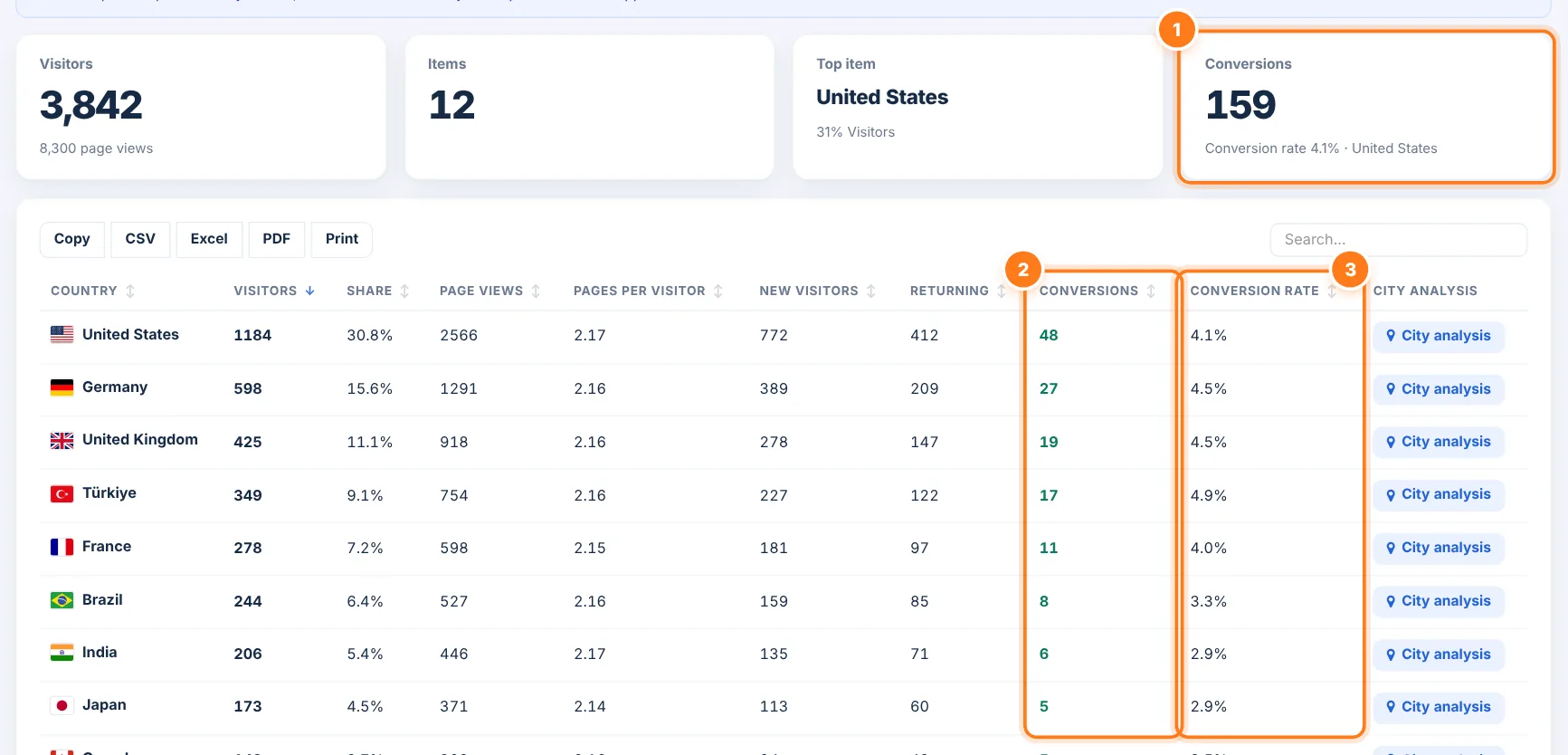
The Countries report with the conversion card and columns marked.
Zoom in on the details
Reading the numbers correctly
- A conversion is one visit that reached a goal on a given day. If the same person orders twice in a day, it counts as one conversion and two goal hits.
- Conversion rate is conversions divided by visitors. With All goals selected, a visitor who reaches two different goals is counted for both.
- The source and campaign come from the first page of the visit on that day.
- Known bots are not counted, and your own visits are skipped when Hide me is on.
- Times and days follow your counter's time zone.
Test your goal in two minutes
- Open your site in a private window or another browser. If Hide me is on in your normal browser, your own clicks are not counted.
- Make sure the page carries your counter code. Click goals only work where the counter runs.
- Visit the goal page or click the phone, WhatsApp or e-mail link.
- Open Conversions with Today selected. The conversion appears within about a minute.
- Nothing yet? Open the goal with Edit and compare Tracked path with the address in your browser.
Conversions on your phone
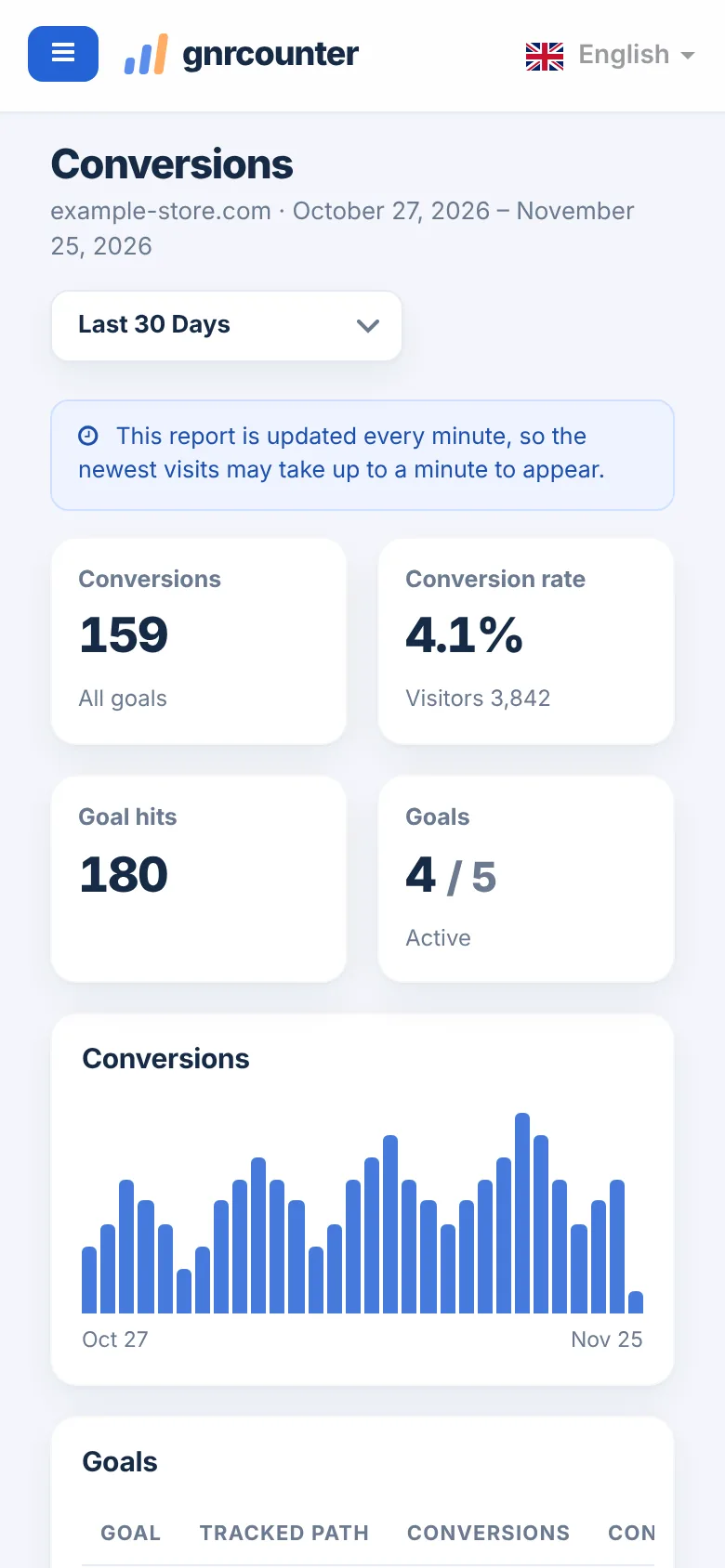
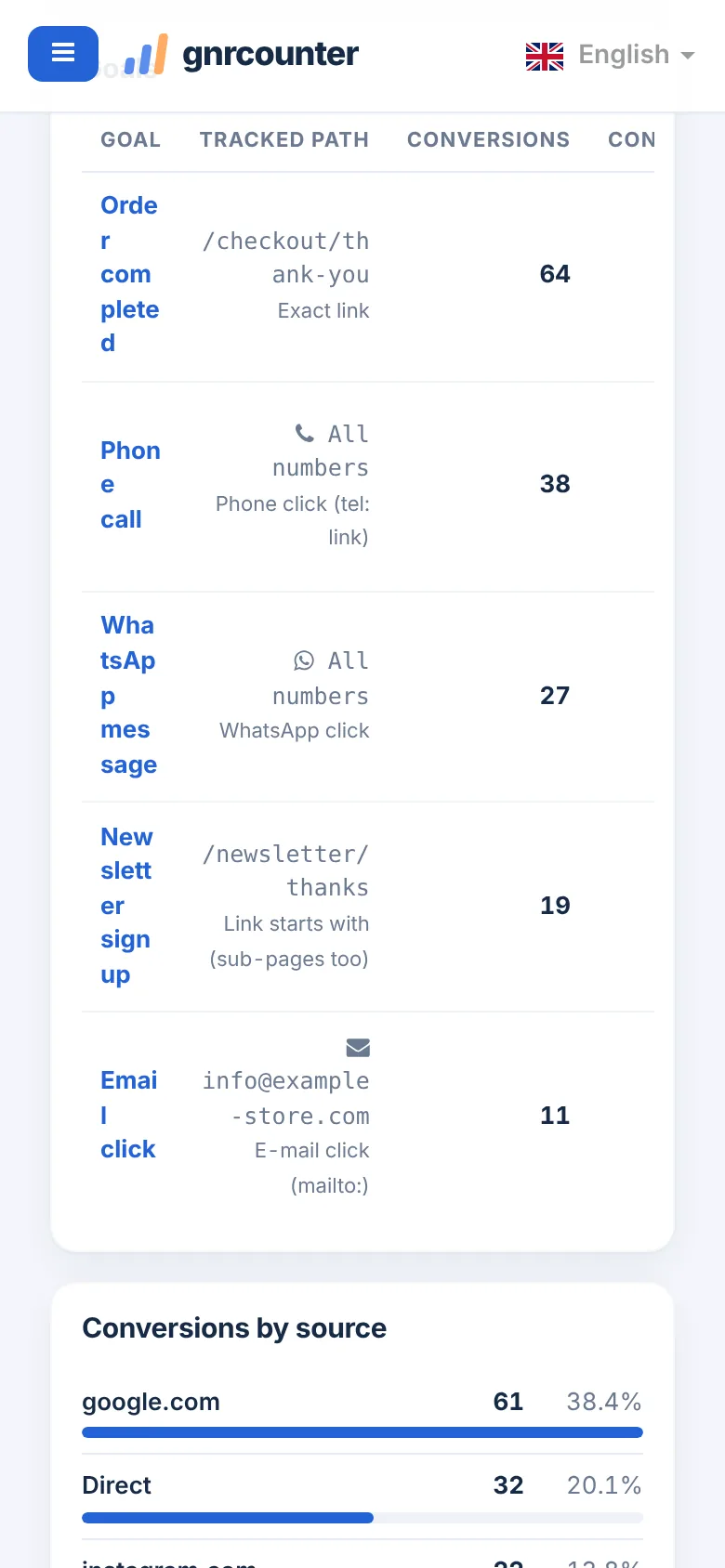
On a small screen the summary cards come first, followed by the chart, the goals table and the source and campaign lists. Swipe the goals table sideways to see every column and the buttons.
Tip: tap a goal name to see the chart and sources of that goal only.
Common questions
Do I need to add new code to my site?
No. Page goals and click goals both work with the counter code you already use. Click goals need the code on the page where the link is.
Why is my conversion not showing?
Check that you are not using Hide me, that the page has your counter code and that the tracked path matches the page address. New conversions appear within about a minute.
Can I count a WhatsApp number that differs from my phone number?
Yes. Add one goal with Phone click (tel: link) and another with WhatsApp click, and enter each number separately or leave them empty to count all.
Does a repeated click count again?
It counts as another goal hit, but not as another conversion on the same day.
What happens when I pause or delete a goal?
A paused goal stops counting and can be resumed. A deleted goal and its figures are removed from the reports.
Can visitors of my public stats page see my goals?
They can see the report, but only you, signed in as the owner, can add, edit, pause or delete goals.