















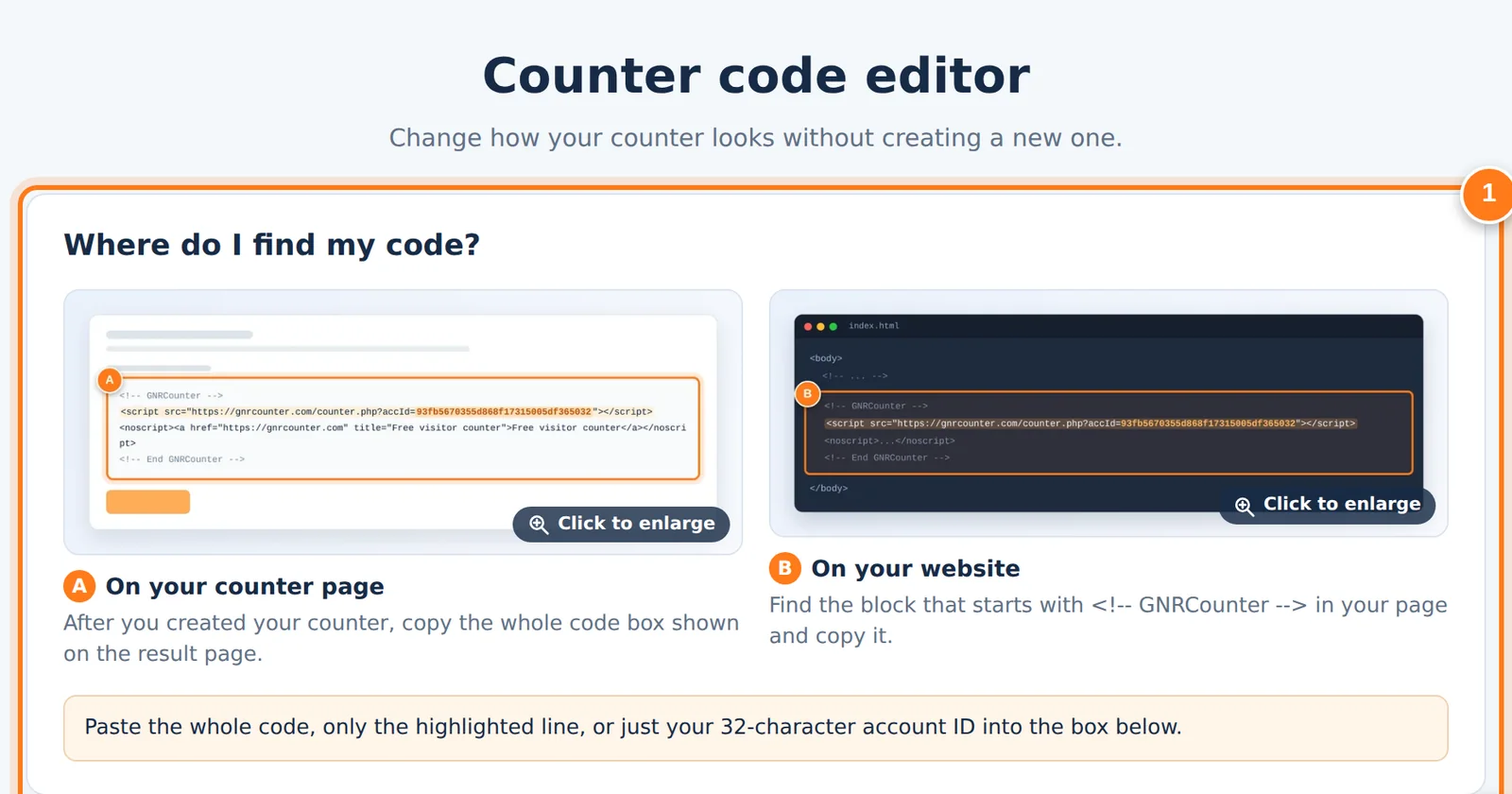
You do not need to create a new counter to change how yours looks. The code editor takes the code you already use, lets you change the display, position, width, colors, statistics and language, and gives you an updated code to place on your website. It works in your browser, and your counting is not affected.
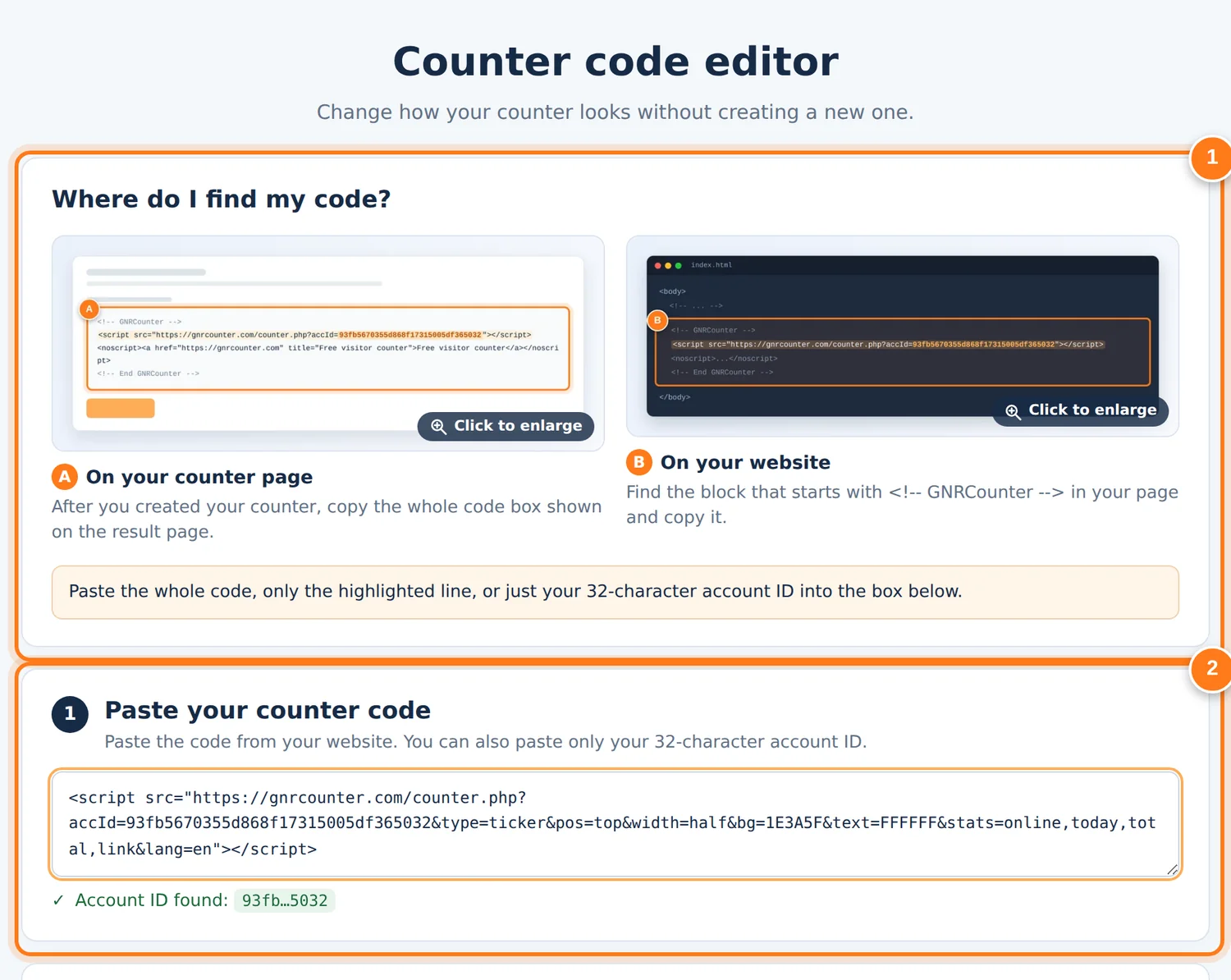
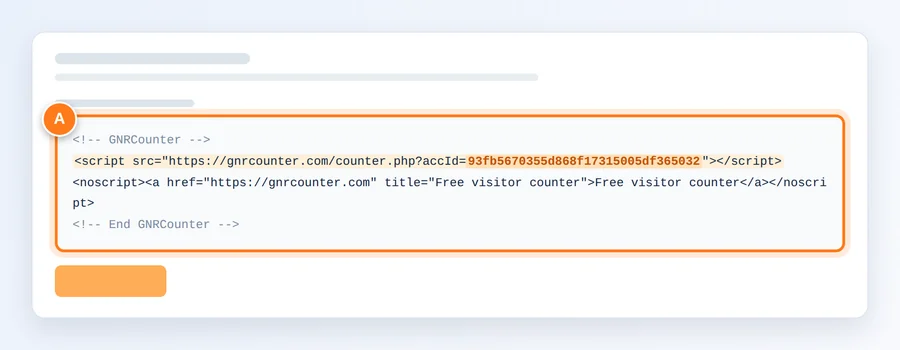
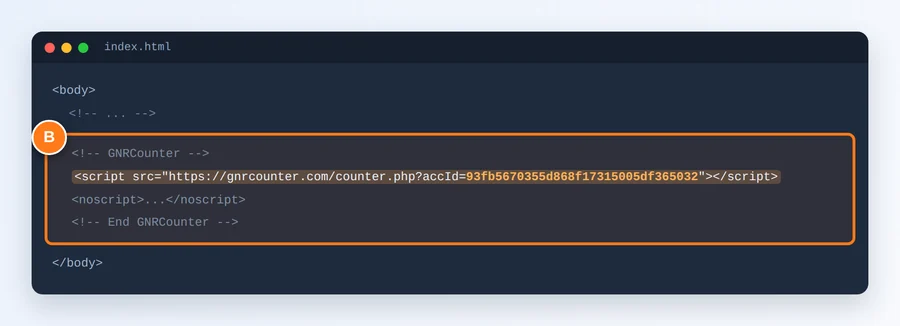
The first two areas of the code editor: where to find your code, and where to paste it.
Five steps
The editor is a single page. You can reach it from the link on your counter’s result page or from the Counter code editor page.
- Open the code editorUse the link on your counter’s result page, or open the Counter code editor page.
- Paste your codePaste your whole counter code, only the highlighted script line, or just your 32-character account ID. The editor shows the account ID it found.
- Choose your optionsPick Text, Scrolling ticker or Hidden, then position, width, colors, statistics and language. The preview changes as you choose.
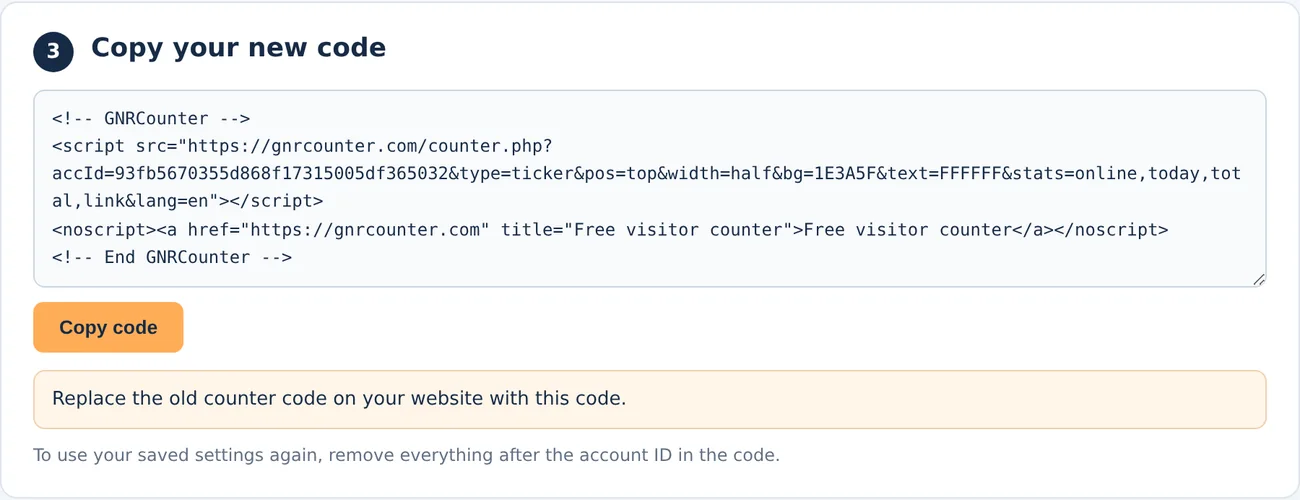
- Copy your new codeThe code at the bottom updates with every change. Press Copy code.
- Replace the old codeReplace the old counter code on your website, or in your shared template, with the new one.
Three displays
Switch the tabs to see each display with its options and preview.
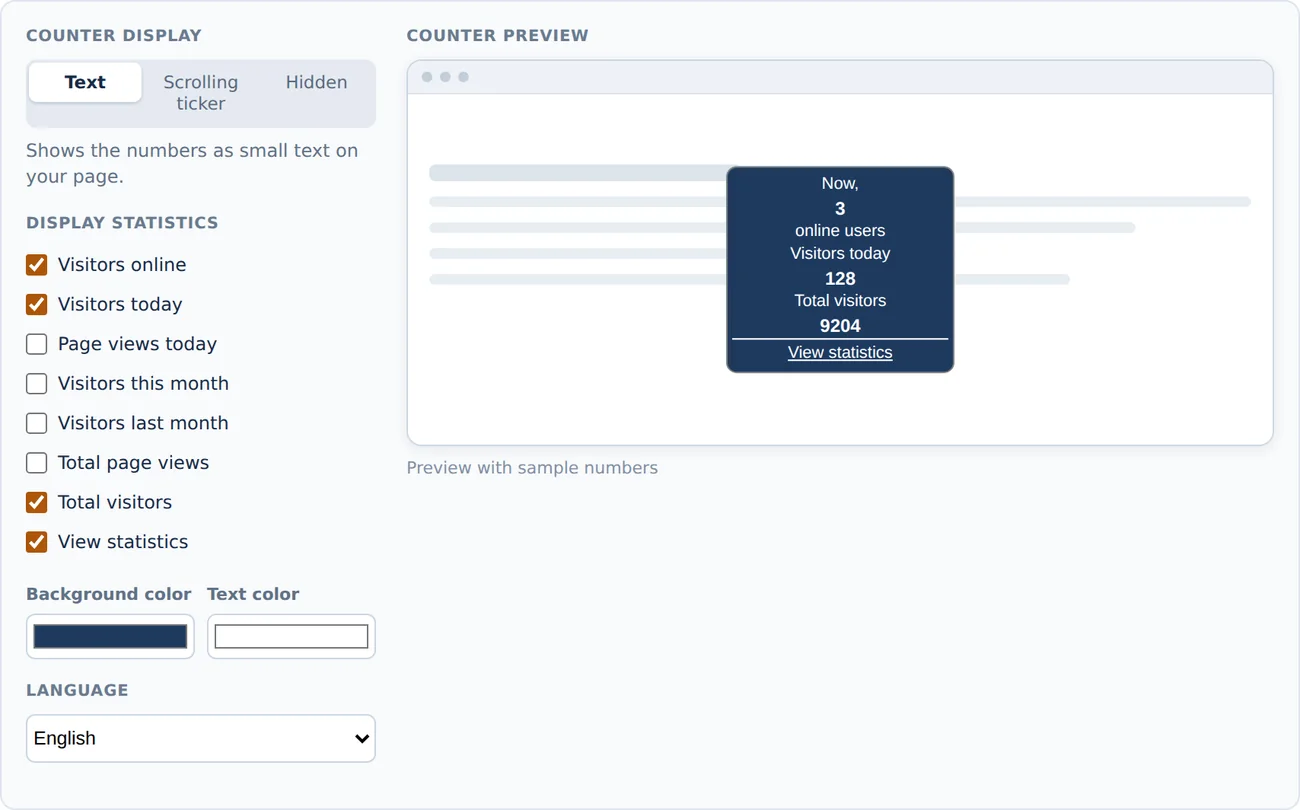
Text shows the numbers you choose as small text on your page, right where the code sits.
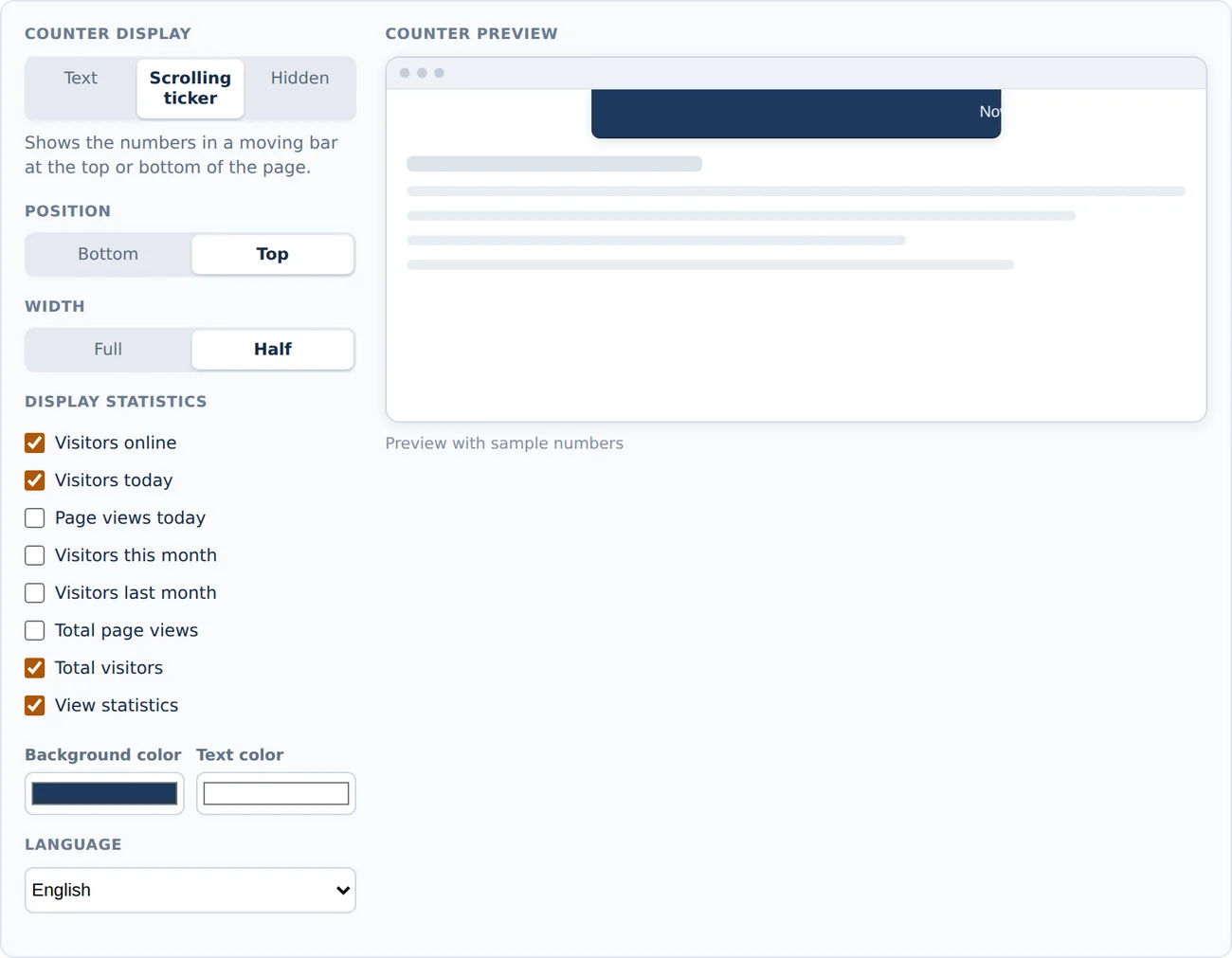
Scrolling ticker shows the numbers in a moving bar at the top or bottom of the page. Choose Bottom or Top and Full or Half width. Half width is centered, and on small screens it becomes full width.
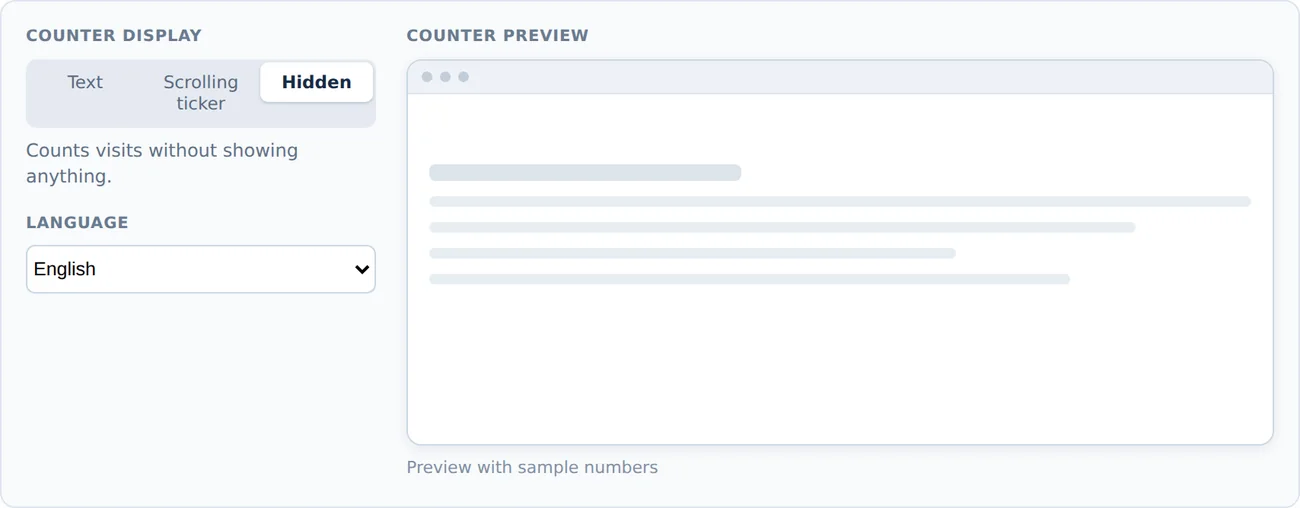
Hidden counts visits without showing anything. Colors and statistics do not apply.
What the code contains
The editor writes your choices into the counter code as parameters after the account ID. You can also edit them by hand.
typetext, ticker or hidden. The display.posbottom or top. Only for the scrolling ticker.widthfull or half. Only for the scrolling ticker.bgThe background color as six hexadecimal digits without #, for example 1E3A5F.textThe text color, written the same way as bg.statsA comma-separated list of the statistics to show: online, today, views, month, lastmonth, totalviews, total, link.langThe language of the counter: en, es, fr, de, pt, it, tr, id, ro, nl, el, pl, sv, hi, ja or ru.Examples
Your saved settings (no parameters)
A blue bar at the top, half width
Count visits without showing anything
Zoom in on the details
Good to know
- Anything you leave out of the code uses the settings saved for your counter. To go back to your saved settings, remove everything after the account ID.
- Only the look changes. Counting, your account, timezone and starting count stay the same.
- A parameter with an invalid value is ignored.
- If you list statistics with stats, only those are shown. The IP address is never shown.
- A Text counter appears where the code sits. A Scrolling ticker or a Hidden counter can go in any site-wide code area.
- Replace the code on every page that carries it, or once in the shared template.
Common questions
Do I need to create a new counter?
No. The editor changes the code of your existing counter. Your numbers stay.
Does the editor save anything?
No. It works in your browser and sends nothing. Only the code you copy and place on your website changes your counter.
I only know my account ID. Can I still use the editor?
Yes. Paste only the 32-character account ID. The editor starts with standard options, and the new code includes every option.
My site still shows the old counter.
Make sure you replaced the code on the page you are viewing, then reload it. Pages cached by your site or a CDN may need a moment to update.