















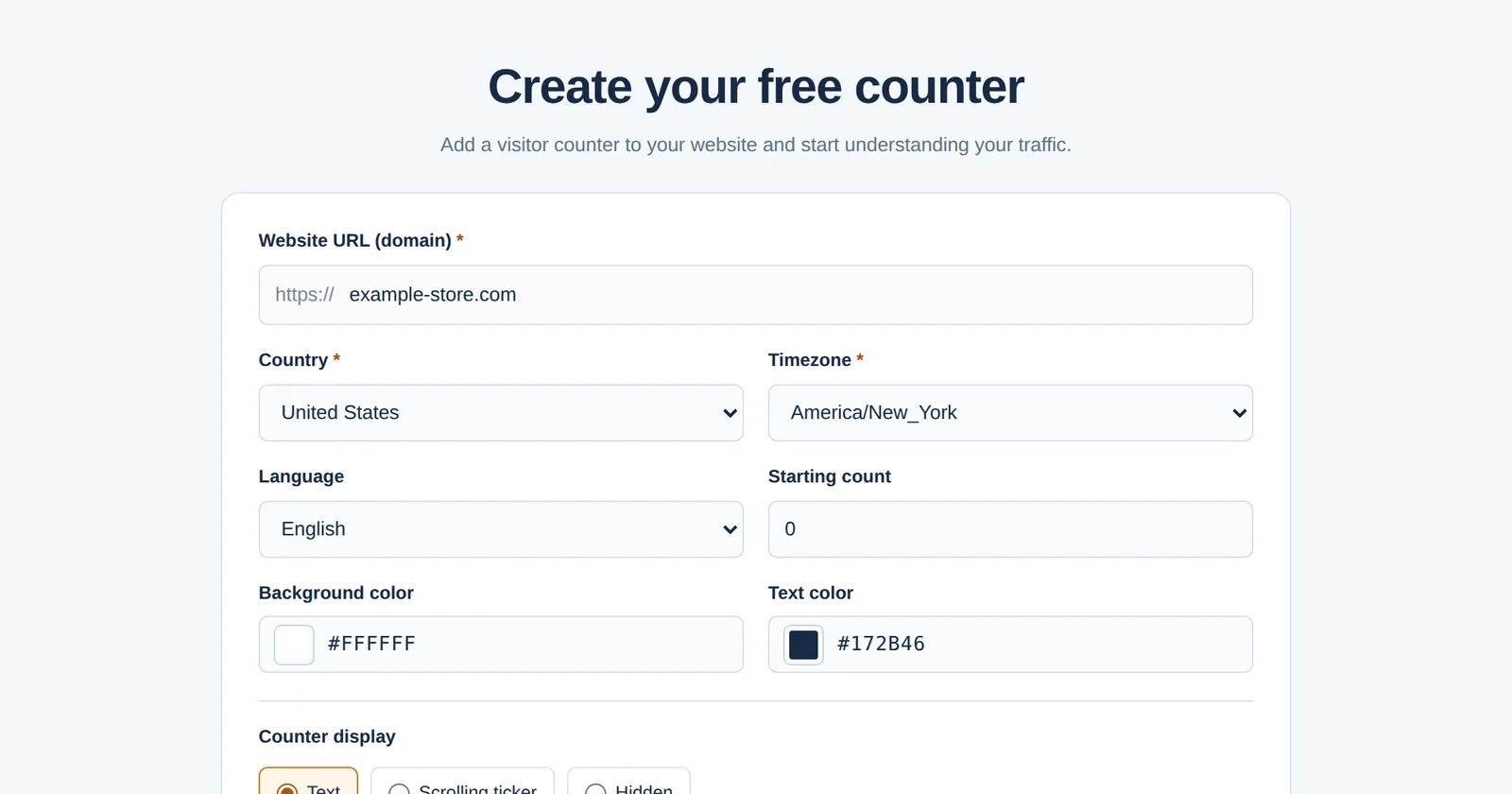
Creating a GNRCounter takes a few minutes and needs no account. You enter your website, choose how the counter looks and which language it speaks, and GNRCounter gives you a short code to paste into your pages. GNRCounter works in 16 languages: the website and the dashboard are available in all of them, and you choose the counter’s own language when you create it.
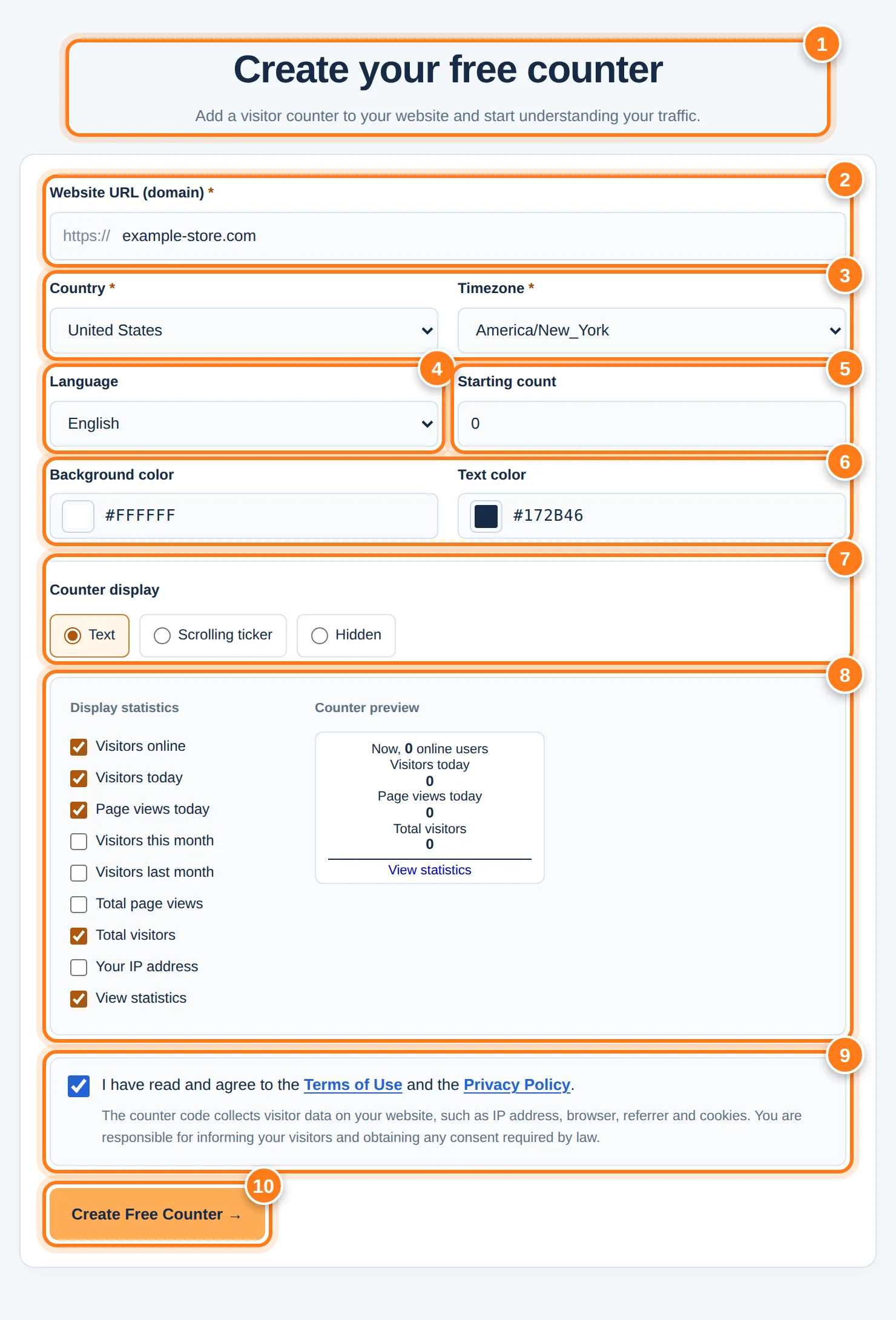
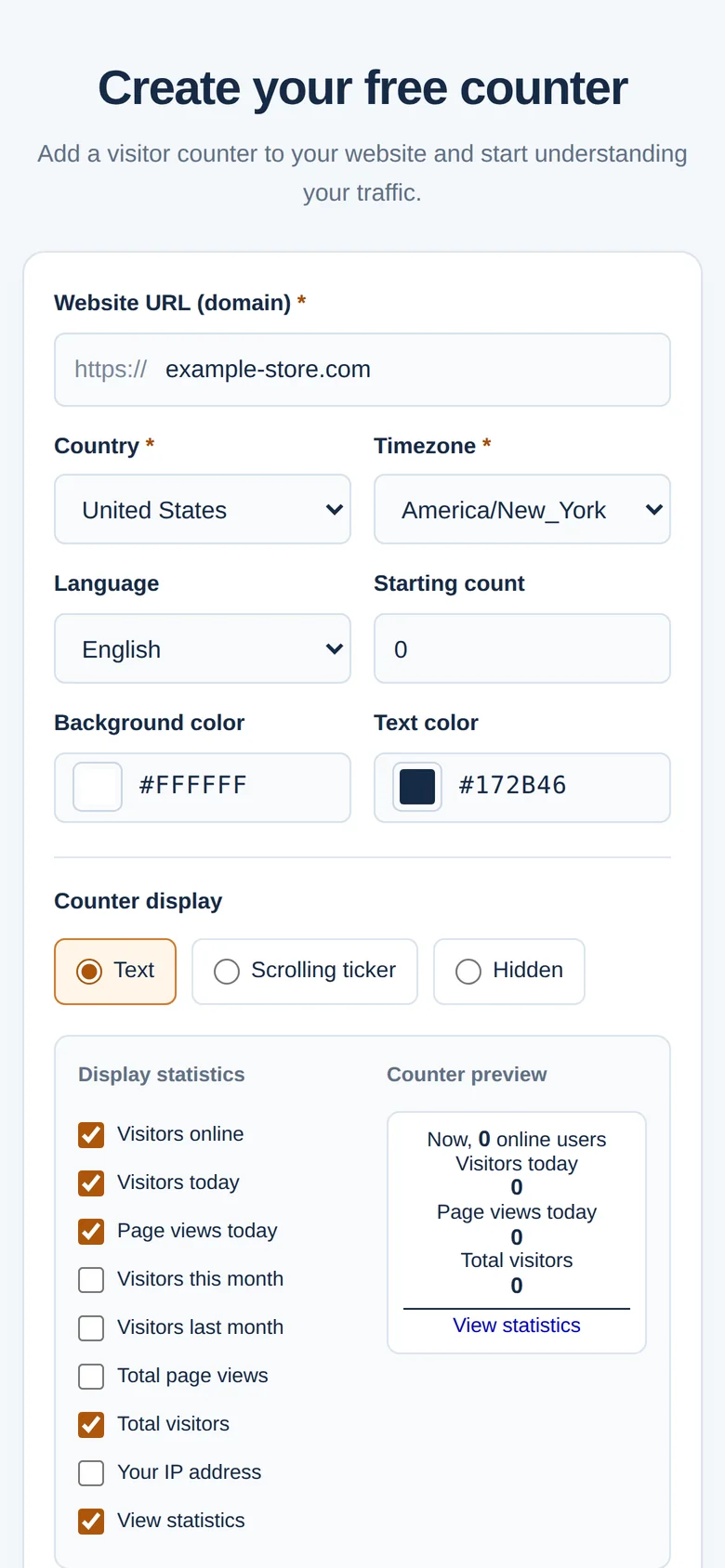
The creation form with its areas numbered. The website and values in the pictures are examples.
The form step by step
The numbers below match the markers in the picture.
- HeadingThe page opens with the title and a short introduction. You do not need an account.
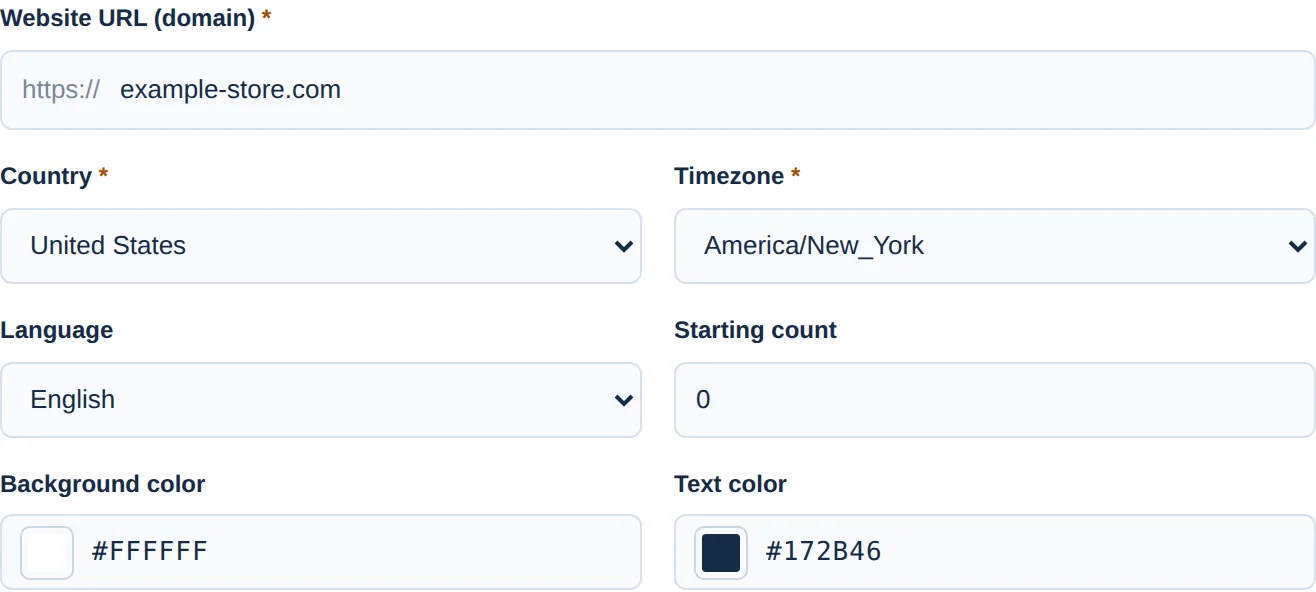
- Website URLType the domain of the site you want to measure, for example example.com. The https:// part is already there.
- Country and timezonePick the country of your website, then a timezone from that country. The timezone sets the daily reporting period.
- LanguageChoose the language the counter displays, from 16 languages.
- Starting countA whole number from 0 to 999,999,999. It sets the total shown on the counter, not past visit reports.
- ColorsBackground color and text color, as a color picker or a six-digit HEX code such as #FFFFFF.
- Counter displayText, Scrolling ticker or Hidden. The next section explains the three.
- Statistics and previewFor Text and Scrolling ticker, tick the statistics to show and watch the preview change.
- TermsTick the box to accept the Terms of Use and the Privacy Policy. The note below reminds you that you are responsible for informing your visitors and obtaining any consent the law requires.
- Create Free CounterCreates the counter and opens the result screen.
Three ways to display the counter
Switch the tabs to see each display.
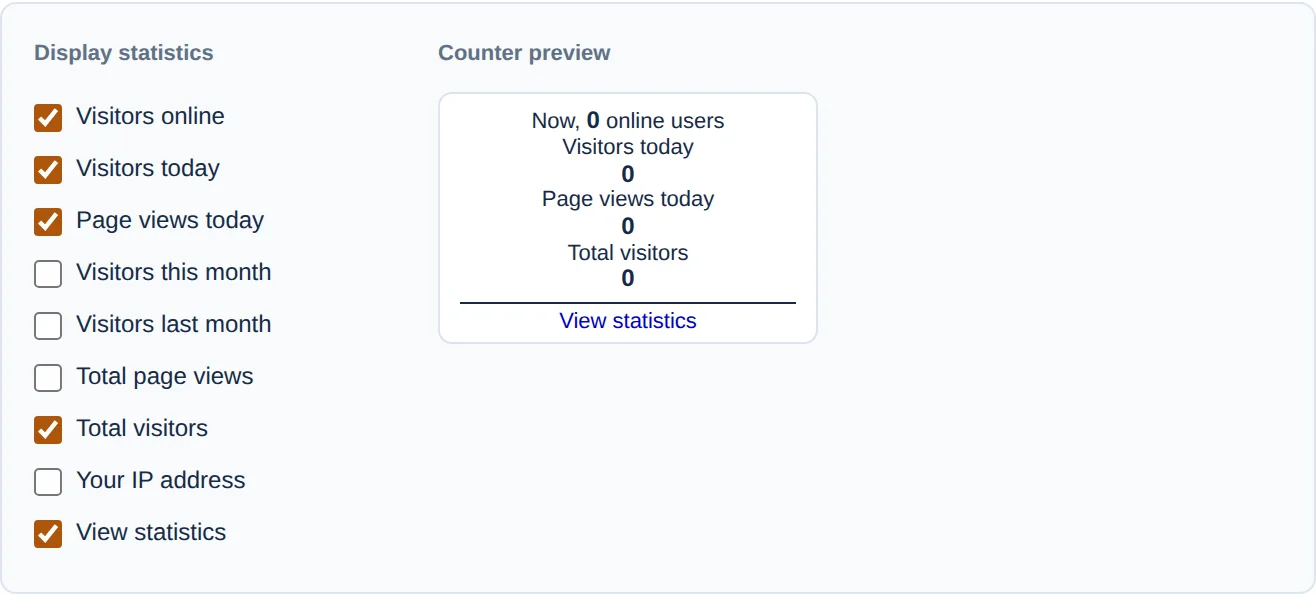
Text shows the statistics you tick as simple text on your page, right where the code sits. There are nine options: visitors online, visitors today, page views today, visitors this month, visitors last month, total page views, total visitors, your IP address and a View statistics link. Online, today, total visitors and the link are ticked by default.

Scrolling ticker shows the selected statistics side by side in a scrolling bar fixed at the bottom of every page. Visitors can pause it by hovering and close it.

Hidden tracks visitors without showing a counter. The tracking code must still be installed on every page you want to measure, and you read the numbers in the dashboard.
Creating a counter at a glance
Zoom in on the details

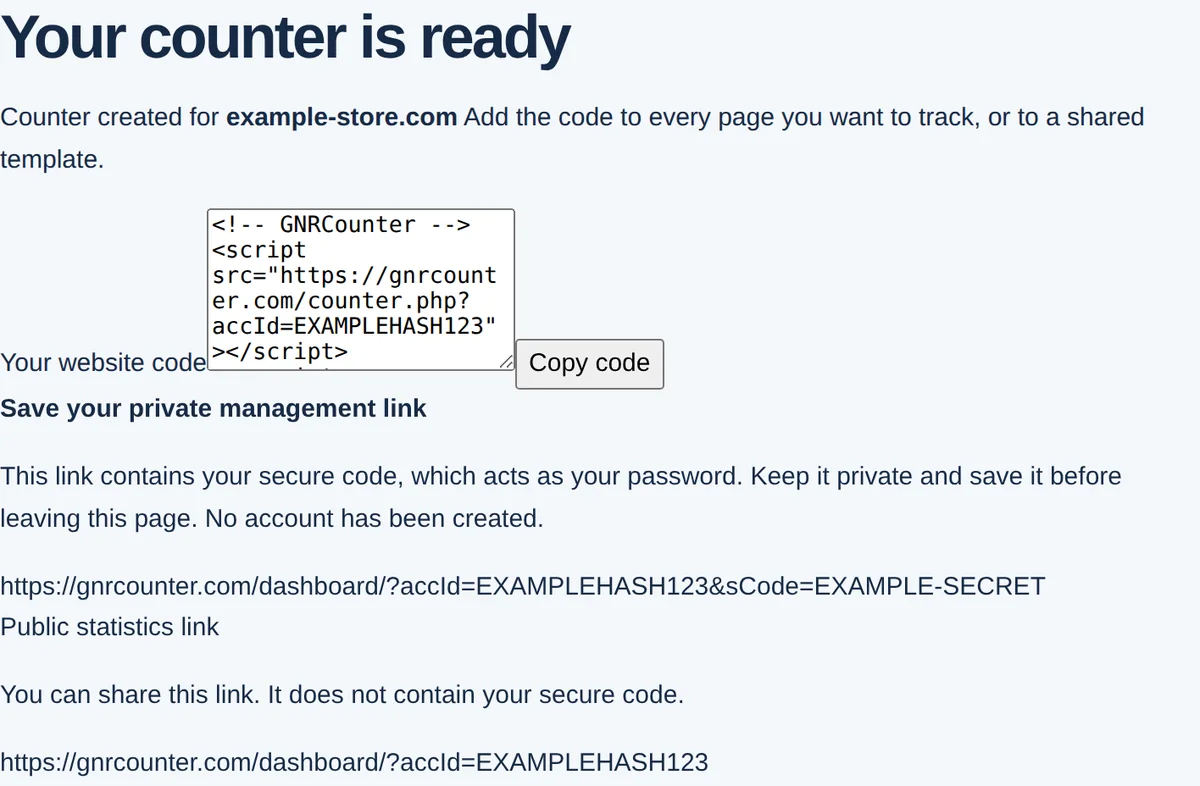
After you create the counter
Adding the code to popular platforms
Paste the snippet exactly as given and do not add async or defer. A Text counter prints itself where the code sits, so put it where you want it shown, such as a footer. A Scrolling ticker or a Hidden counter can go in any site-wide code area. Menu names change from time to time, so check your platform’s help if something looks different.
Plain HTML
Paste the snippet before the closing </body> tag of every page, or once in the footer or template file that your pages share.
WordPress (self-hosted)
Paste it into your theme’s footer, ideally in a child theme, or use a plugin for header and footer scripts. A Text counter fits a footer widget or a Custom HTML block.
WordPress.com
Custom scripts need a plan that allows plugins or custom code. If your plan does not, you cannot add the snippet.
Shopify
Go to Online Store → Themes → Actions → Edit code, open theme.liquid and paste the snippet just before </body>.
Wix
Go to Settings → Custom Code → Add Custom Code. Paste the snippet, choose All pages and Body - end, apply it and publish. Custom Code needs a Premium plan with a connected domain. Use the Scrolling ticker or Hidden display here.
Squarespace
Go to Settings → Developer Tools (or Advanced) → Code Injection, paste the snippet into the Footer box and save. Code Injection needs a Business or Commerce plan.
Webflow
Open the site settings, go to Custom code, paste the snippet into the Footer code box (before </body>) and publish. Custom code needs a paid site plan.
Blogger
Go to Theme → Edit HTML, find </body> and paste the snippet just before it. For a Text counter, an HTML/JavaScript gadget in the layout puts it where you want it.
Joomla
Edit your template’s index.php and paste the snippet before </body>, or add it to a Custom module so a Text counter appears where the module sits.
Google Tag Manager
Create a Custom HTML tag with the snippet and the All Pages trigger. The counter script uses document.write, so enable Support document.write in the tag’s advanced settings and prefer a Hidden counter or a Scrolling ticker. Test in Preview mode before publishing.
Good to know
- Open your site in a new tab after publishing. The editor preview of some site builders does not run custom code.
- Open your private link and check Live Visitors. Reports that include today, such as Countries, refresh about every five minutes.
- If you use a cookie banner, remember the note on the form: you are responsible for informing your visitors and obtaining any consent the law requires.
- The starting count changes only the number the counter displays. Past visit reports start empty.
Choosing a display
- Text when you want visitors to see live numbers in a spot of your page.
- Scrolling ticker for a bar at the bottom of every page without changing your template layout.
- Hidden when you only want to measure and keep your pages clean.
Creating a counter on your phone
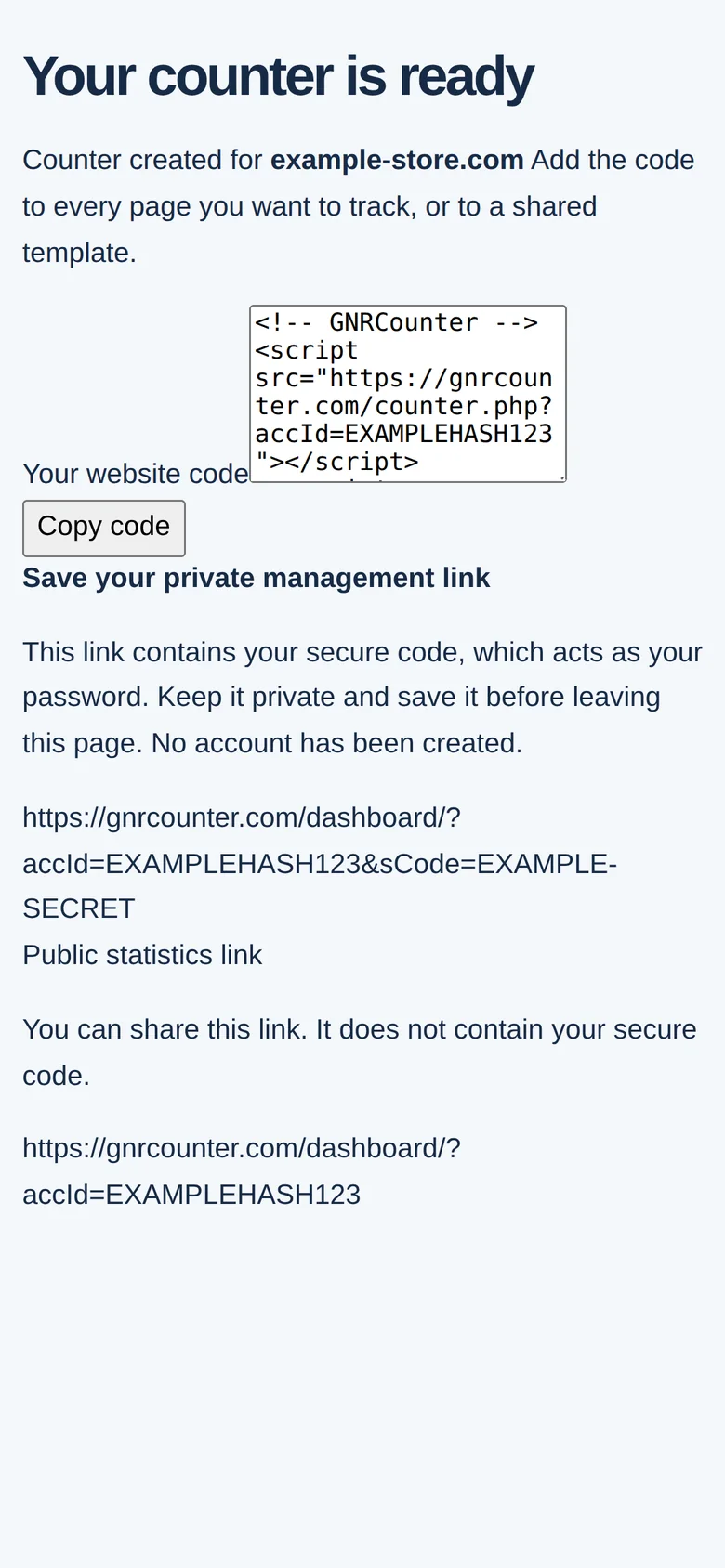
The form works on a phone: the fields stack in one column and the result screen shows the same three items.
Common questions
Do I need an account?
No. The form creates a counter without registration. Your private link works like a password, so save it.
I left the page without saving the private link. What now?
The private link contains your secure code, and the page asks you to save it before you leave. If you lost it, write to us through the contact page.
Why does the timezone list change when I pick a country?
The list shows only timezones that belong to the selected country, so the daily reporting period matches your site.
Where does a Text counter appear?
Exactly where you paste the code. Place it where you want it shown, such as a footer.