















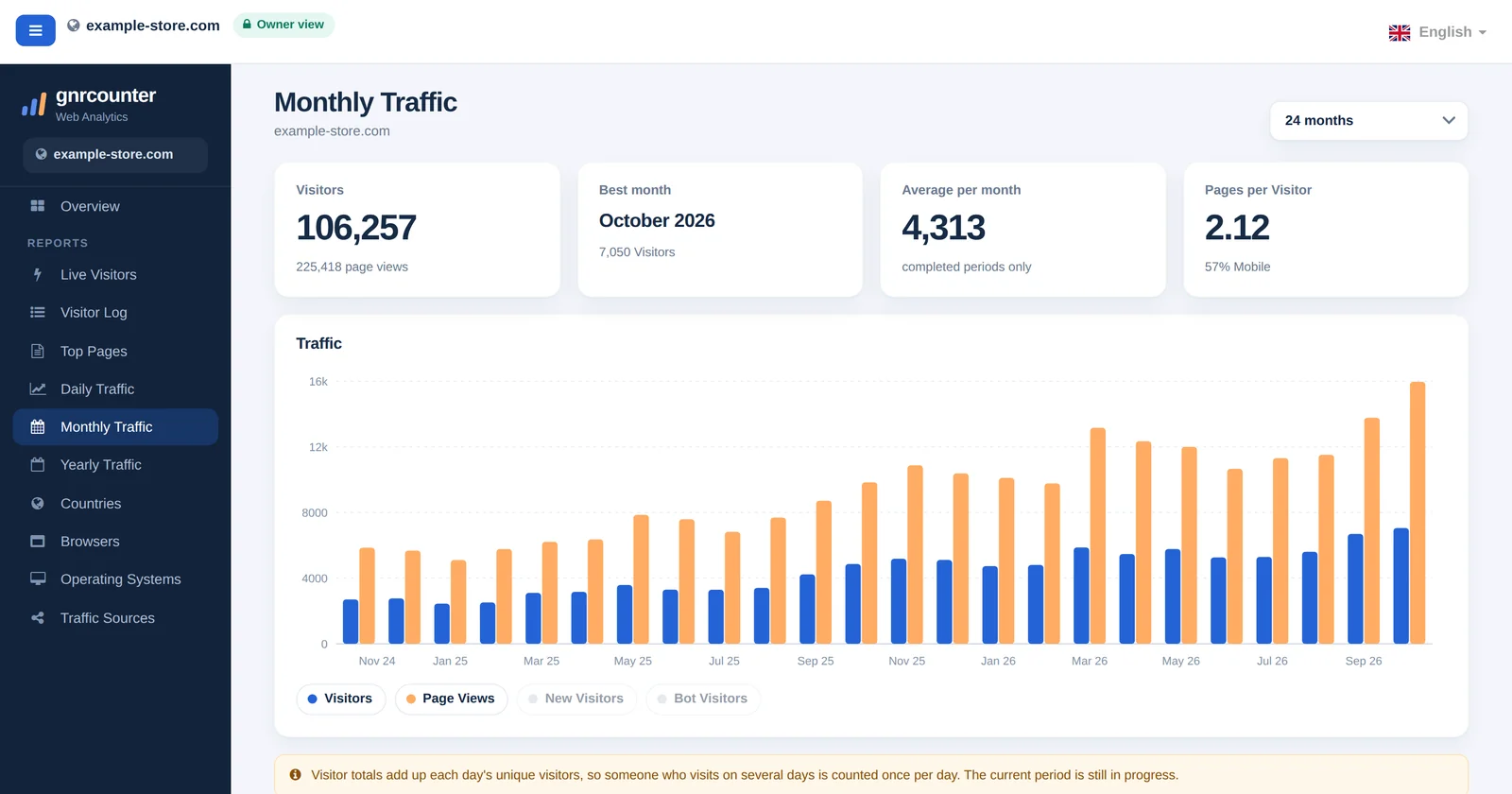
Monthly Traffic shows how your site grows over months. Instead of single days you get one bar and one row per month, with the change against the month before. It is the page for seasons, long-term growth and the question “Is this year better than last year?”.
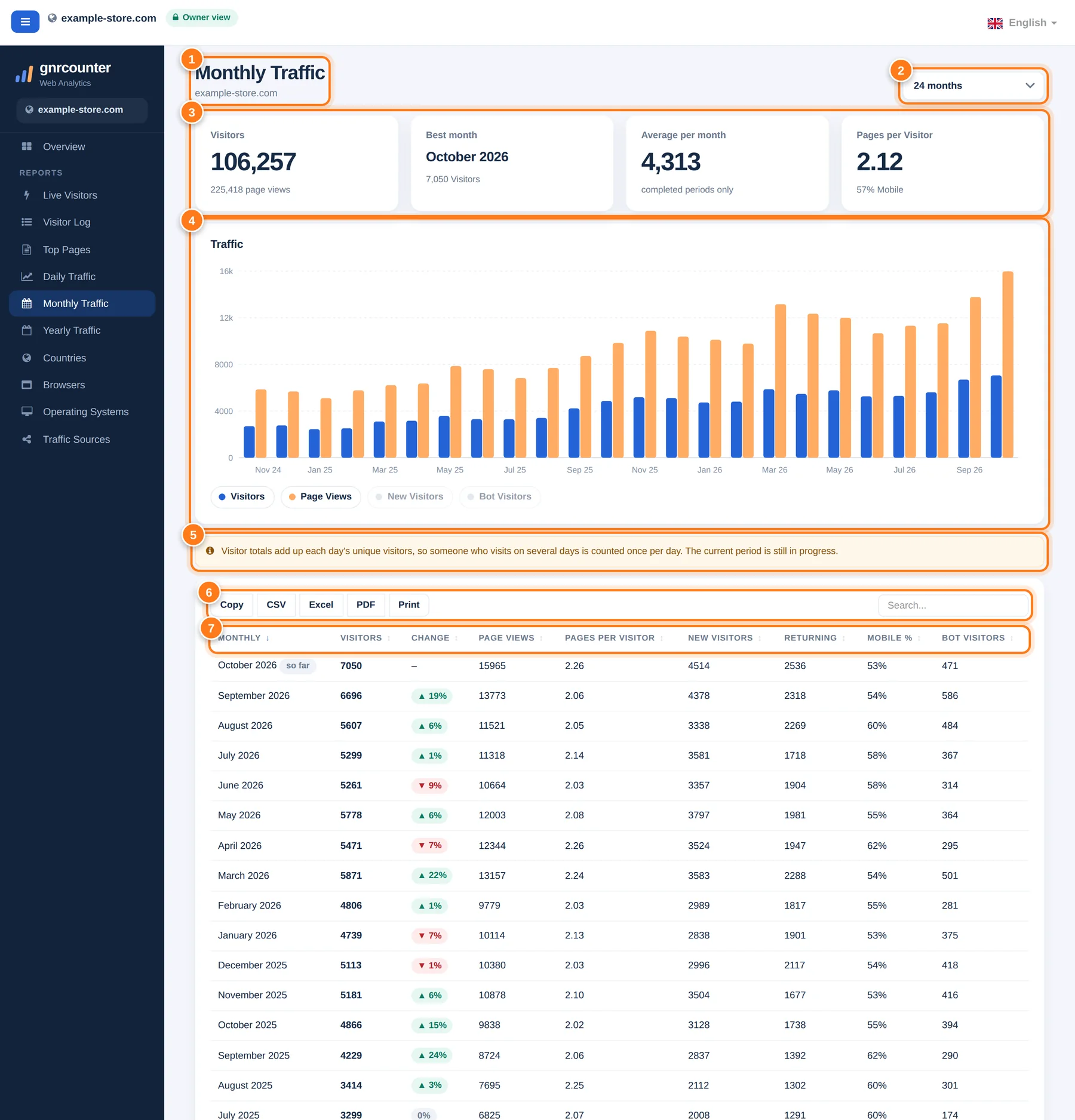
Monthly Traffic with its areas numbered. All figures in this guide are sample data from a fictional website.
A tour in seven steps
The numbers below match the markers in the picture.
- HeaderThe page title and your site name.
- Month count menuChoose how many months to show: 6, 12, 24 or 36. The default is 24.
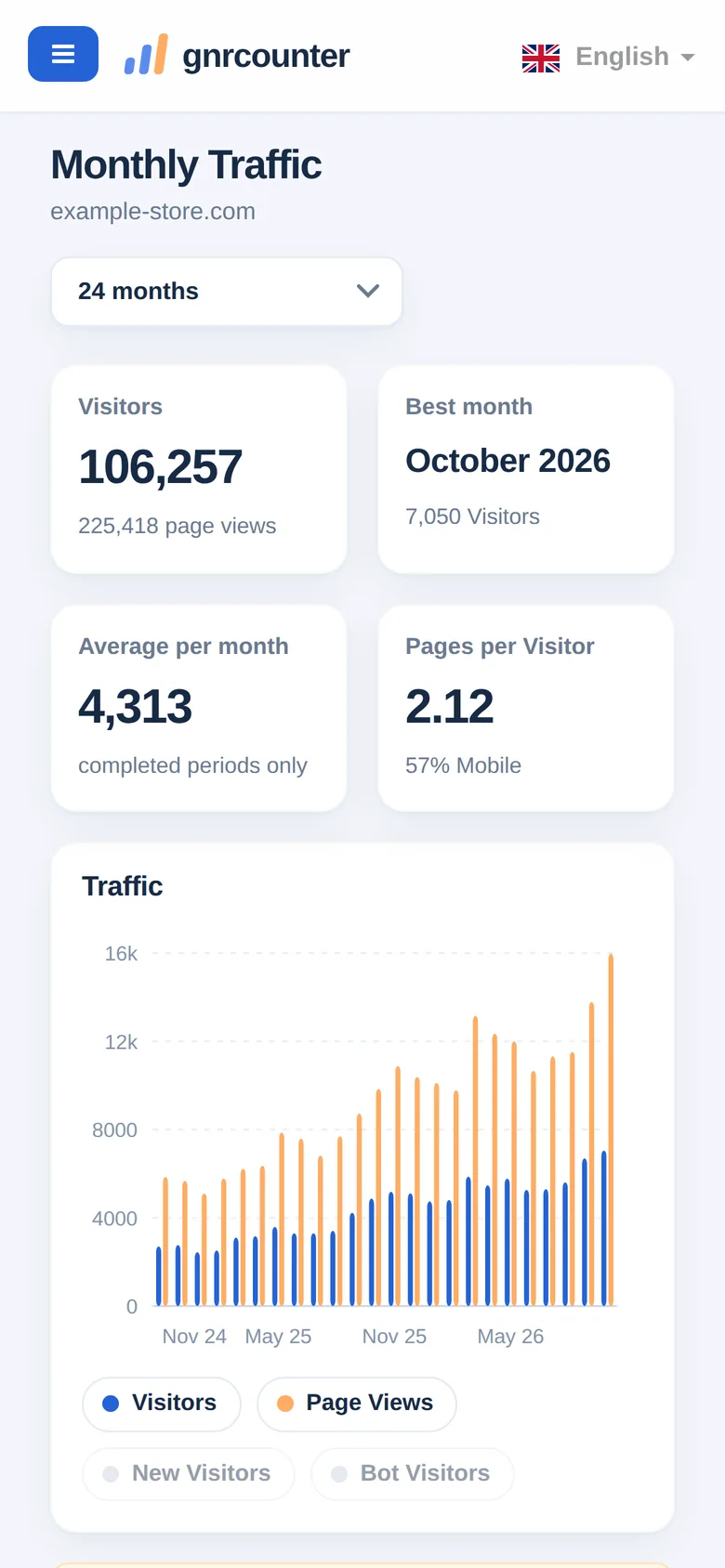
- Four summary cardsTotal visitors with page views, the best month, the average per month for completed months, and pages per visitor with the mobile share.
- Monthly bar chartOne group of bars per month. Visitors and page views are shown; click New Visitors or Bot Visitors in the legend to add them.
- Counting noteA reminder that totals add up each day’s unique visitors and that the current month is still in progress.
- Search and exportFilter the table or use Copy, CSV, Excel, PDF and Print.
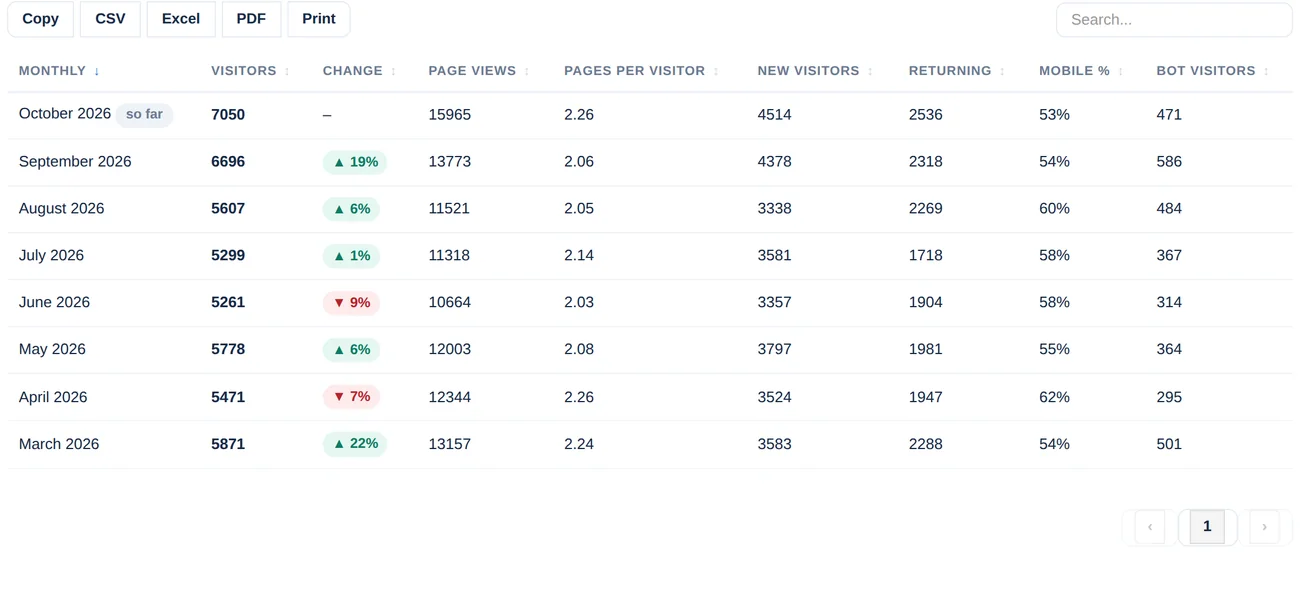
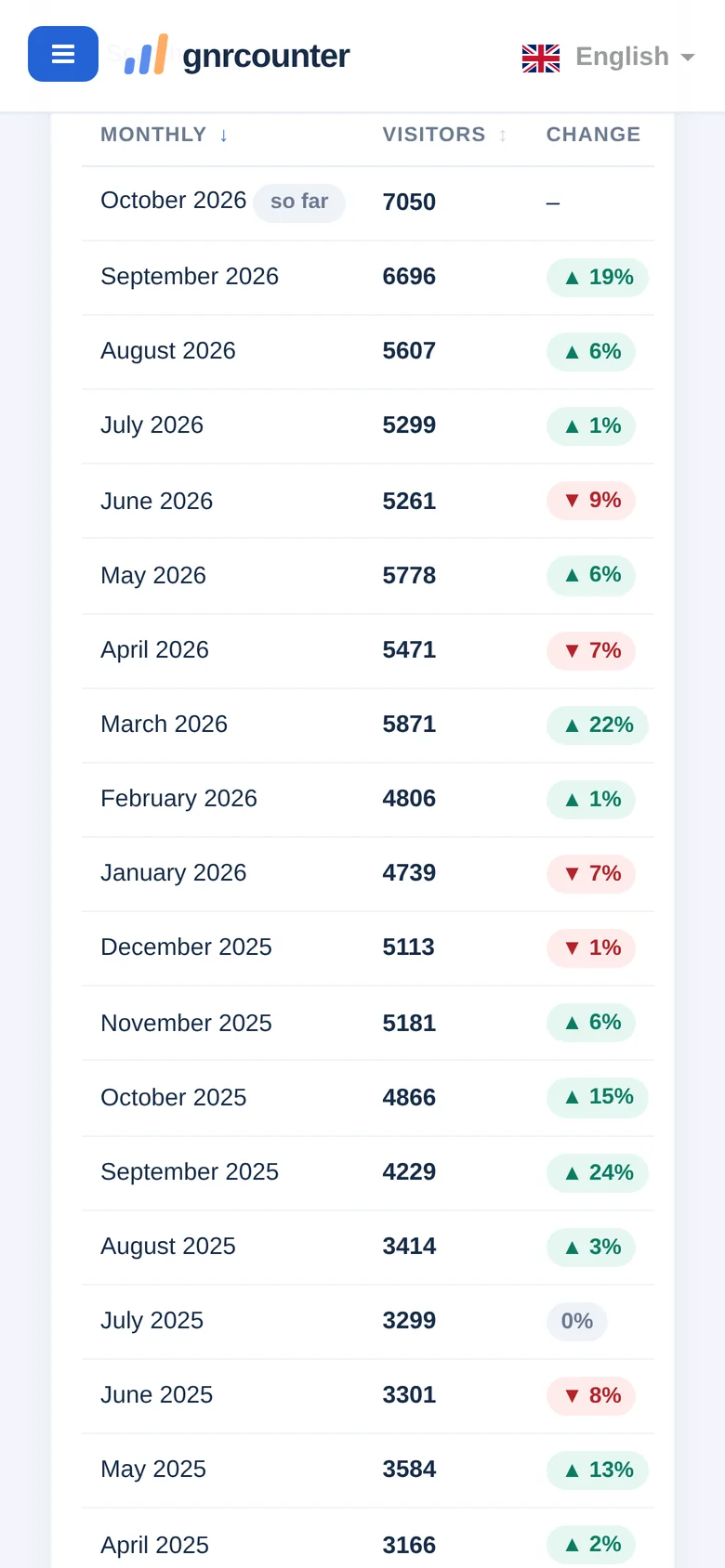
- The monthly tableOne row per month, newest first, with visitors, change, page views, pages per visitor, new and returning visitors, mobile share and bots.
Four month counts
Choose how far back to look. The default is highlighted.
One chart, two views
Switch the tabs to see the chart with its default series and with every series switched on.
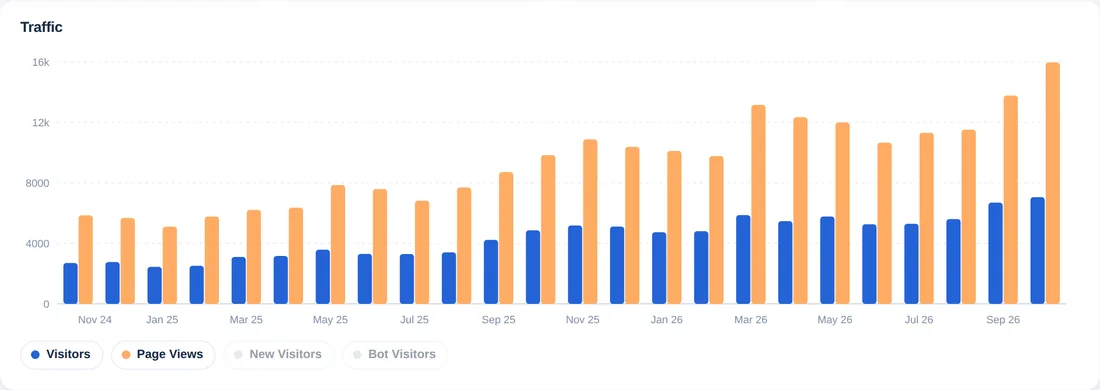
By default the chart shows visitors (blue) and page views (orange) for each month.
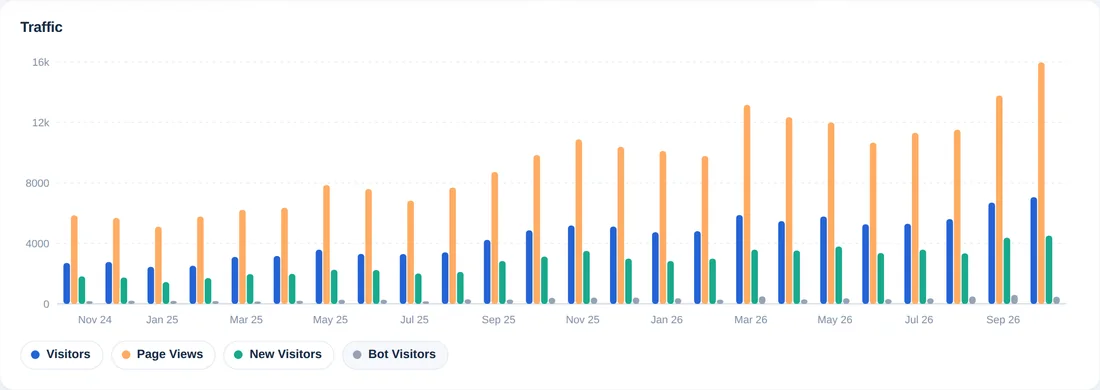
Click New Visitors and Bot Visitors in the legend to add them. Click again to hide them.
Monthly Traffic at a glance
Zoom in on the details


Reading the numbers correctly
- Visitors for a month are the sum of each day’s unique visitors, so a person who visits on five days counts five times.
- The current month is marked so far and has no change value, because it is not complete.
- The average per month uses completed months only.
- Change compares a month with the month before it, so seasonal months can show large moves.
- Mobile is the share of visitors on mobile devices. Bots are counted separately.
Four ways to use it
- Track growth. Look at the bars over 12 or 24 months to see the long-term direction.
- Spot seasons. Find the months that are always strong or weak and plan content around them.
- Judge a change. Compare the months before and after a redesign, a campaign or a new feature.
- Report. Export the table to CSV or Excel.
Monthly Traffic on your phone
On a small screen the summary cards come first, followed by the chart and the table. Swipe the table sideways to see every column.
Tip: tap the legend items under the chart to add or hide series.
Common questions
Why does the current month have no change value?
It is not complete yet, so comparing it with a full month would be misleading. The value appears once the month has ended.
Why is the best month sometimes the current one?
The best month is the month with the most visitors in the list, even if it is still in progress.
Why do monthly visitors look higher than the number of people?
Visitors are counted once per day, so people who come on several days are counted several times.
How far back can I look?
Up to 36 months, as long as your counter has been running that long.