














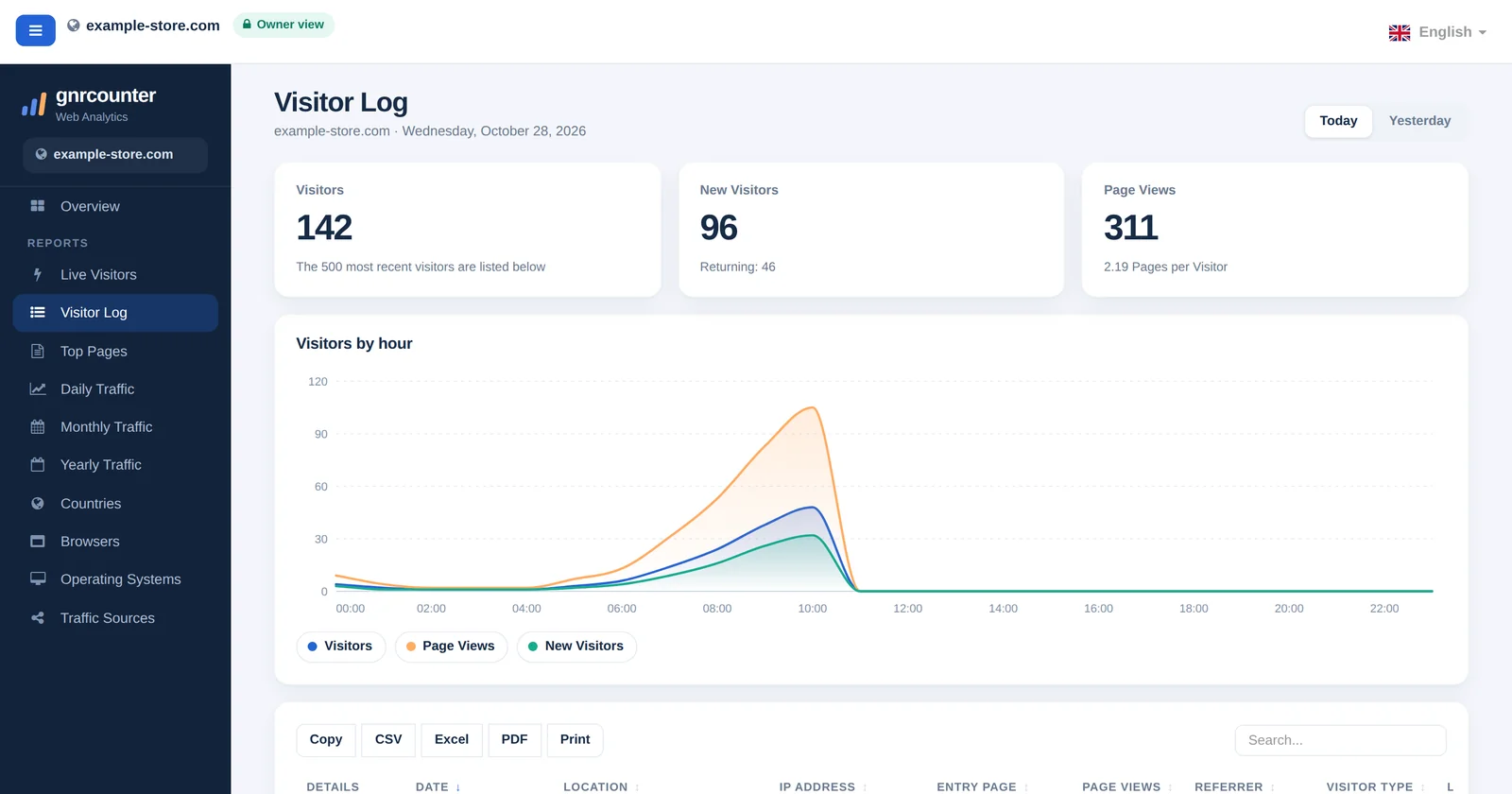
The Visitor Log lists the people who visited your site today or yesterday, one row per visitor. Where the Overview and the traffic reports show totals, the log lets you look at individual visits: when each visitor arrived, where they are, which page they entered on, how many pages they viewed and which device they used. It is the page to open when you want to answer “who was that?” without ever seeing a name or an e-mail address.
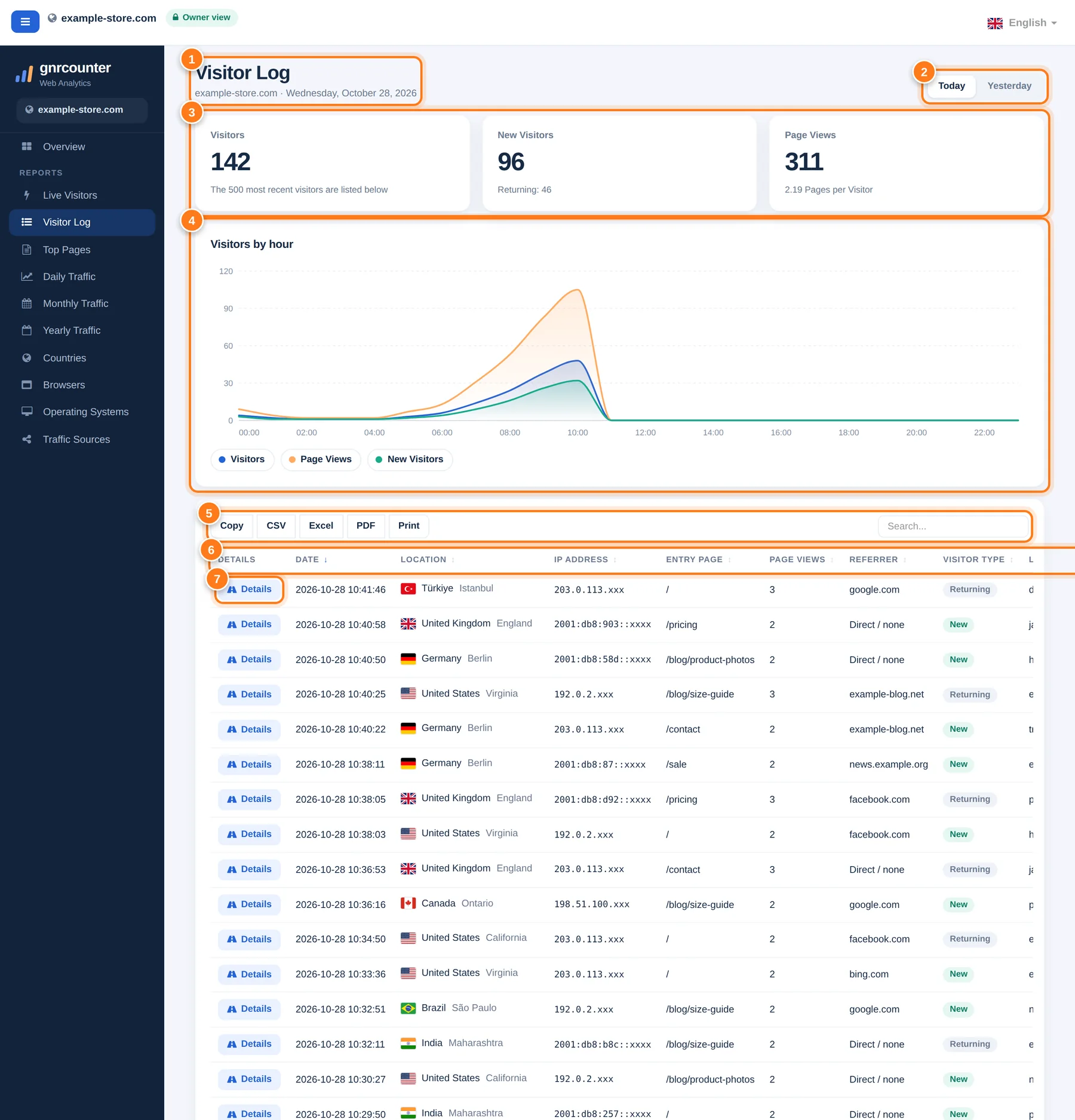
The Visitor Log with its areas numbered. All figures in this guide are sample data from a fictional website.
A tour in seven steps
The numbers below match the markers in the picture.
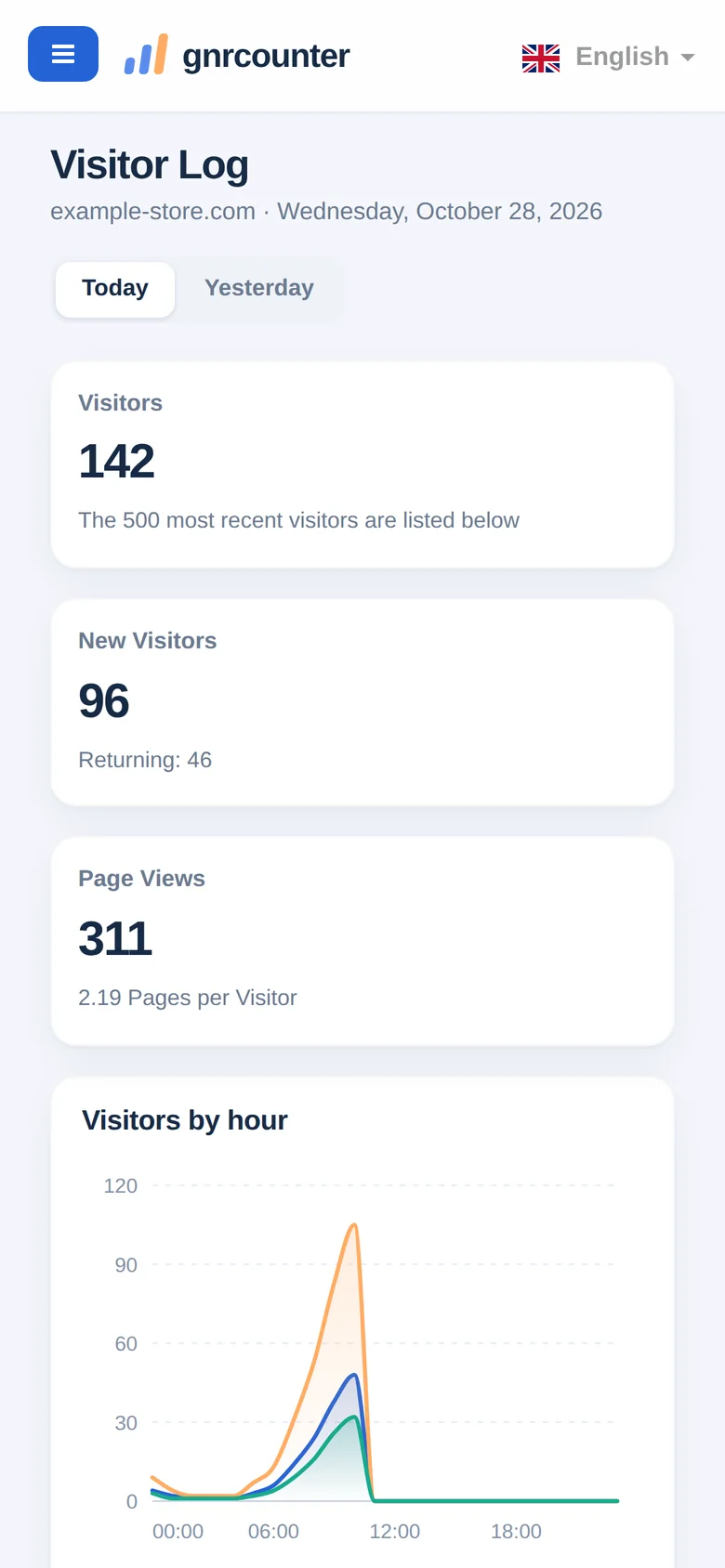
- Header and dayThe page title, your site name and the date of the day you are looking at.
- Today and YesterdaySwitch between the two days. Detailed visit records are kept for only a few days, so these are the two days the log offers.
- Three summary cardsVisitors, new visitors (with the returning count) and page views (with pages per visitor) for the day. They come from the same daily counters as the Overview and Daily Traffic, so the numbers match.
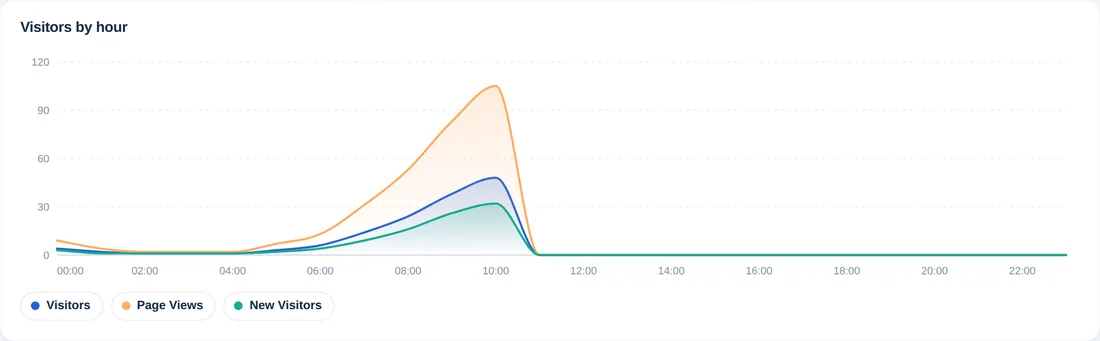
- Visitors by hourA chart of visitors, page views and new visitors for each hour of the day. Hover to read exact values and click a legend item to hide or show a line.
- Search and exportType in the search box to filter every column at once, or use Copy, CSV, Excel, PDF and Print to take the table with you.
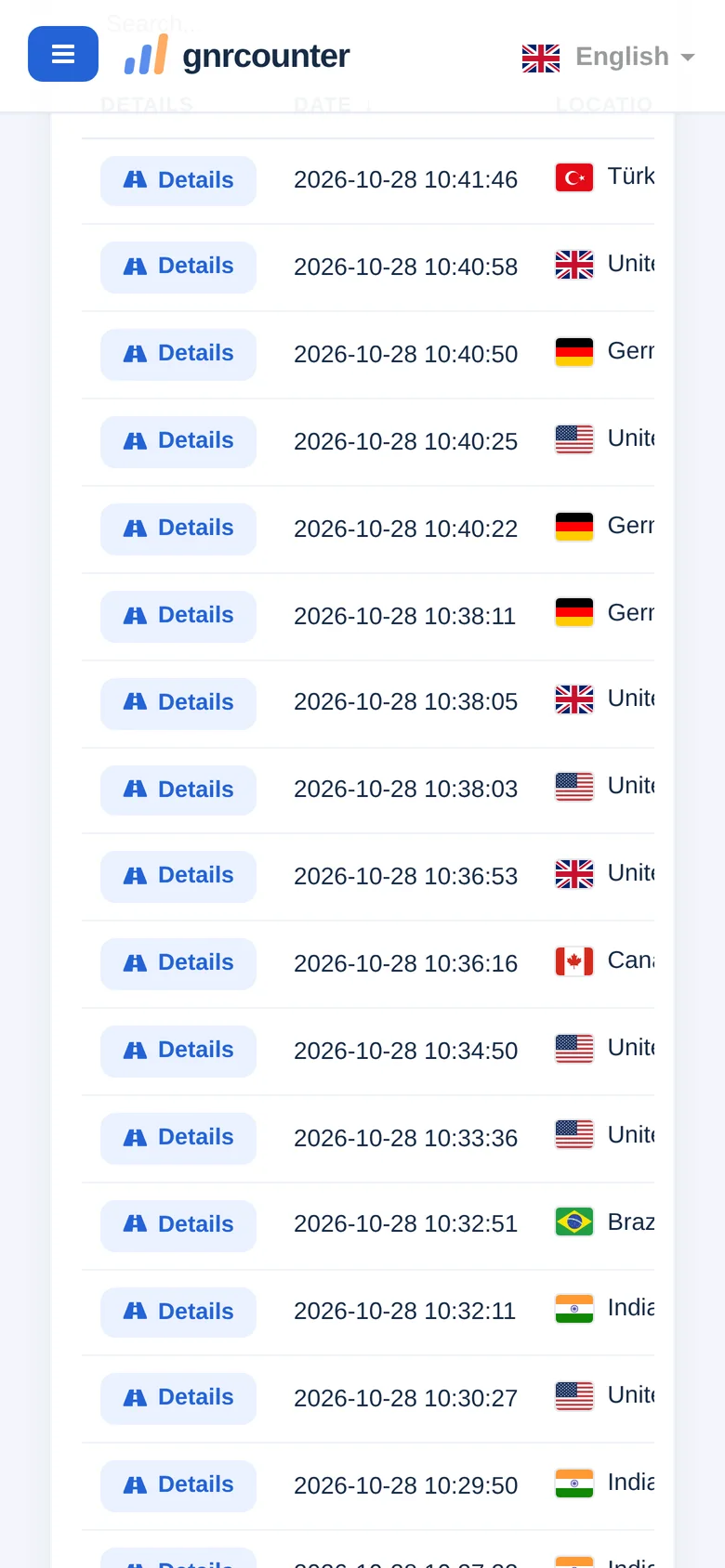
- The visitor tableOne row per visitor, newest first, 50 rows per page, listing up to the 500 most recent visitors of the day. Click a column heading to sort.
- Details buttonOpens that visitor’s visit: the pages they viewed, in order.
The log at a glance
Zoom in on the controls


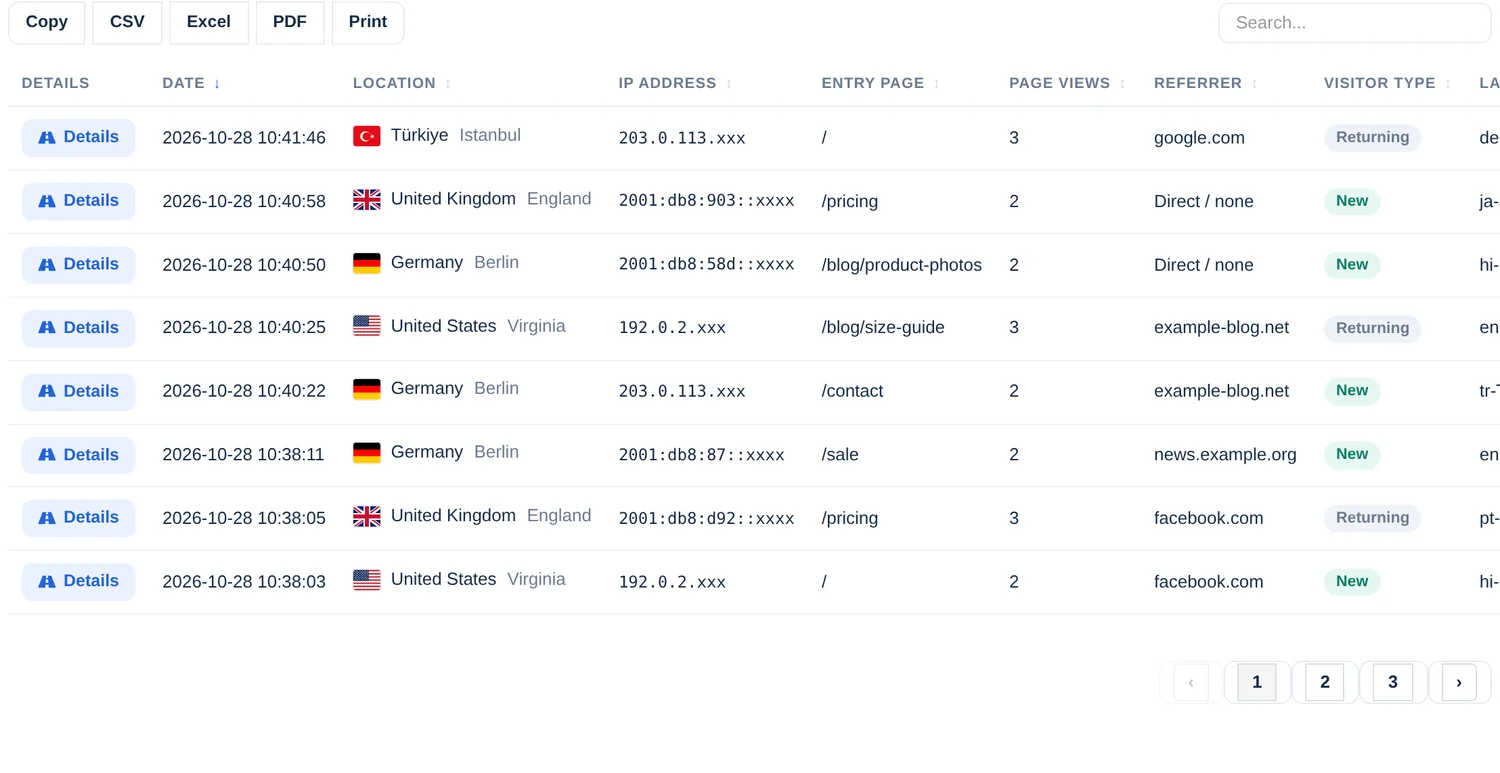
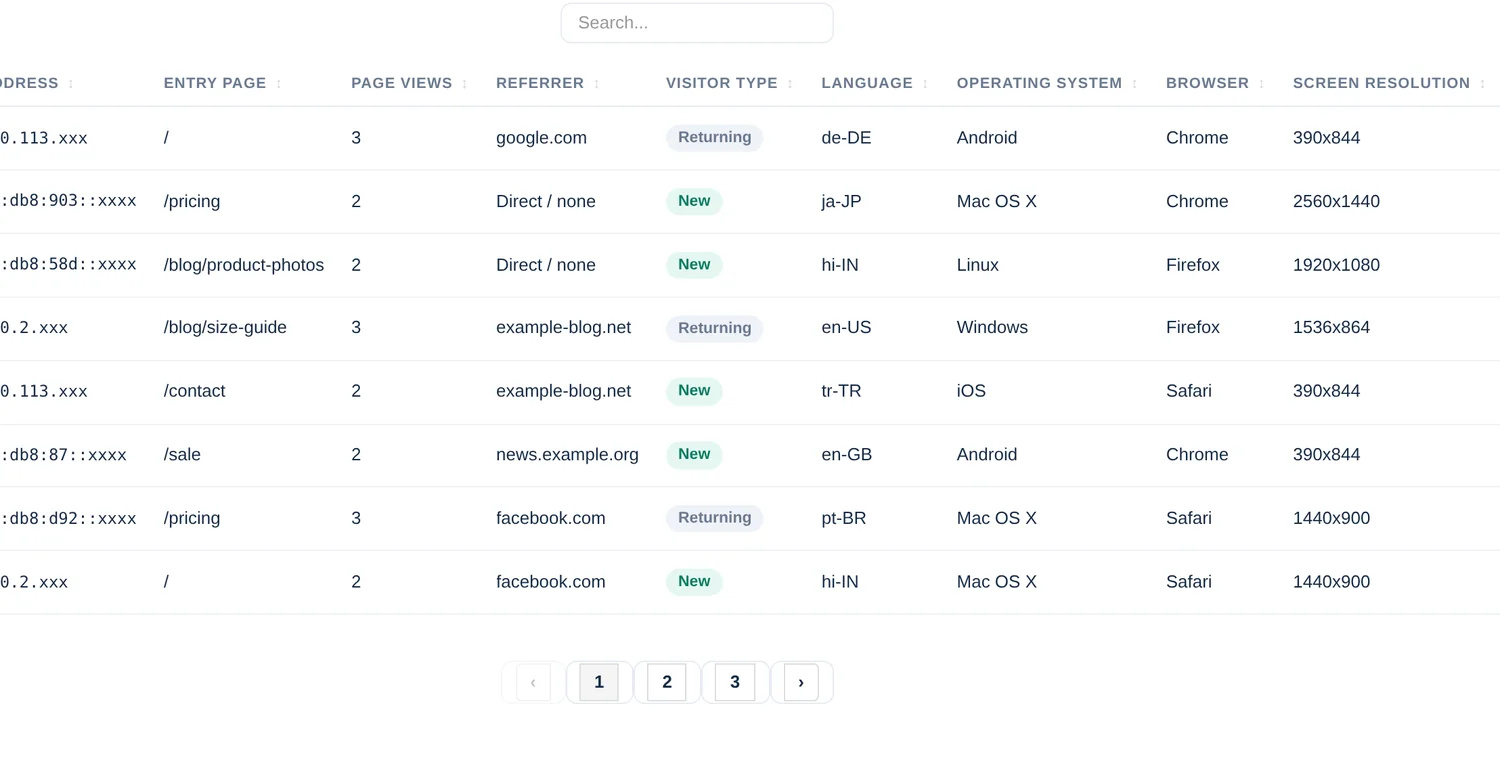
Read a row from left to right
Each row is one visitor on that day. The table is wide, so it scrolls sideways on smaller screens.
Owner view and public view
The log looks slightly different depending on how you opened the dashboard. Switch the tabs to compare the same rows.
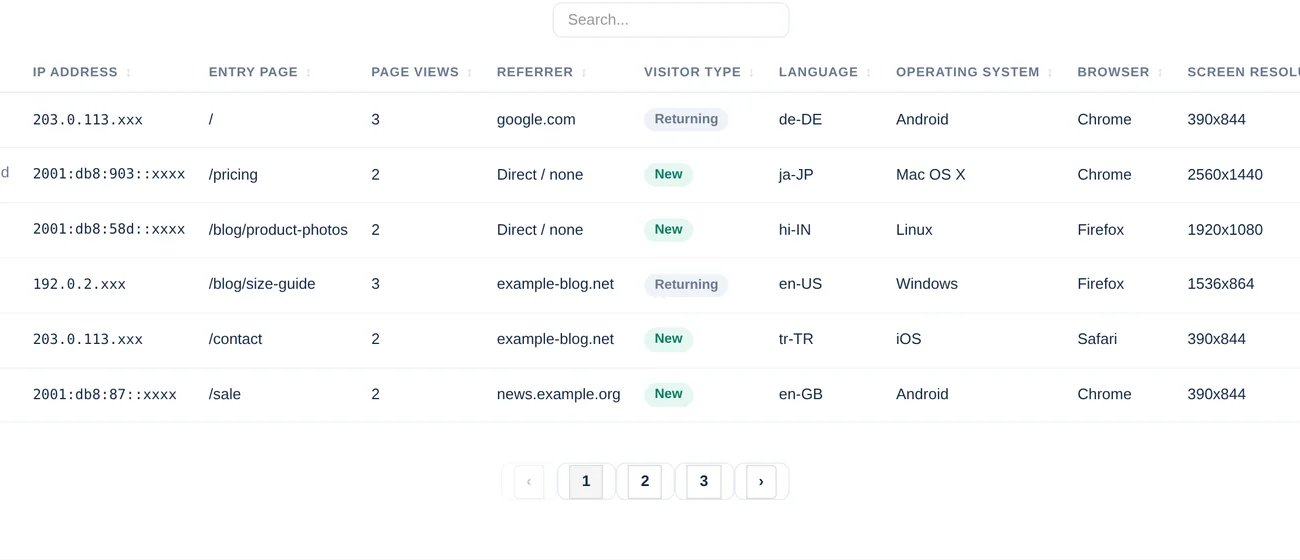
Opened with your secret code. You see the shortened IP address and the referrer of every visitor.
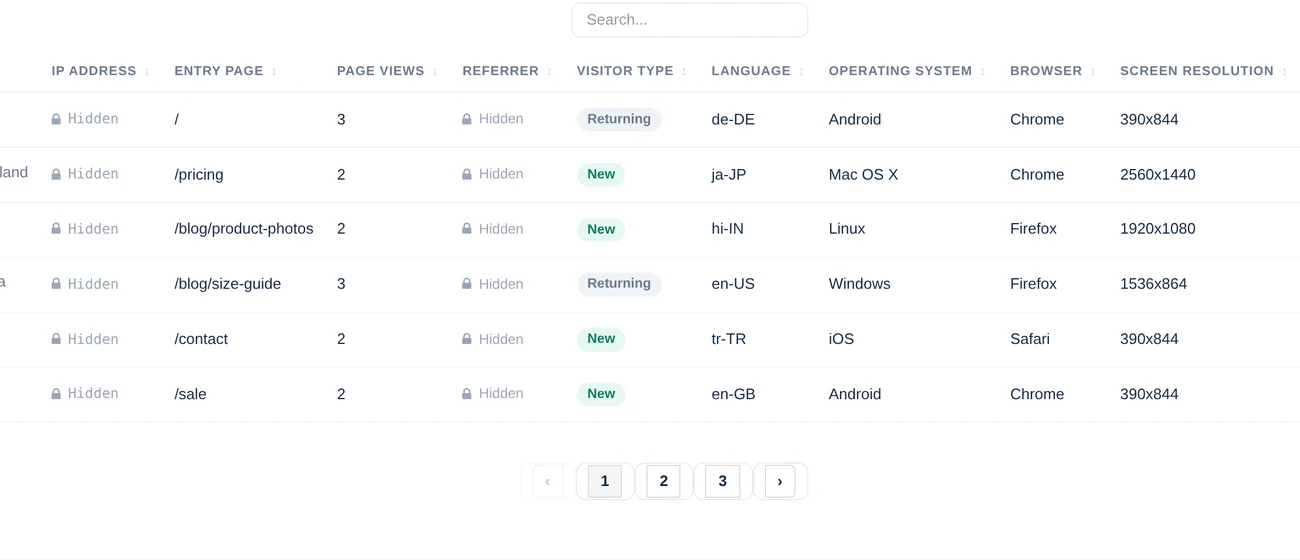
Opened from a shared public link. A notice explains that IP addresses and referrers are hidden, and those two columns show a lock. Everything else stays visible.
Reading the log correctly
- A visitor here is one browser on one day. If the same person returns on another day, they appear again in that day’s log.
- The cards at the top use the daily counters, while the table lists up to the 500 most recent visitors, so on a very busy day the table can show fewer rows than the Visitors card.
- The date is the time of the latest visit, so a visitor who stayed for an hour appears at the time they were last active, not when they arrived.
- Visitor type relies on a cookie. Someone who clears or blocks cookies can appear as New again.
- Known search engine and other bots are not listed, and times follow your counter’s time zone.
Four ways to use it
- Find a specific visit. Search for a country, a page, a browser or a time to filter the table, then press Details to see that visitor’s path.
- Check which pages bring people in. Sort or search the Entry page column to see which pages visitors land on first today.
- Spot unusual patterns. Many visits from one place with the same entry page and screen size within minutes can be worth a closer look.
- Take the data with you. Export to CSV or Excel for a report, or Print for a quick page. The export leaves out the Details button.
The Visitor Log on your phone
On a small screen the summary cards and the chart stack first and the table sits below them. Swipe the table sideways to see all columns; the Details button stays in the first column.
Tip: use the search box to narrow the list before scrolling sideways.
Common questions
Why does the log only offer Today and Yesterday?
Detailed visit records are kept for only a few days. Older days are summarized in the Daily, Monthly and Yearly traffic reports.
Why do I see fewer rows than the Visitors card says?
The table lists at most the 500 most recent visitors of the day. The card counts all visitors from the daily counters.
Why is the last part of an IP address replaced by xxx?
GNRCounter shortens IP addresses before storing them and hides the last part in the log, so a visit can be recognised by network but not traced to a person.
Can I see who a visitor is?
No. The log shows country, device, browser and pages, but never names, e-mail addresses or full IP addresses.