















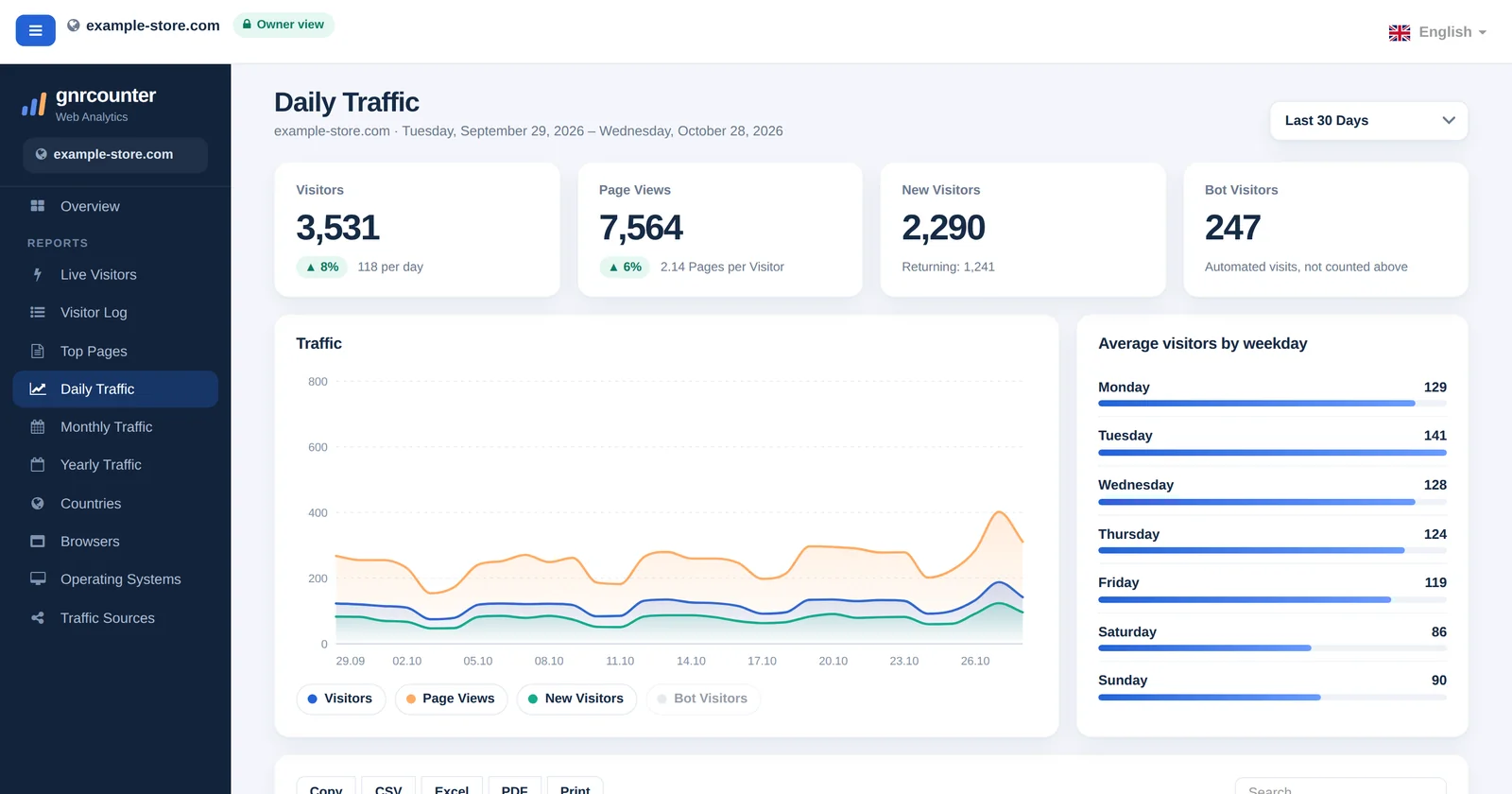
Daily Traffic shows how your site performs day by day. Pick a date range and you get four summary cards, a trend chart, the average visitors for each weekday and a table with one row per day. It is the best page for questions such as “Is my traffic growing?”, “Which days are my busiest?” and “Did last week’s post make a difference?”.
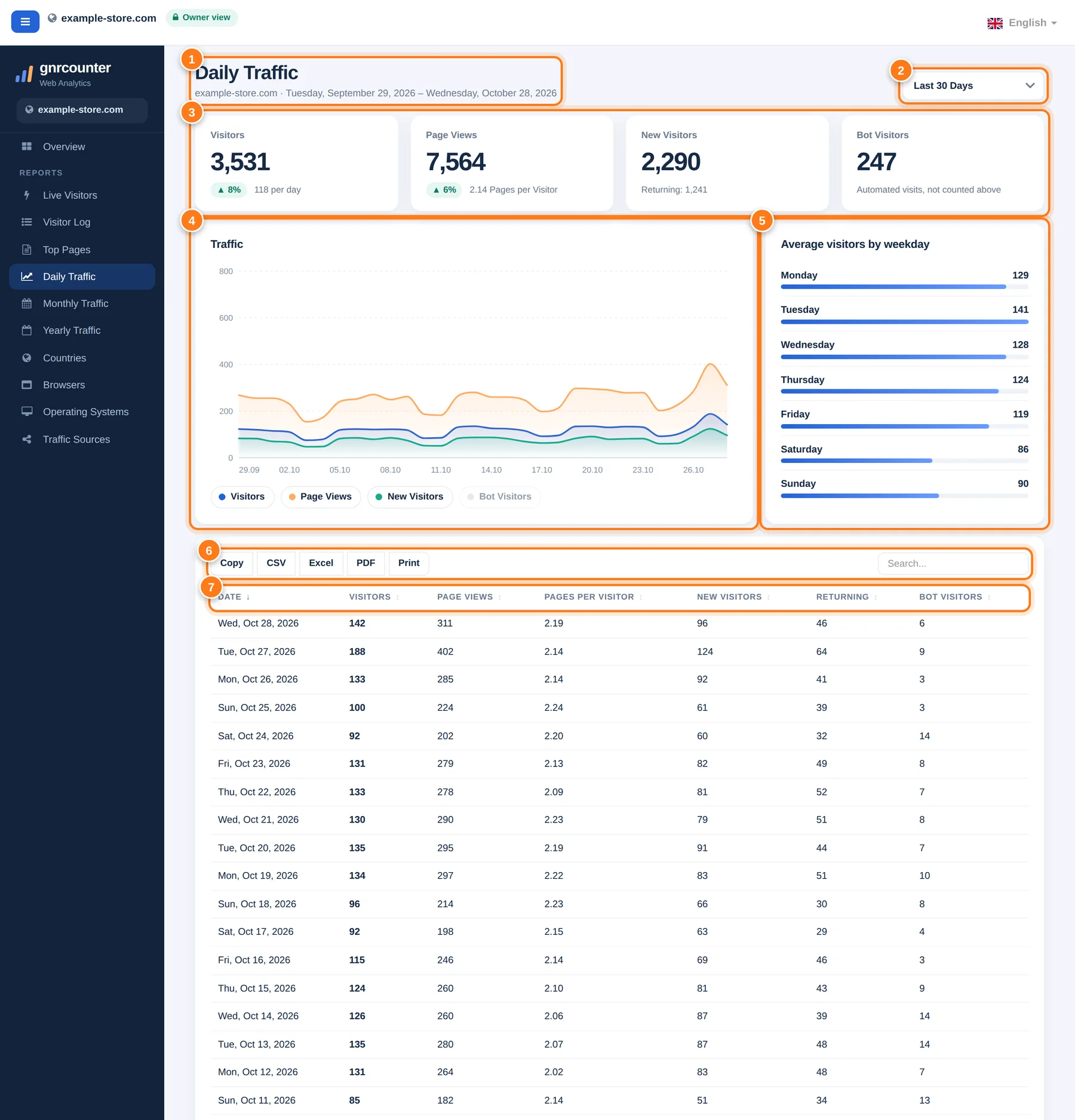
Daily Traffic with its areas numbered. All figures in this guide are sample data from a fictional website.
A tour in seven steps
The numbers below match the markers in the picture.
- Header and periodThe page title with your site name and the first and last day of the range you are viewing.
- Date range menuChoose Today, Yesterday, Last 7 Days, Last 14 Days, Last 30 Days, This Month, Last Month, Last 3 Months, Last 6 Months or Last 12 Months. Last 30 Days is the default.
- Four summary cardsVisitors and page views with the change against the previous period of the same length, new visitors with the returning count, and bot visitors.
- Traffic chartVisitors, page views and new visitors over the range. Hover to read a day and click a legend item to hide or show a line.
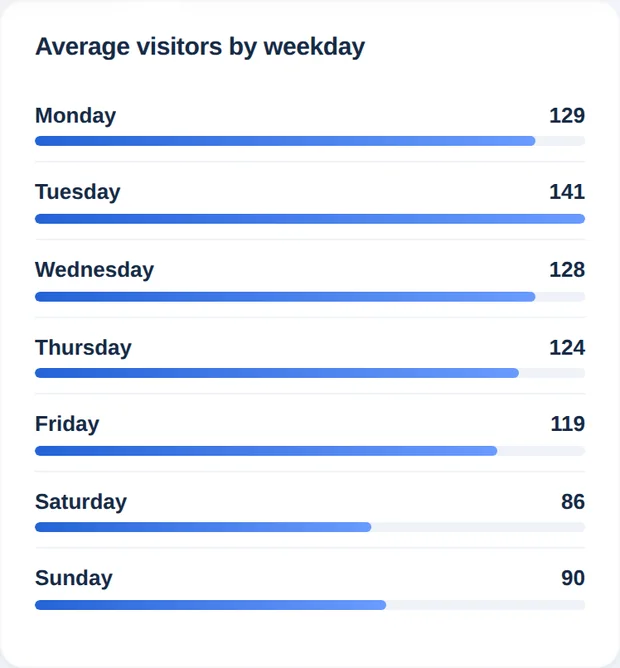
- Average visitors by weekdayThe average number of visitors for each weekday, so you can see your busiest and quietest days.
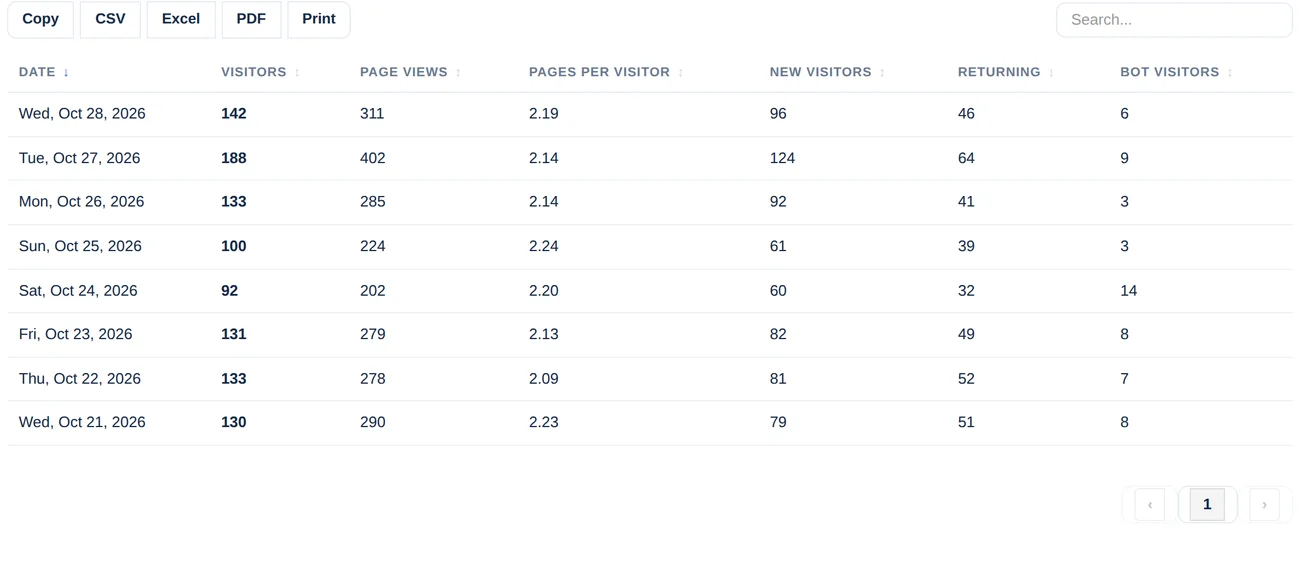
- Search and exportFilter the table with the search box, or use Copy, CSV, Excel, PDF and Print.
- The day-by-day tableOne row per day, newest first, with visitors, page views, pages per visitor, new and returning visitors and bots. Click a heading to sort.
Ten date ranges
Everything on the page follows the range you choose. The default is highlighted.
The chart changes with the range
The same chart adapts to what you select. Switch the tabs to see three situations.
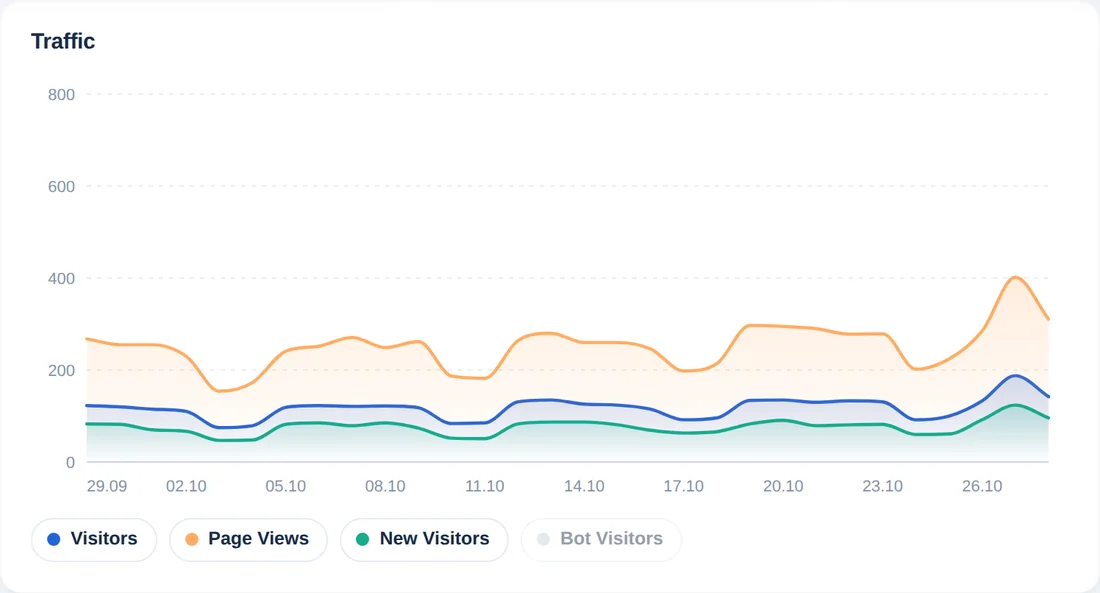
For several days the chart shows one point per day. Visitors, page views and new visitors are visible by default.
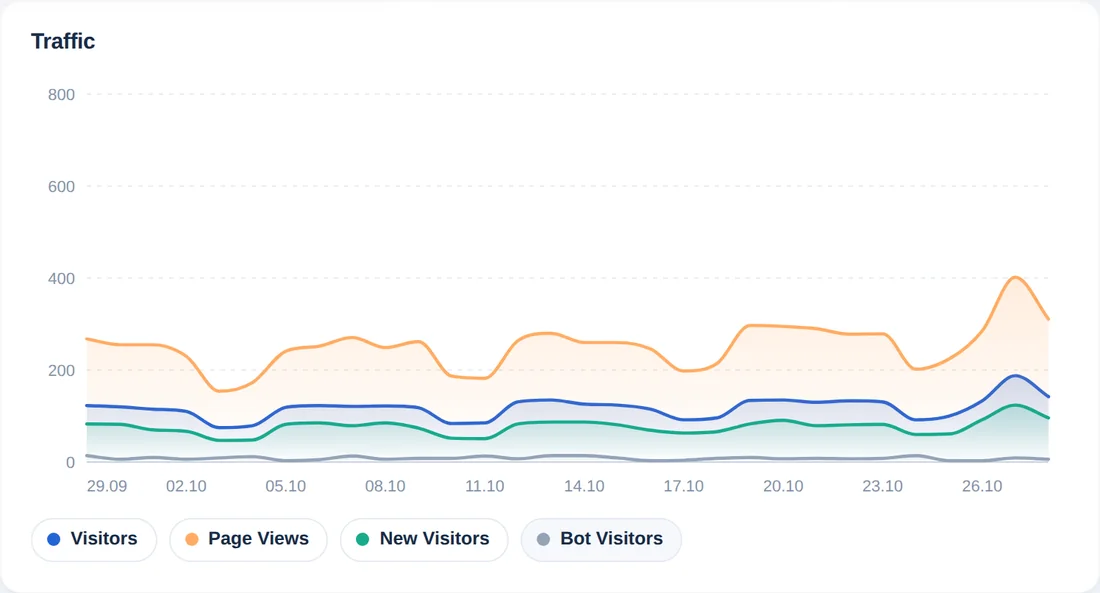
Click Bot Visitors in the legend to add automated visits. They are hidden by default because they are not part of the visitor totals.
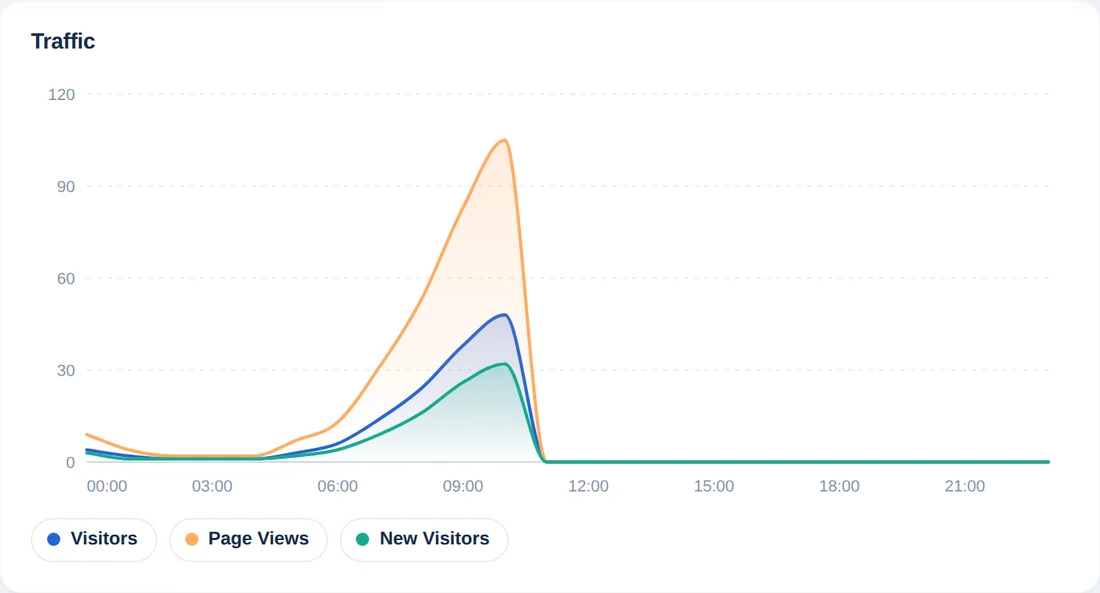
For a single day (Today or Yesterday) the chart switches to hours, so you can see when during the day visitors arrive. The weekday card is hidden because it needs at least seven days.
Daily Traffic at a glance
Zoom in on the details

Reading the numbers correctly
- Visitors are counted once per day. Over a range, the card adds the daily numbers, so someone who visits on three days counts three times.
- The change compares the whole range with the previous range of the same length, for example the last 30 days with the 30 days before them.
- Returning is visitors minus new visitors. Browsers are recognised with a cookie, so clearing cookies can make a visitor look new again.
- Bot visitors are automated visits that are counted separately and are not included in the other numbers.
- Today is still in progress, so it is usually lower than a full day. Times follow your counter’s time zone.
Four ways to use it
- Check the trend. Open Last 30 Days and look at the chart and the change arrows to see whether traffic is growing.
- Plan around your busiest days. Use the weekday card to choose the best days to publish or to send a newsletter.
- Measure a campaign. Pick the days around a campaign and compare visitors and new visitors with the days before it.
- Take the numbers with you. Export the table to CSV or Excel for a report.
Daily Traffic on your phone
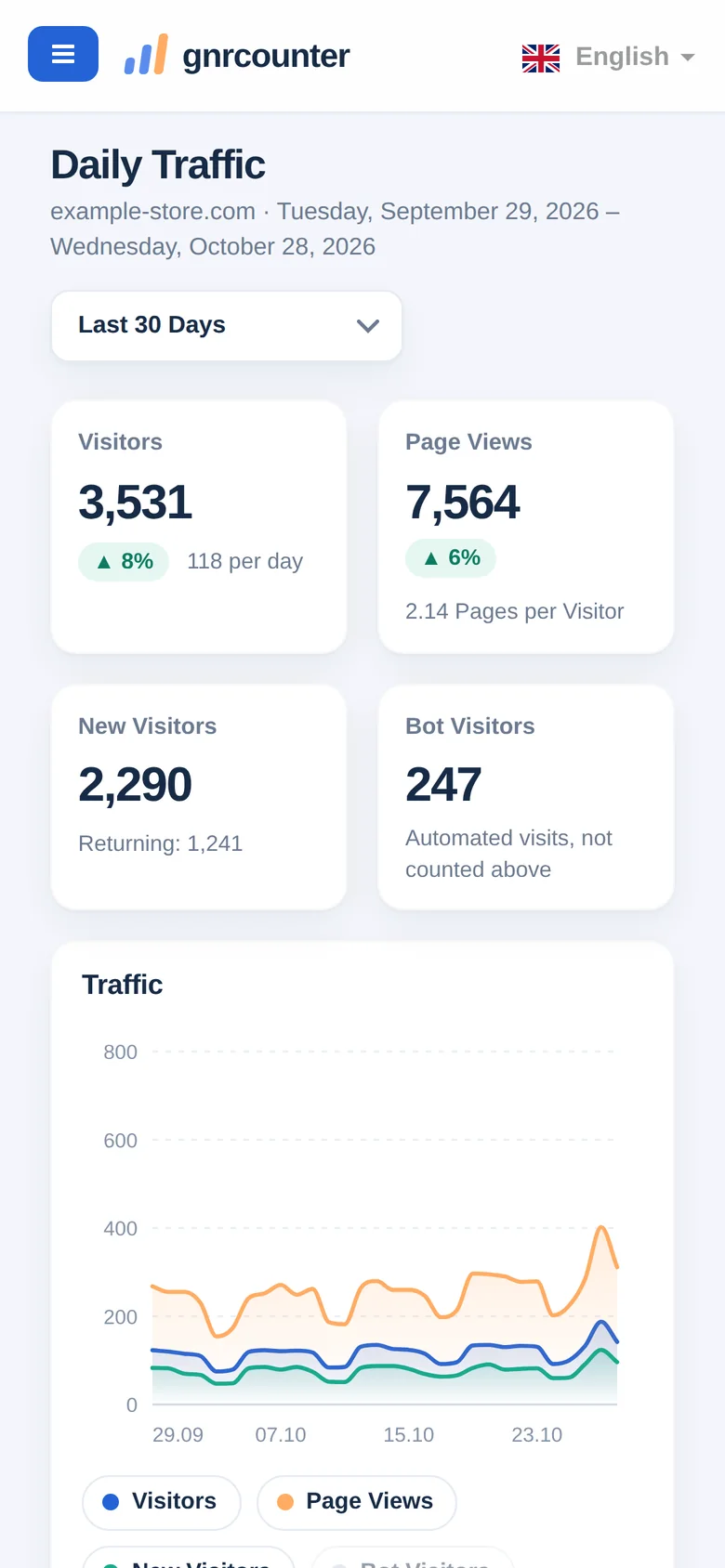
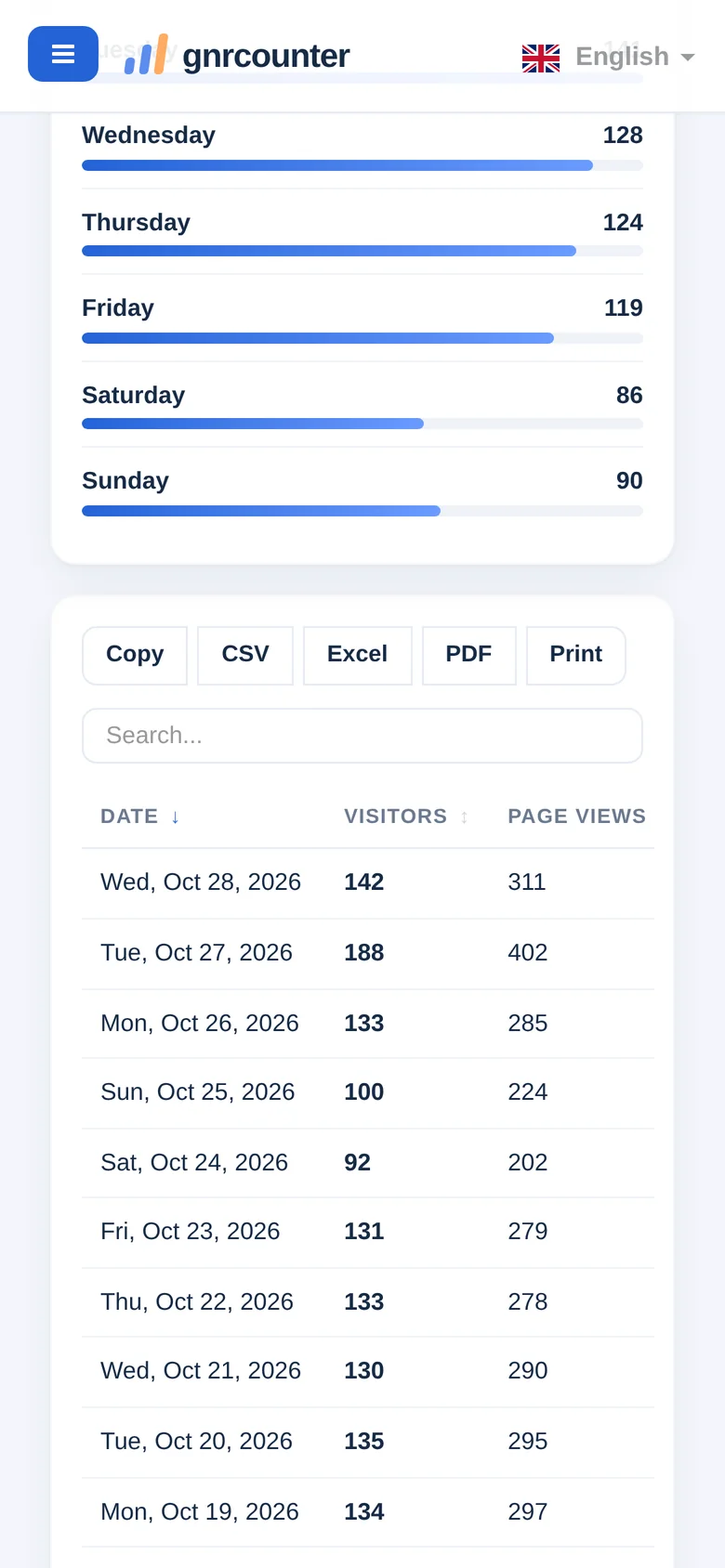
On a small screen the summary cards come first, followed by the chart, the weekday card and the table. Swipe the table sideways to see every column.
Tip: tap the legend items under the chart to hide lines you do not need.
Common questions
Why is Today lower than other days?
Today is still in progress, so it only includes the hours so far. Compare it with Yesterday after the day has ended.
Why does the weekday card disappear?
It needs at least seven days of data. For Today, Yesterday or very short ranges it is hidden.
Why are the bot numbers not added to visitors?
Bots are automated visits. They are shown separately so that your visitor numbers describe real people.
Why do my totals differ from other tools?
Tools use different rules for cookies, bots and time zones. Compare periods inside one tool.