















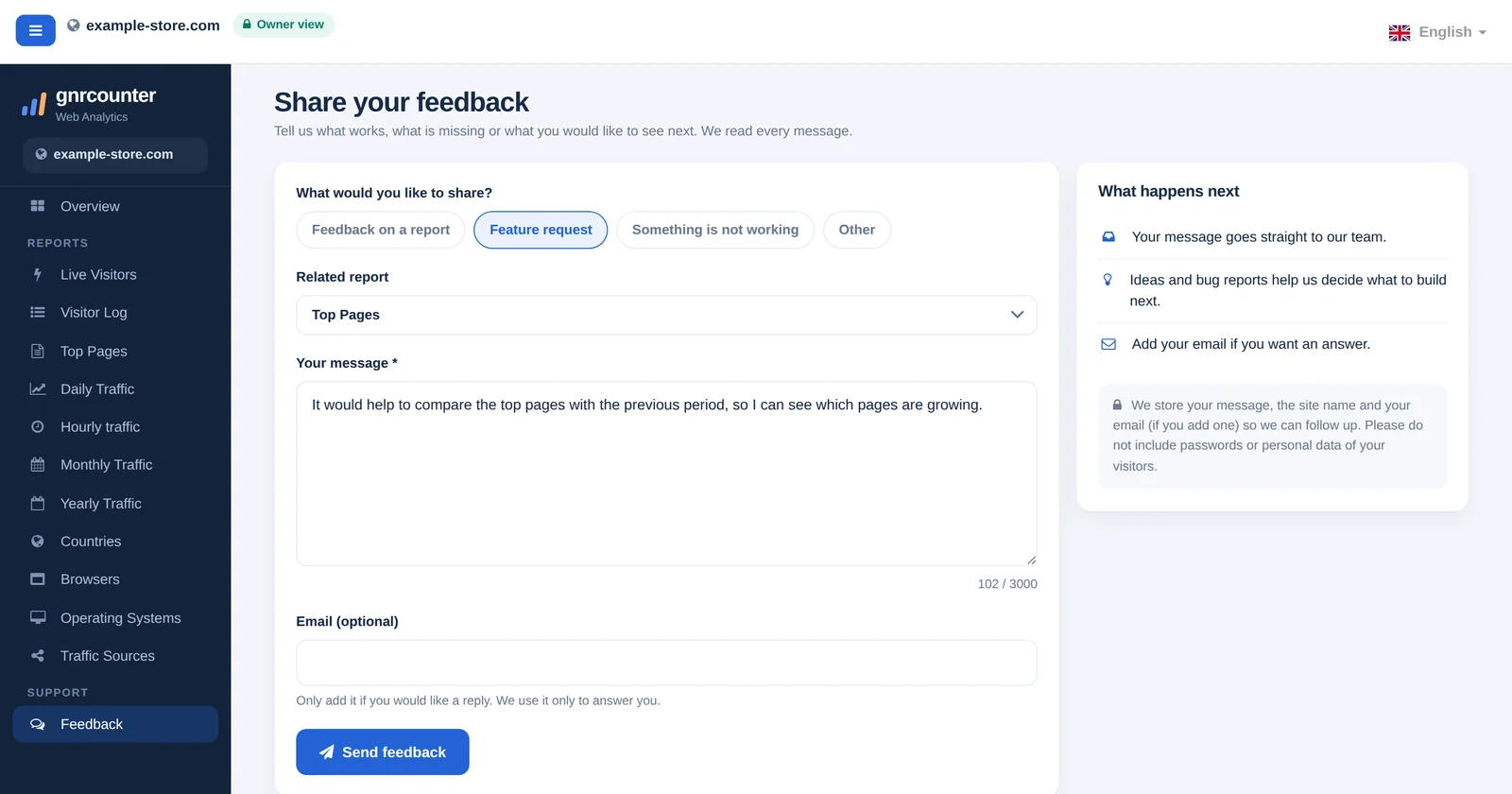
The Feedback page is the quickest way to tell us what works, what is missing and what you would like to see next. Pick a type, choose the report your message is about, write a few sentences and send it. Every message goes straight to the team.
LIVE DASHBOARDSample data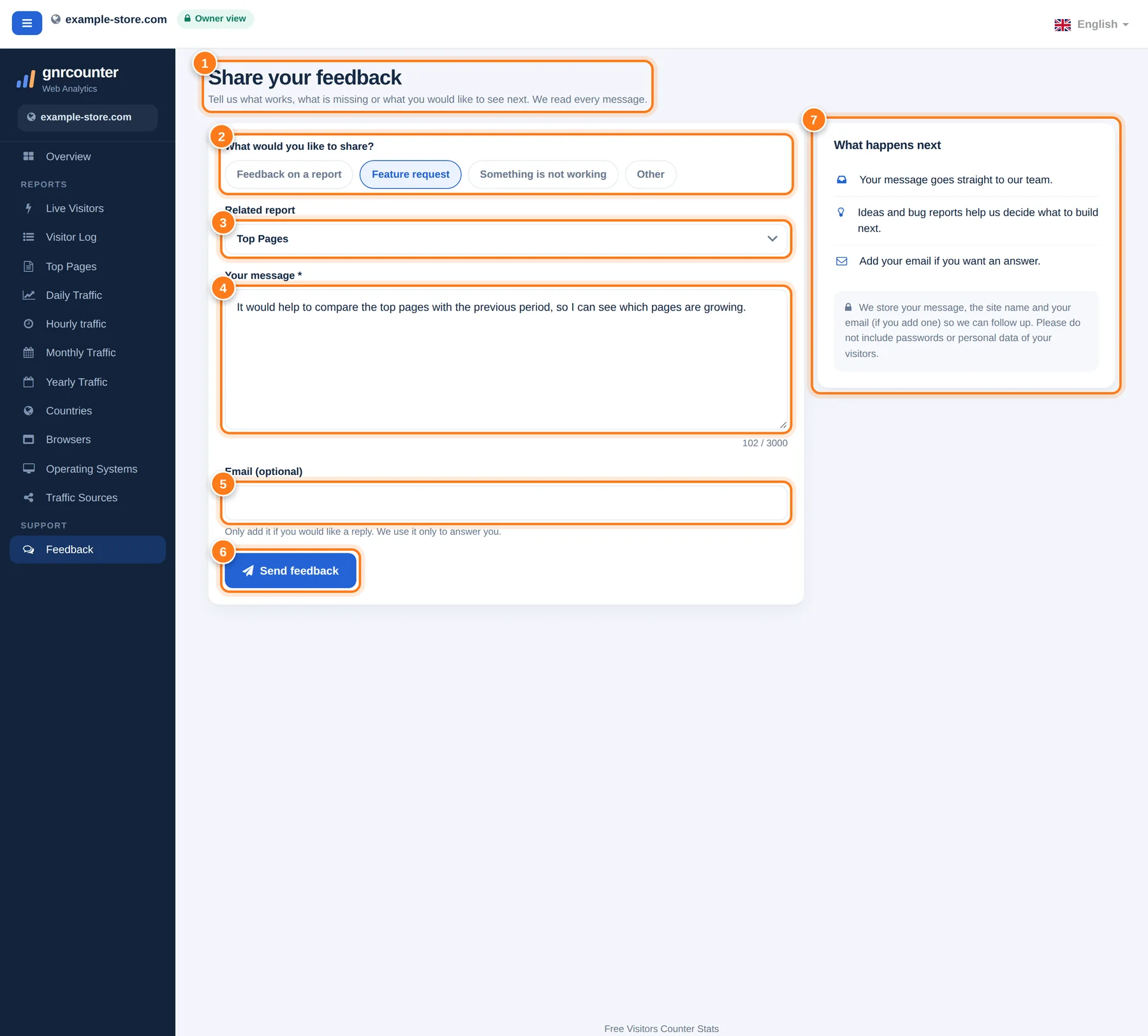
The Feedback page with its areas numbered. The message in the picture is only an example.
A tour step by step
The numbers below match the markers in the picture.
- Title and introductionThe page invites you to share what works, what is missing and what you would like next.
- Message typeFeedback on a report, Feature request, Something is not working, or Other.
- Related reportChoose General / whole dashboard or one of the reports. The Send feedback link in a report’s footer opens this page with that report already selected.
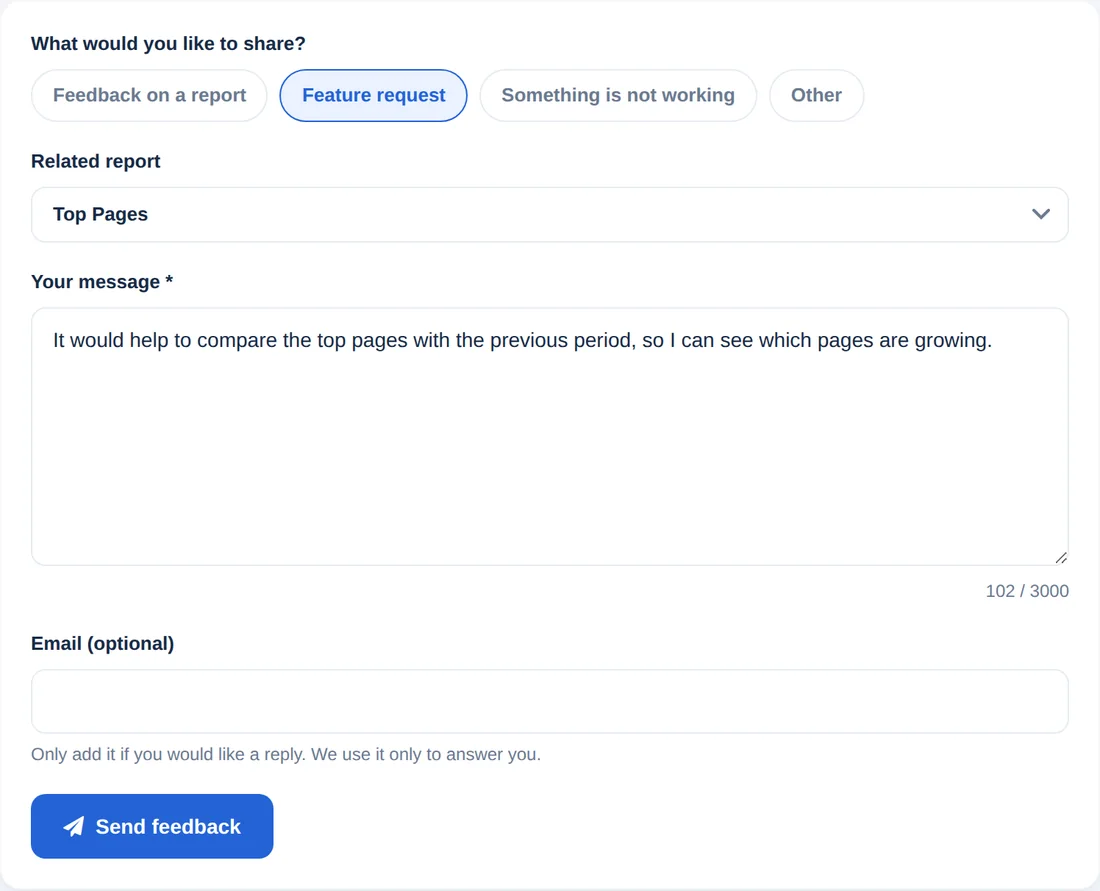
- Your messageDescribe your idea or the problem and what you expected to see. Write at least 10 and at most 3,000 characters; a counter shows how many you used.
- Email (optional)Add it only if you want a reply. It is used only to answer you.
- Send feedbackSends your message. The button shows Sending... while it works.
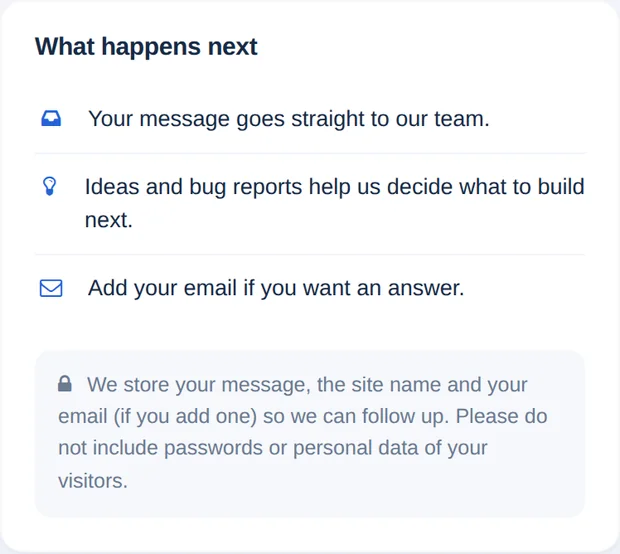
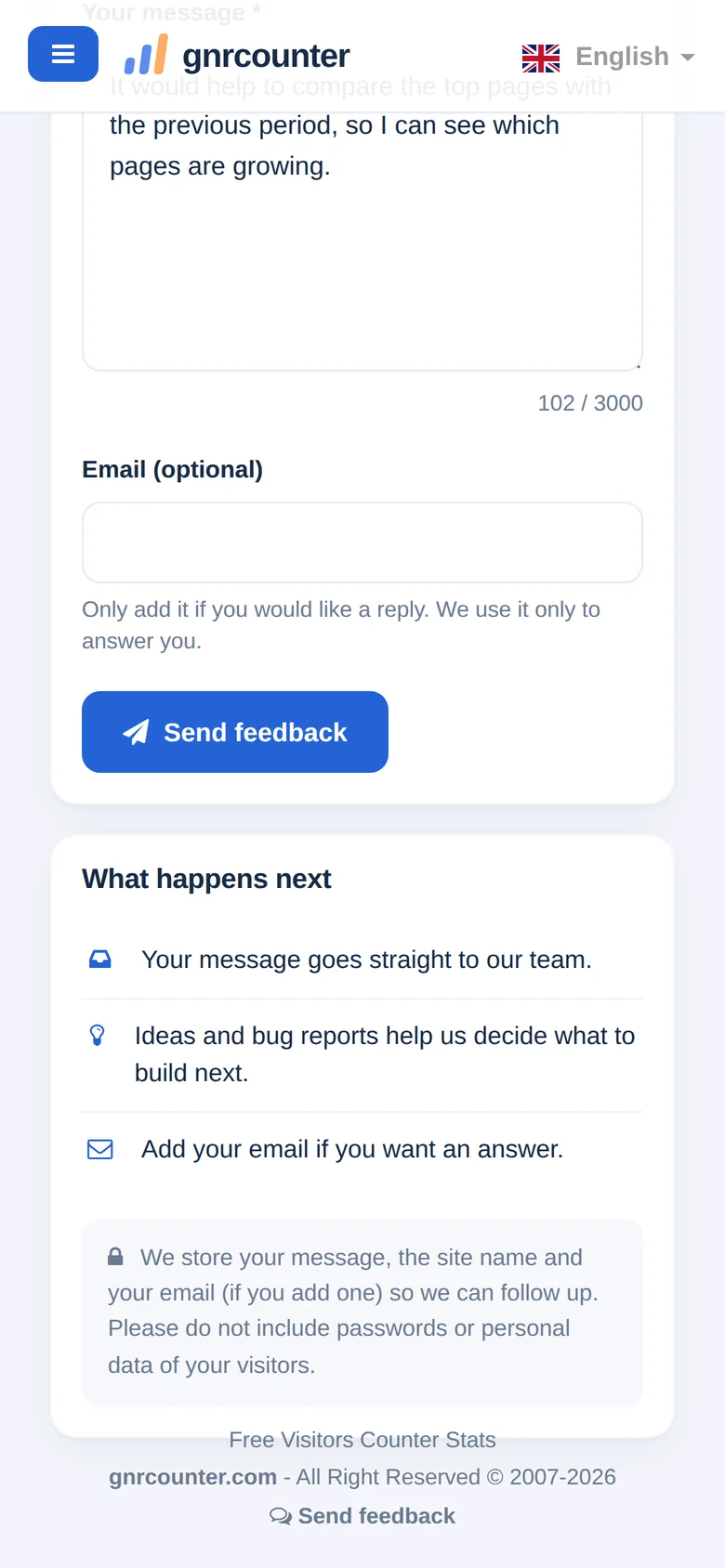
- What happens nextExplains that your message goes to the team and that ideas and bug reports help decide what to build. A privacy note asks you not to include passwords or visitor data.
Feedback at a glance
4Message typesReport, feature, bug or other.
13Report choicesGeneral plus every report.
10Minimum charactersThe message needs at least 10.
3,000Maximum charactersLonger messages are refused.
Zoom in on the details
Reading the numbers correctly
- The message needs at least 10 characters and at most 3,000.
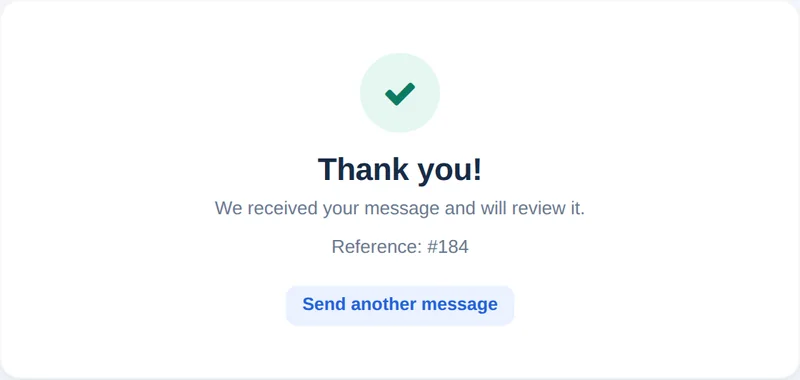
- After sending you get a reference number, shown as Reference: #number. Keep it if you write to us about the same topic.
- If something goes wrong you see a message: your session expired, the message is too short or too long, the email is not valid, you need to wait a moment before sending another message, or too many messages were sent recently.
- We store your message, the site name and your email, if you add one, so that we can follow up.
Please do not include passwords or personal data of your visitors in a message.
Ways to use it
- Report a bug. Choose Something is not working and describe what you expected to see.
- Ask for a feature. Choose Feature request and say what you want to be able to do.
- Comment on a report. Use the Send feedback link in its footer so the right report is selected.
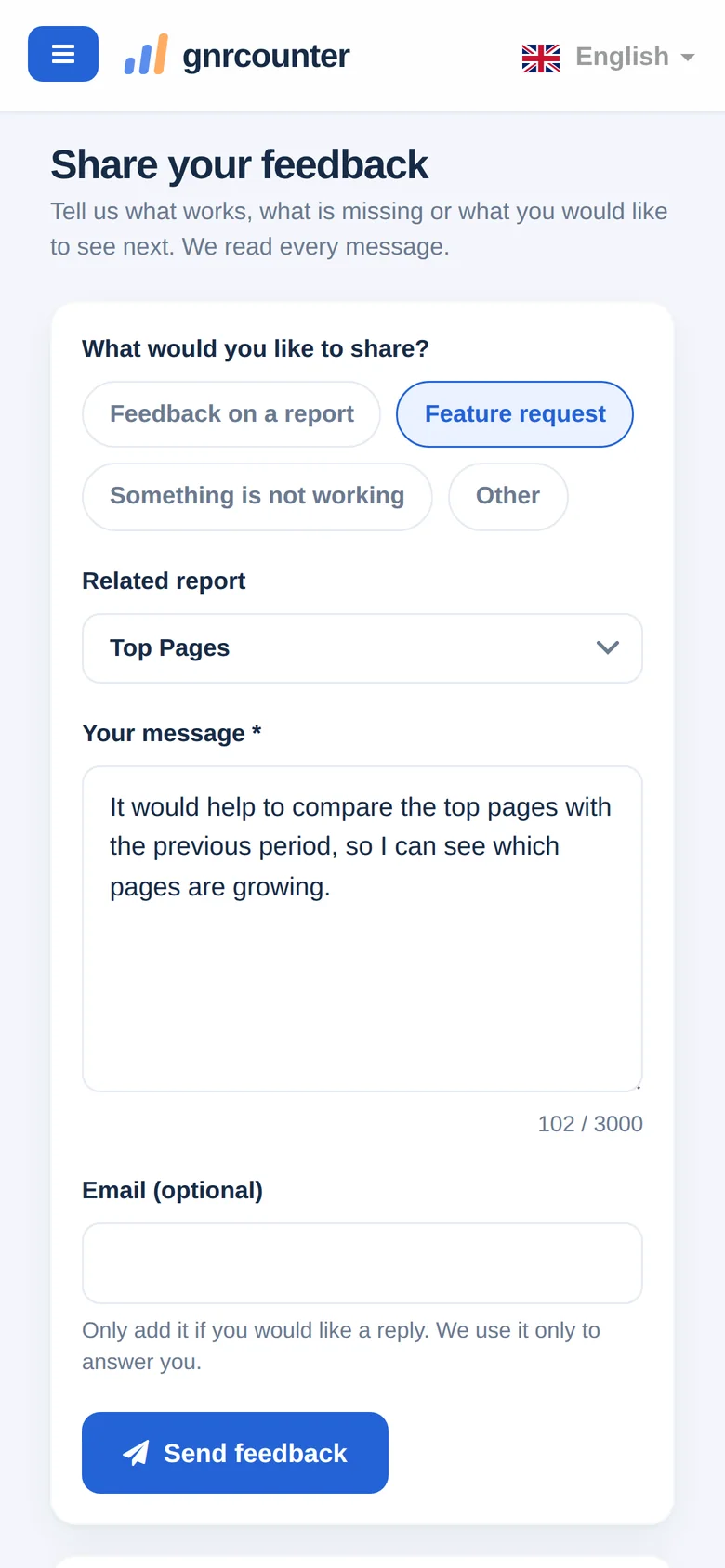
Feedback on your phone
On a small screen the form comes first, followed by the What happens next card.
Common questions
Do I have to add an email?
No. Add it only if you want a reply.
Why can I not send another message right away?
To prevent misuse you need to wait a moment between messages, and too many messages in a short time are refused.
What happens after I send it?
You see a thank-you message with a reference number and can send another message.