
Every report in GNRCounter shares the same frame: a menu on the left, a bar at the top and a footer. This guide explains what each part does, what the Owner view and the Public view are, and how to change the language.
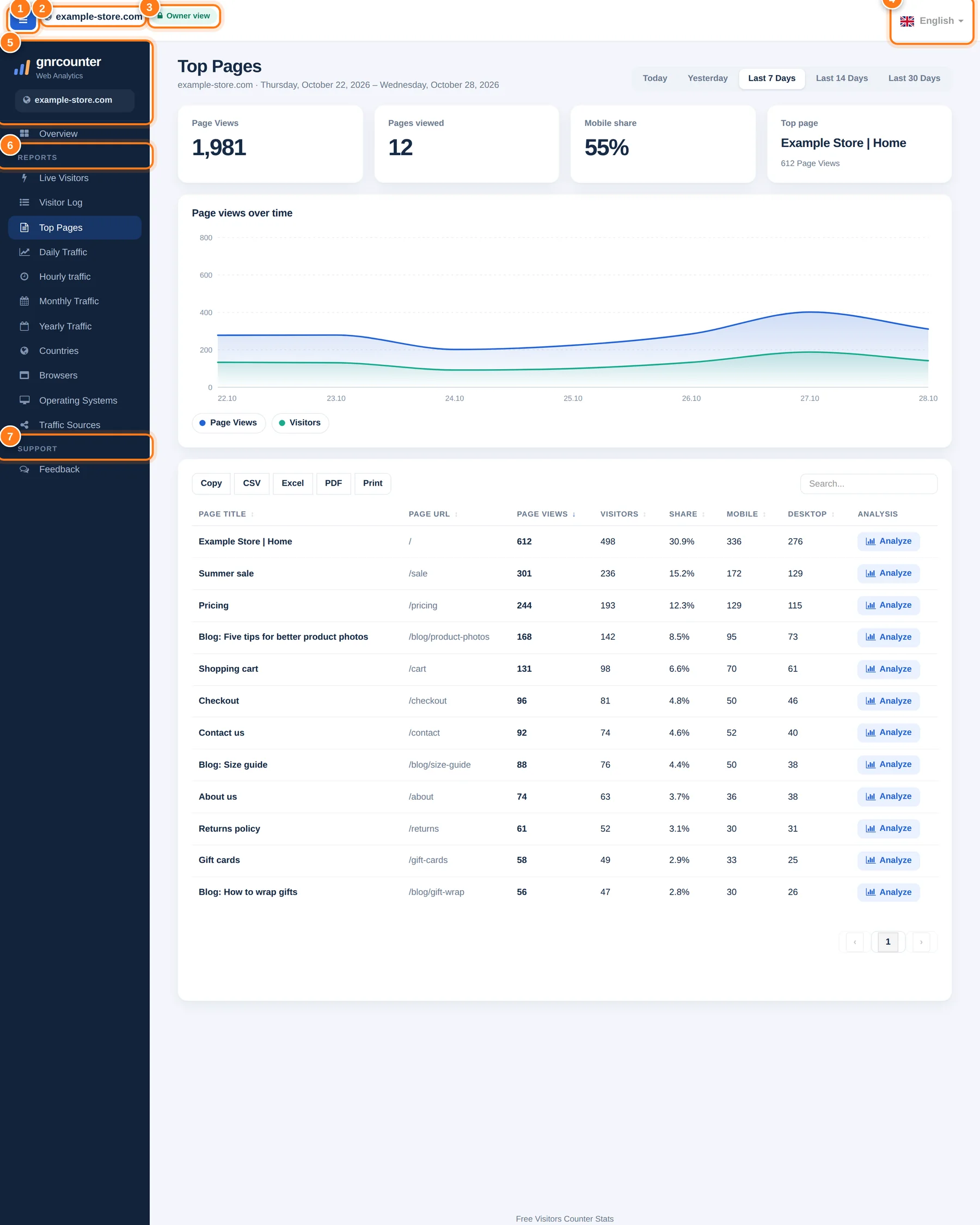
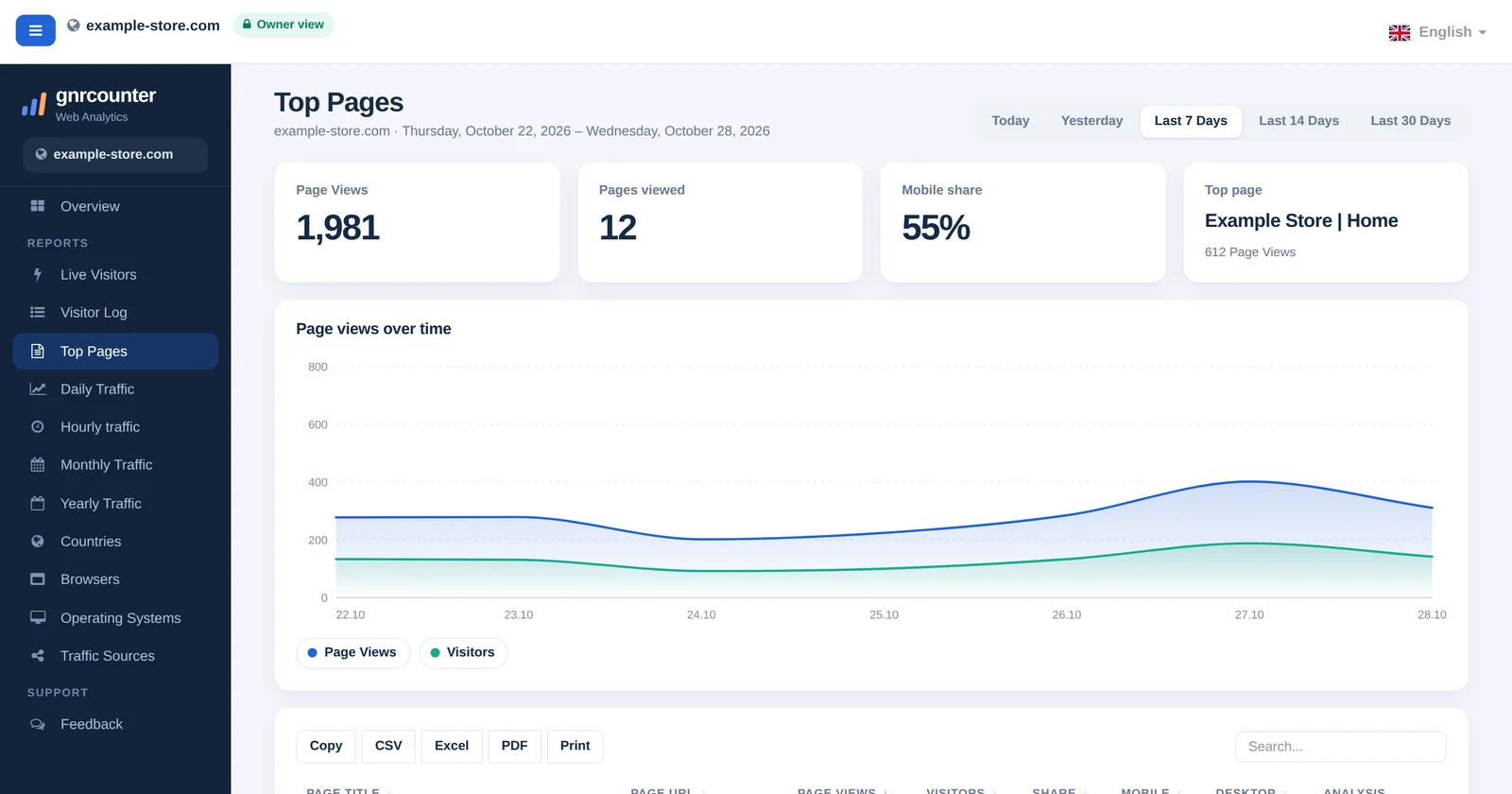
The dashboard frame with its areas numbered. All figures in this guide are sample data from a fictional website.
A tour step by step
The numbers below match the markers in the picture.
- Menu buttonCollapses or opens the side menu. On a phone it opens the menu.
- Site nameThe website whose numbers you are viewing.
- View badgeOwner view (lock) means you are signed in as the owner. Public view means a shared view, where IP addresses and referrers are hidden.
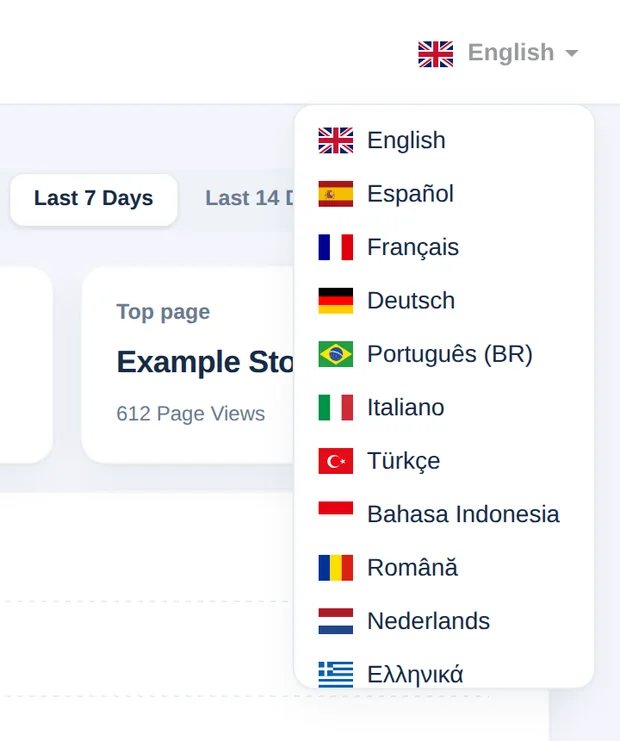
- Language selectorPick one of 16 languages. The page you are on and its settings stay the same.
- Sidebar headerThe gnrcounter logo, Web Analytics and the site name.
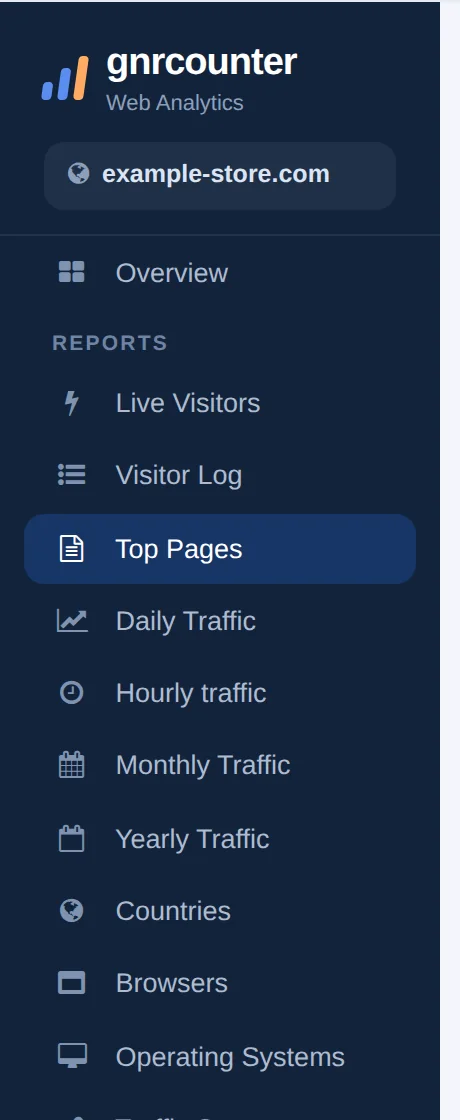
- Reports menuOverview first, then the Reports group: Live Visitors, Visitor Log, Top Pages, Daily Traffic, Hourly traffic, Monthly Traffic, Yearly Traffic, Countries, Browsers, Operating Systems and Traffic Sources.
- Support menuOpens the Feedback page. A Send feedback link in the footer of every report does the same.
Owner view and Public view
The badge in the top bar tells you which view you are in. Switch the tabs to compare them.

The Owner view shows everything for your site, including the details of visitors.

The Public view is the shared version. IP addresses and referrers are hidden, which the badge tells you when you point at it.
The dashboard at a glance
Zoom in on the details

Reading the numbers correctly
- In the Owner view you see all details. In the Public view IP addresses and referrers are hidden.
- Changing the language reloads the page in the new language. Filters such as the date range or an opened visit stay as they are.
- The menu highlights the report you are in, so you always know where you are.
- The menu button collapses the menu to give the report more room on a wide screen.
Ways to use it
- Work in your language. Switch the language without losing your place.
- Find reports quickly. Use the grouped menu instead of searching.
- Send feedback from anywhere. Use the footer link of any report.
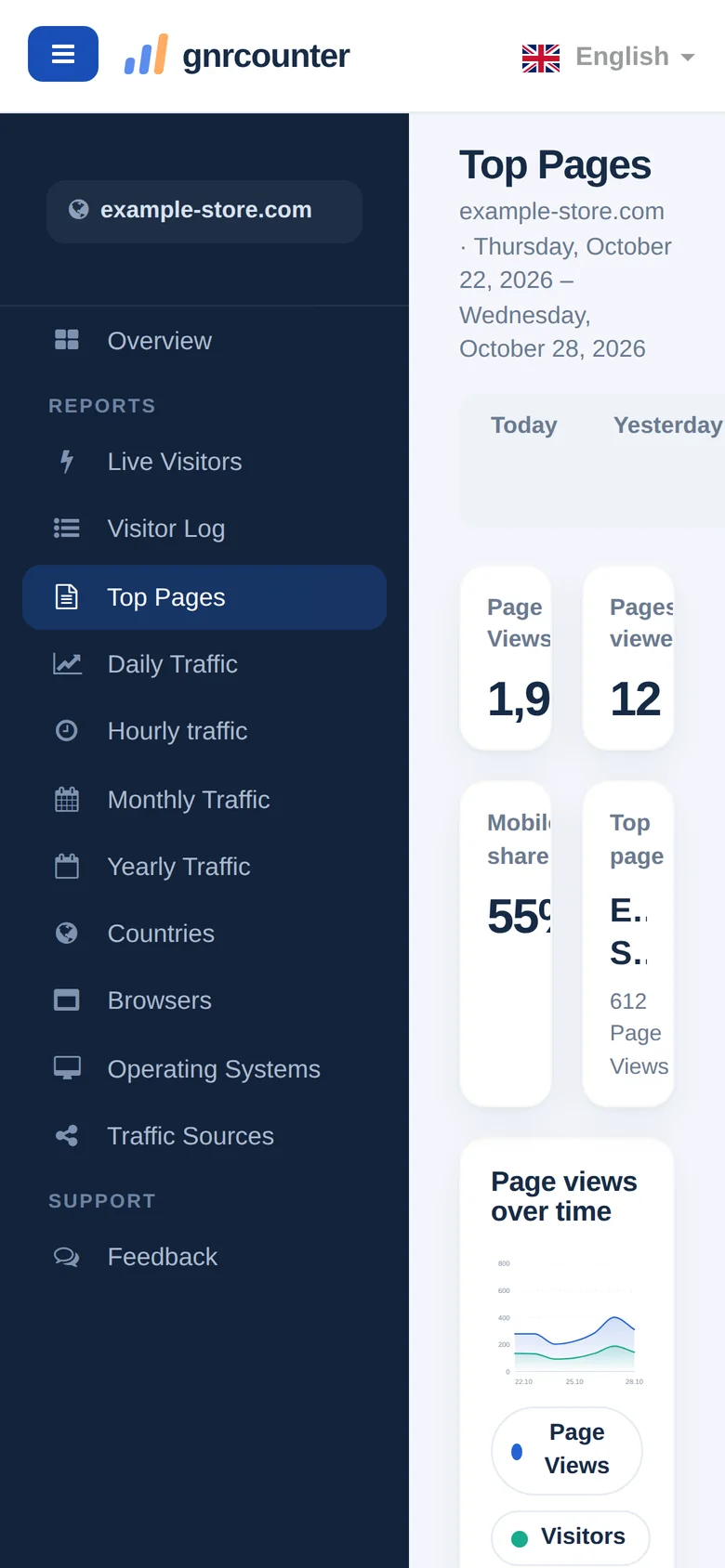
The dashboard on your phone
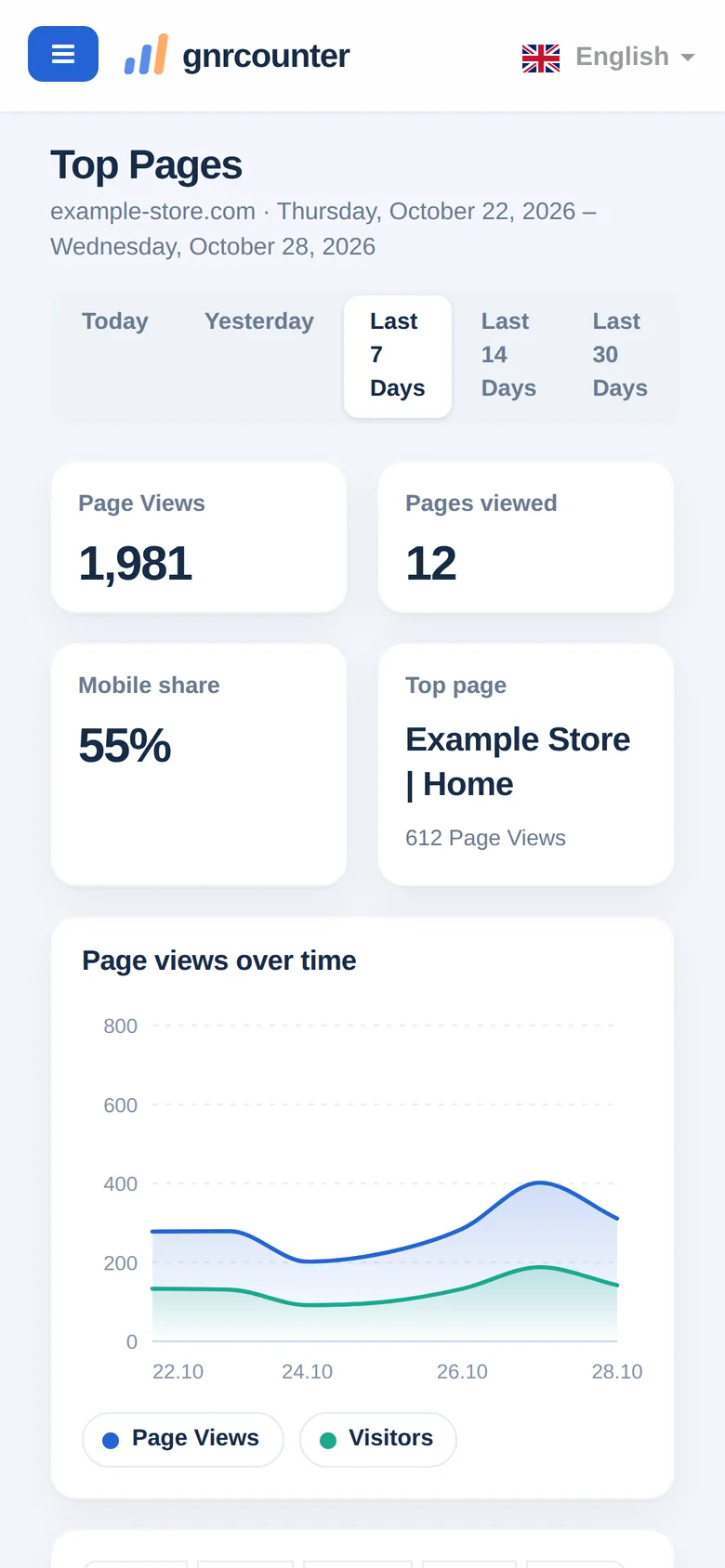
On a small screen the menu is hidden. Tap the menu button to open it and tap again to close it.
Common questions
What does the lock in the badge mean?
It means you are in the Owner view, signed in as the owner of the site.
Why do some details disappear in the Public view?
The Public view hides IP addresses and referrers to protect visitors.
How do I change the language?
Open the language selector in the top bar and choose a language.