















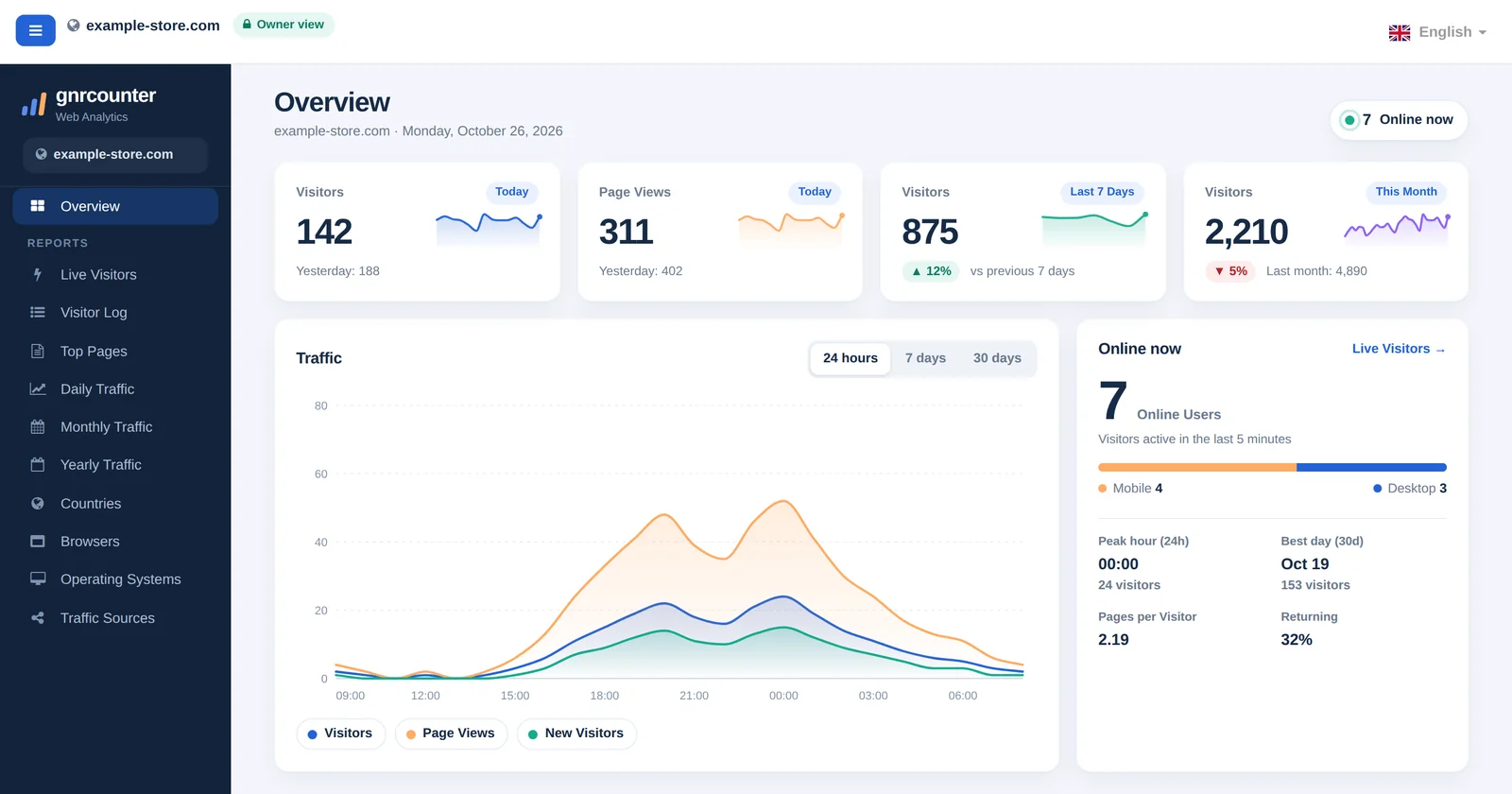
The Overview is the first page you see after opening your GNRCounter dashboard. In one screen it answers four everyday questions: how many people visited today, whether traffic is rising or falling, who is on your site right now, and where your visitors come from. Think of it as a quick daily check, and open the detailed reports only when something catches your eye.
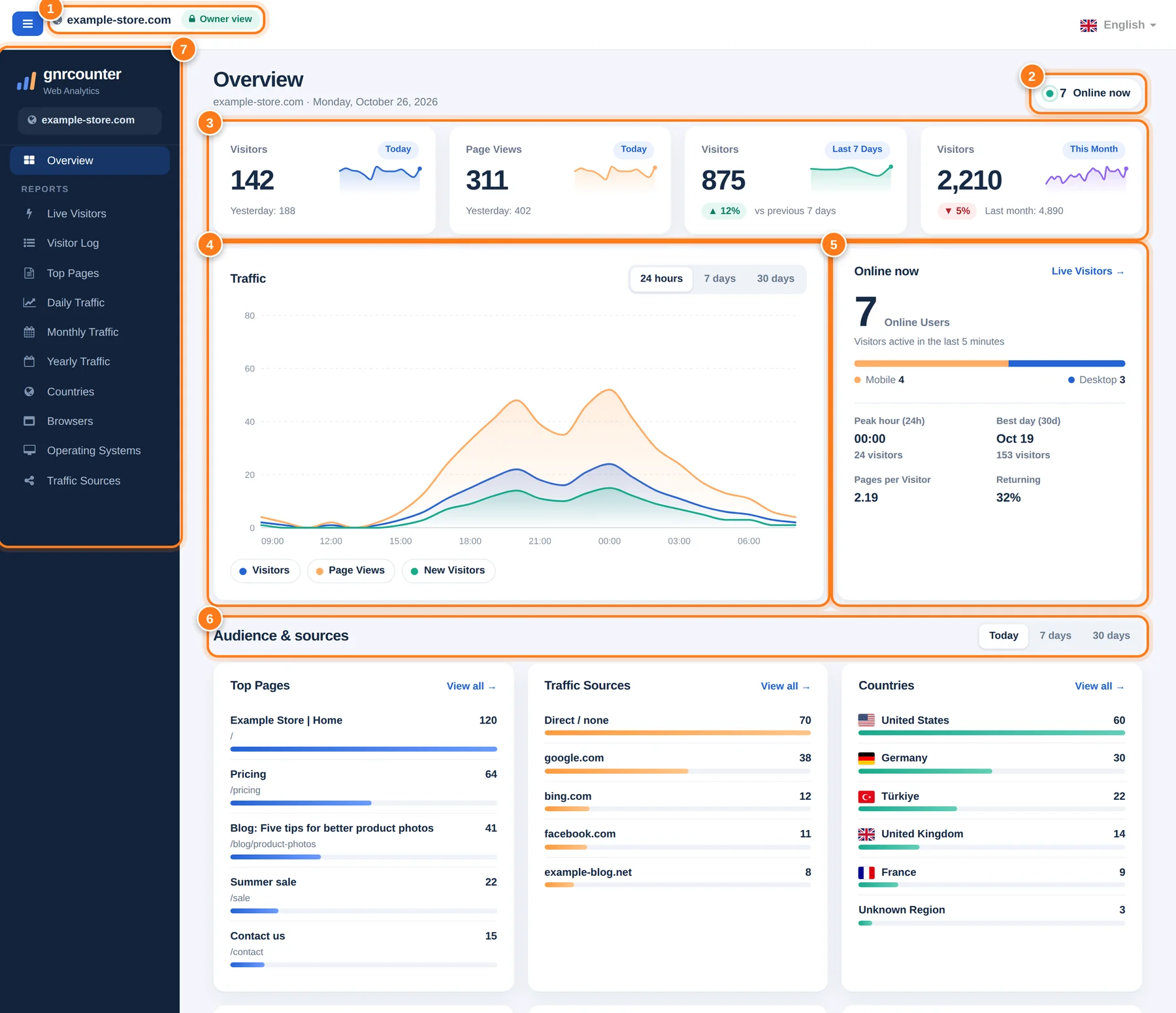
The Overview with its seven areas numbered. All figures in this guide are sample data from a fictional website.
A tour in seven steps
The numbers below match the markers in the picture.
- Site and view badgeShows which site you are looking at and which view you are in. The Owner view opens with your secret code; the Public view opens from a shared link and limits what is shown.
- Online nowA live pill that counts visitors who were active in the last five minutes. It turns grey when nobody is on the site.
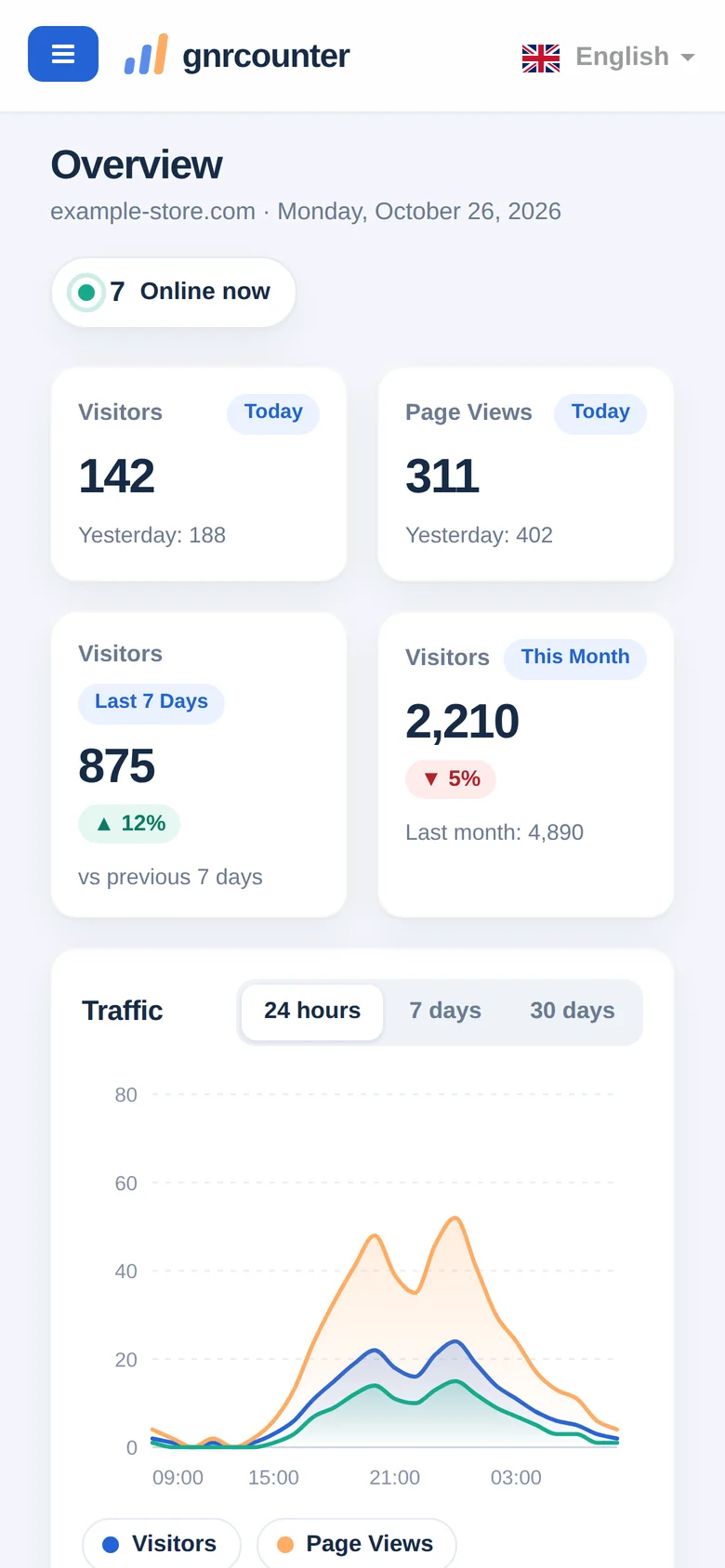
- Four summary cardsVisitors and page views today (with yesterday for comparison), visitors in the last 7 days with the change against the previous 7 days, and visitors this month with the change against the same stretch of last month.
- Traffic chartVisitors, page views and new visitors over time. Switch between 24 hours, 7 days and 30 days, hover to read exact values, and click a legend item to hide or show a line.
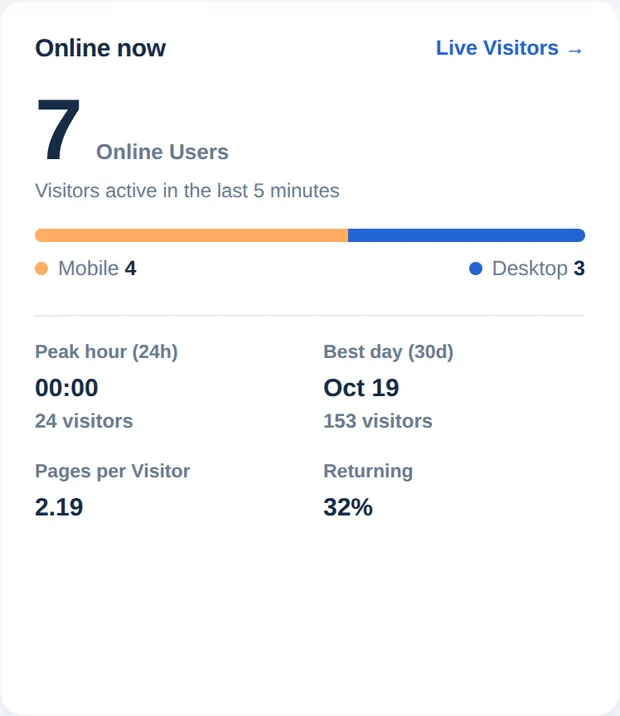
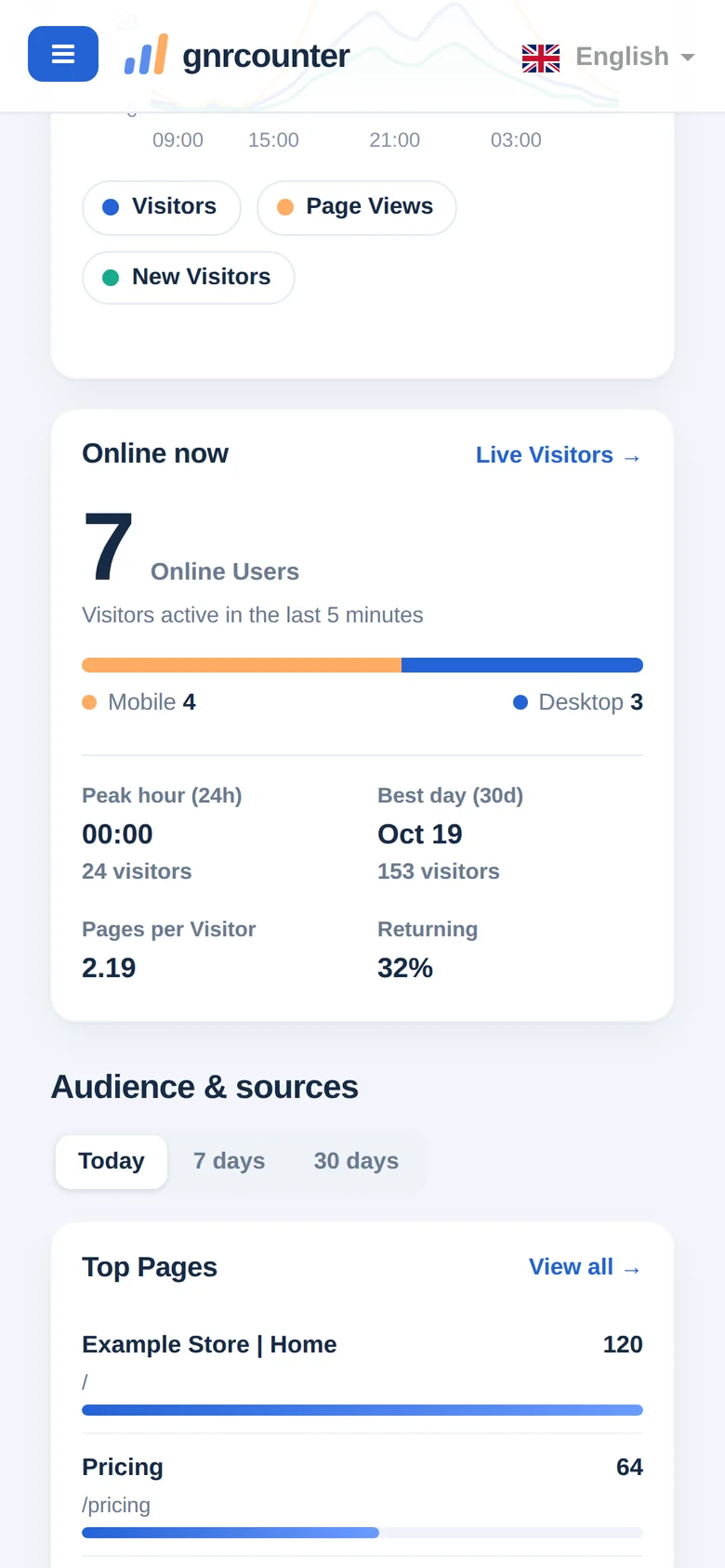
- Online now cardThe live count with a mobile and desktop split, plus the busiest hour of the last 24 hours, the best day of the last 30 days, pages per visitor and the returning share.
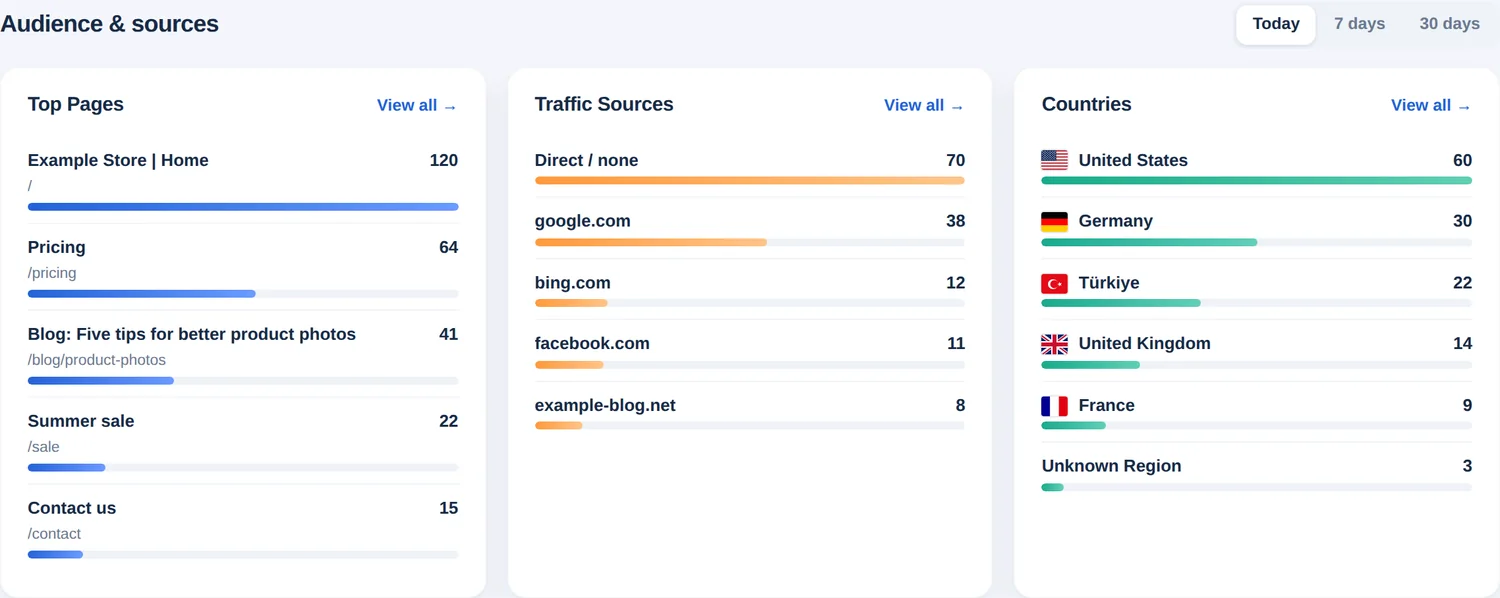
- Audience & sourcesTop pages, traffic sources, countries, device types, operating systems and browsers. Choose Today, 7 days or 30 days to refresh every card at once.
- Reports menuThe left menu leads to the detailed reports: live visitors, visitor log, top pages, daily, monthly and yearly traffic, countries, browsers, operating systems and traffic sources.
Switch the time range to answer different questions
The same chart answers three different questions depending on the range you pick.
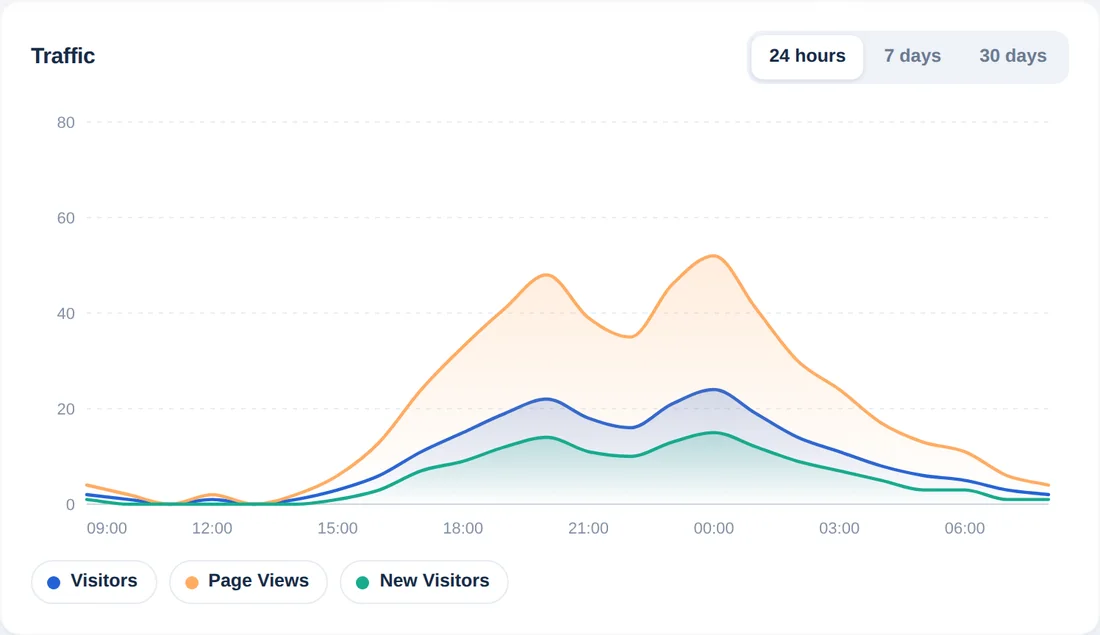
24 hours shows traffic hour by hour. Use it to find your busy and quiet hours and to see whether a newsletter or social post caused a spike.
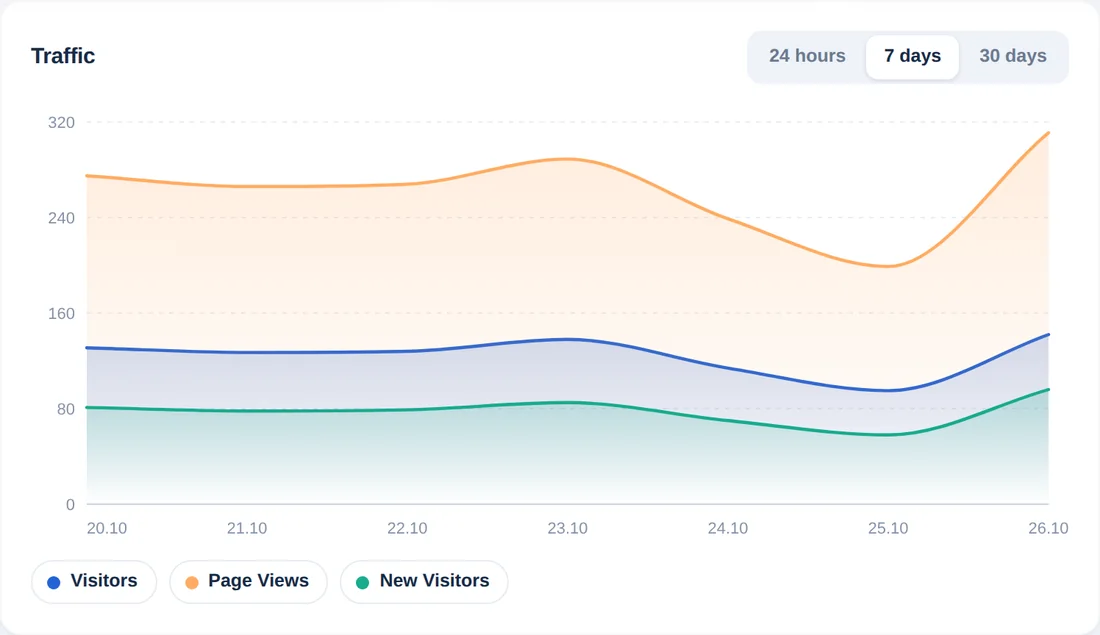
7 days shows one point per day. It is the best range for comparing weekdays with weekends and for checking last week against the week before.
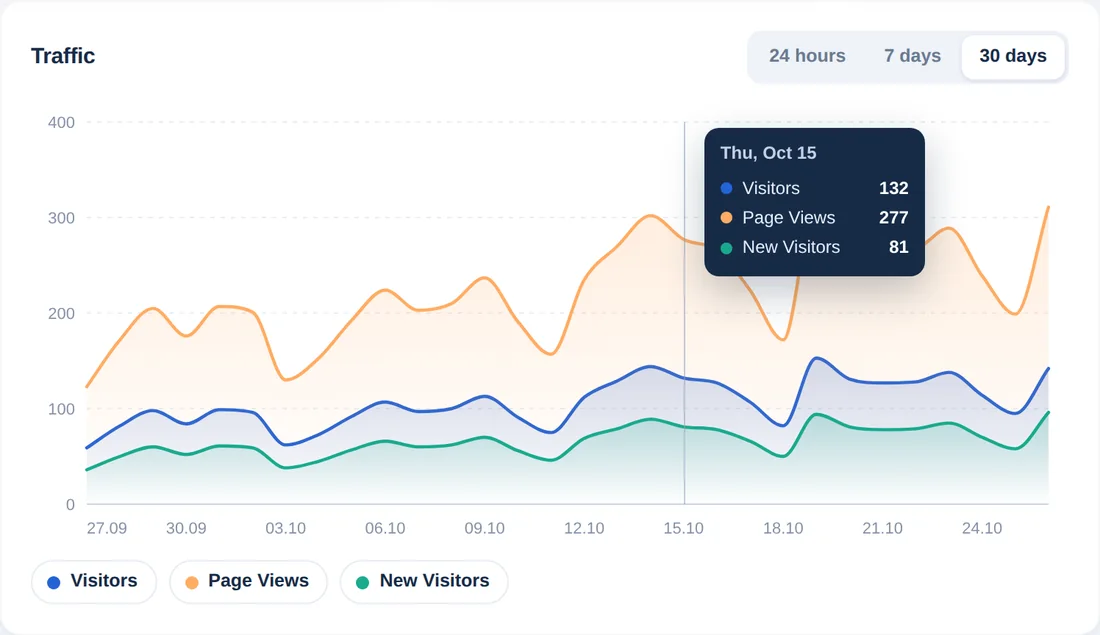
30 days shows the trend. Hover over any day to see visitors, page views and new visitors in a tooltip.
Zoom in on the details


Reading the numbers correctly
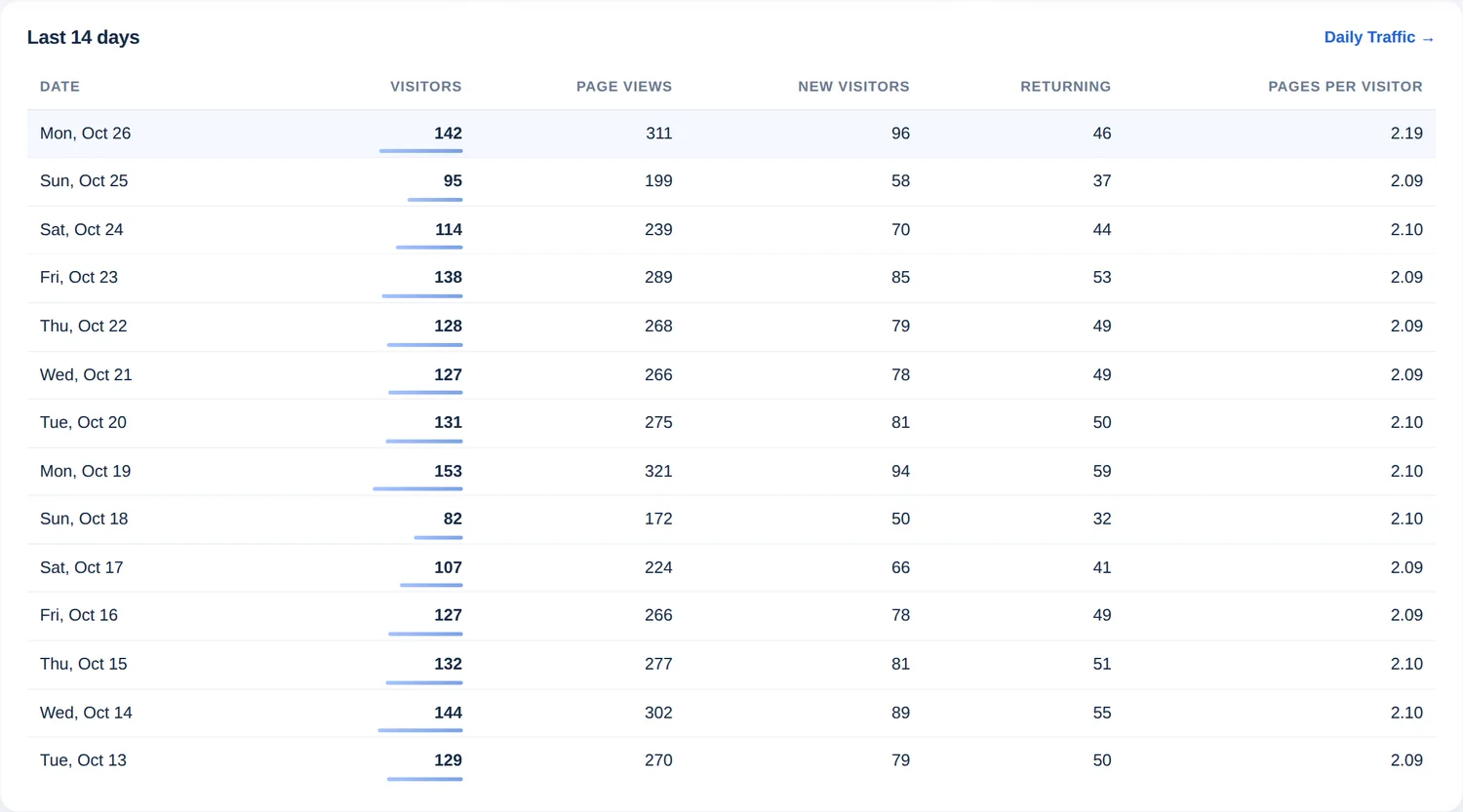
- Visitors are counted once per day. Someone who comes back on three different days counts three times in the 7-day and monthly totals.
- Page views count every page that is loaded, so they are always equal to or higher than visitors.
- New visitors are browsers seen for the first time; returning is visitors minus new visitors. Because browsers are recognised with a cookie, someone who clears or blocks cookies can appear as new again.
- Pages per visitor is page views divided by visitors.
- Times follow the time zone chosen for your counter, and known search engine and other bots are not counted.
The Overview on your phone
The Overview adapts to small screens: the summary cards sit two by two, the chart and cards stack in a single column, and the menu moves behind the button in the top-left corner. Checking your stats from a phone needs no separate app, just the same dashboard link.
Tip: add the dashboard link to your phone’s home screen for one-tap access.
A 60-second daily routine
- Look at Online now and the Today cards: are visitors and page views in line with yesterday?
- Check the 7-day arrow: is the week up or down compared with the one before?
- Open the 30-day chart and look at the trend, not a single day.
- Scan Traffic Sources for a new website that sends visitors, and Top Pages for pages that suddenly grow.
- If something looks unusual, open the matching detailed report from the left menu.
Common questions
Why is today lower than yesterday in the morning?
Today is still in progress. Compare after the day has ended, or compare the same hours of both days in the 24-hour chart.
Why does the 24-hour chart not add up to the Today card?
The chart covers the last 24 hours, which can include part of yesterday, while the cards cover the calendar day of your counter’s time zone.
Can I show this page to someone else?
Yes. Share the public view link; it limits what is shown. Keep your secret code private, because it opens the owner view.
Why do my numbers differ from another analytics tool?
Tools count visitors with different rules for cookies, bots, time zones and sessions. Use one tool consistently and compare periods with each other.