















A free website visitor counter gives you a practical way to see recorded activity on your pages. This guide takes you through GNRCounter’s current guest setup: enter your website details, choose text or hidden tracking, copy the generated code and check the reports. No membership account is required. Installation needs a website area that permits the supplied JavaScript; an editor that accepts ordinary HTML may still remove scripts.
Before you start
Make sure you can edit your website’s HTML or a shared template. Keep your domain handy and decide which pages you want to measure. A counter installed only on the homepage does not automatically measure the rest of the site. If someone else maintains your website, send them the generated installation code, not your private management link.
1. Enter your website details
Open Create your free counter and enter your domain, for example example.com. If the form already displays https:// beside the input, enter the domain without repeating it. Use the site address, not an individual article path. Select your website’s country and a reporting timezone from the available options. The timezone sets daily reporting boundaries; it does not change where your visitors are located.
2. Set the language and starting count
Choose the language for your counter labels. This setting is separate from the language used to read this guide. Leave the starting count at zero for a fresh display. If you are continuing a previous visible total, you can enter an appropriate starting value, but this does not import old visits, create historical reports or prove how many unique people previously visited.
3. Choose text or hidden tracking
A text counter displays selected statistics where its code is placed. Choose the available metrics and check the preview; you do not have to show every number. Pick background and text colours with enough contrast to read comfortably. Hidden tracking keeps the counter display off the page while still recording supported activity. Its colours do not create a visible display. Both choices need the tracking code, and hidden does not mean anonymous or automatically exempt from consent.
4. Create the counter and save your links
Submit the form using the create button. After successful registration, copy your website’s generated code. Save the private management link before leaving the result page: it includes a secure code that provides management access. Keep that link out of screenshots, public pages and messages to visitors. The public statistics link is different; sharing it makes available the reports accessible through that link. Guest setup does not create a membership login.
5. Add the generated code to your pages
For a text counter, a shared footer is often a practical position, provided the code sits inside the page body where the display belongs. Use a reusable template if you want it on several pages. Paste the code into a source or custom-code area that actually permits JavaScript, not a visual text editor that prints the tags as text. Website builders can restrict scripts by plan or location, so there is no universal installation box for every platform.
The example below shows the shape of the embed code. Do not install the placeholder ID: copy the complete code generated for your website. Keep its structure and do not add async or defer unless GNRCounter’s supplied version supports that change. The noscript part is a fallback link when JavaScript is unavailable; it does not itself record visits.
<!-- GNRCounter -->
<script src="https://gnrcounter.com/counter.php?accId=YOUR_COUNTER_ID"></script>
<noscript>
    <a href="https://gnrcounter.com" title="Free hit counter">Free hit counter</a>
</noscript>
<!-- End GNRCounter -->
6. Check the display and recorded activity
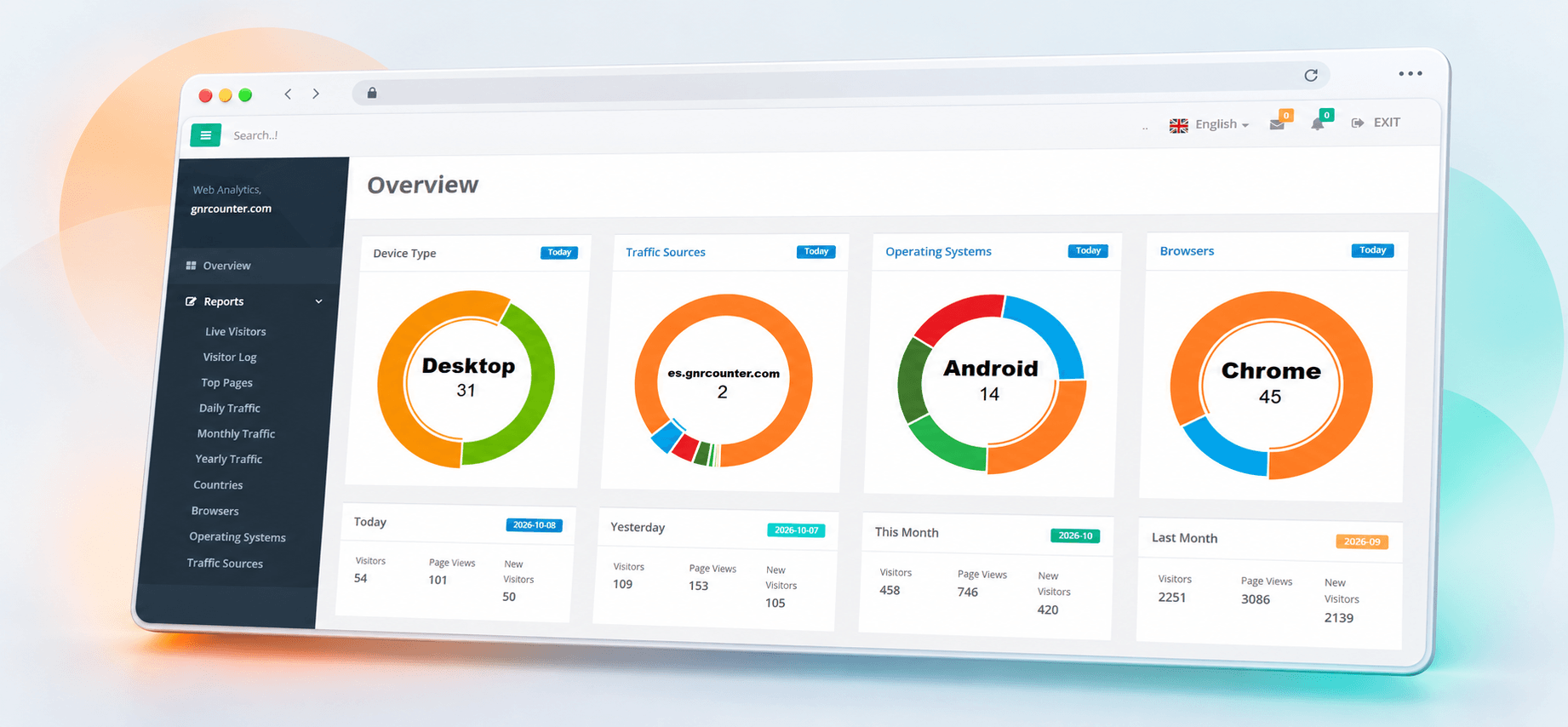
Open a tracked page, then another page that should use the same template. On text mode, check placement and readability on desktop and mobile. On hidden mode, the absence of a visible counter is expected. Open your report link, check the selected date and timezone, and review recorded visitors and page views. The dashboard shown here is an example of a report screen, not a promise that a test visit will produce those exact numbers. Preview figures in the setup form are not evidence that live tracking works.
If you do not see data
Check the domain, whether the page contains the code, whether the editor removed it and whether the consent settings permit it to run. Your own browser may block requests with a privacy extension, so a missing test visit alone does not prove a service failure. Avoid installing the same counter repeatedly on one page, and do not keep refreshing just to inflate totals. If needed, contact us with the public page address and a description; never include your secure management code.
Privacy and your next step
Tell visitors about the analytics you use and obtain any required consent before non-essential tracking starts. Do not send passwords or personal details in page URLs. Review our privacy policy and your website’s own notice. Once installation is working, start with visitors, page views and your most viewed pages. A website hit counter is useful when you understand what the figures measure, rather than treating the visible total as an exact count of people.